Single sign-on (SSO) with SAML or OIDC
Set up single sign-on for your analytics workspace with SAML 2.0 or OpenID Connect: IdP values, email domains, just-in-time provisioning and enforcing SSO.
SSO is available on the Business plan, with SAML 2.0 or OpenID Connect (OIDC). Members sign in through your identity provider (IdP), so you control access centrally. A workspace has one identity provider.
Managing SSO needs the workspace.manage permission. Because SSO gives
new members the default role, you must also hold every permission of that
role yourself.
Values for your identity provider#
Replace ws_… with your workspace id (Workspace settings → General). The
SSO settings page shows the same values filled in.
SAML 2.0#
| Setting | Value |
|---|---|
| ACS (reply / single sign-on) URL | https://privatusanalytics.com/users/auth/saml/callback |
| SP entity ID (audience) | https://privatusanalytics.com/users/auth/saml/metadata?workspace=ws_… |
| Name ID format | emailAddress |
| Name ID value | The user's email address |
| Attributes (optional) | name for the member's name. An email or mail attribute, when sent, is used as the email address instead of the Name ID |
From the IdP, you'll need its SSO URL, entity ID (issuer) and X.509 signing certificate in PEM format. There is no metadata import: paste the three values.
OpenID Connect#
| Setting | Value |
|---|---|
| Redirect (callback) URI | https://privatusanalytics.com/users/auth/openid_connect/callback |
| Scopes | openid email profile |
| Flow | Authorization code with PKCE |
From the IdP, you'll need the issuer URL (we use its discovery document), a client id and a client secret.
Settings#
Everything is on Workspace settings → SSO. The names in brackets are the API fields.
| Setting | What it does |
|---|---|
SAML 2.0 or OpenID Connect (protocol: saml or oidc) |
Which protocol the workspace uses. Only the fields of the chosen protocol apply. |
IdP single sign-on URL (idp_sso_url) |
SAML. Where members are sent to log in. Must be an https URL. Required. |
IdP entity id (issuer) (idp_entity_id) |
SAML. The identity provider's entity ID. |
IdP signing certificate (PEM) (idp_cert) |
SAML. The certificate that SAML responses are checked against. Required. |
Issuer URL (oidc_issuer) |
OIDC. The issuer, an https URL whose discovery document we read. Required. |
Client id (oidc_client_id) |
OIDC. The client id your IdP issued. Required. |
Client secret (oidc_client_secret) |
OIDC. Stored encrypted and never shown again. Leave it empty to keep the saved one. Required. |
Email domains (domains) |
Typing an address with one of these domains on Log in with SSO finds this workspace, and only addresses with these domains can sign in. Leave it empty to accept any address your IdP sends. Members then start the login with the workspace id (ws_…) instead of their email. |
Create members on their first SSO login (jit_provisioning) |
Just-in-time provisioning. On: a person your IdP signs in who has no Privatus Analytics account gets one and joins the workspace. Off: only existing members can sign in. |
Role for new members (default_role) |
The role that just-in-time and SCIM members get: Admin, Editor, Analyst, Viewer or Billing. Not Owner or a custom role. New members get all sites. |
Enforce SSO (enforced) |
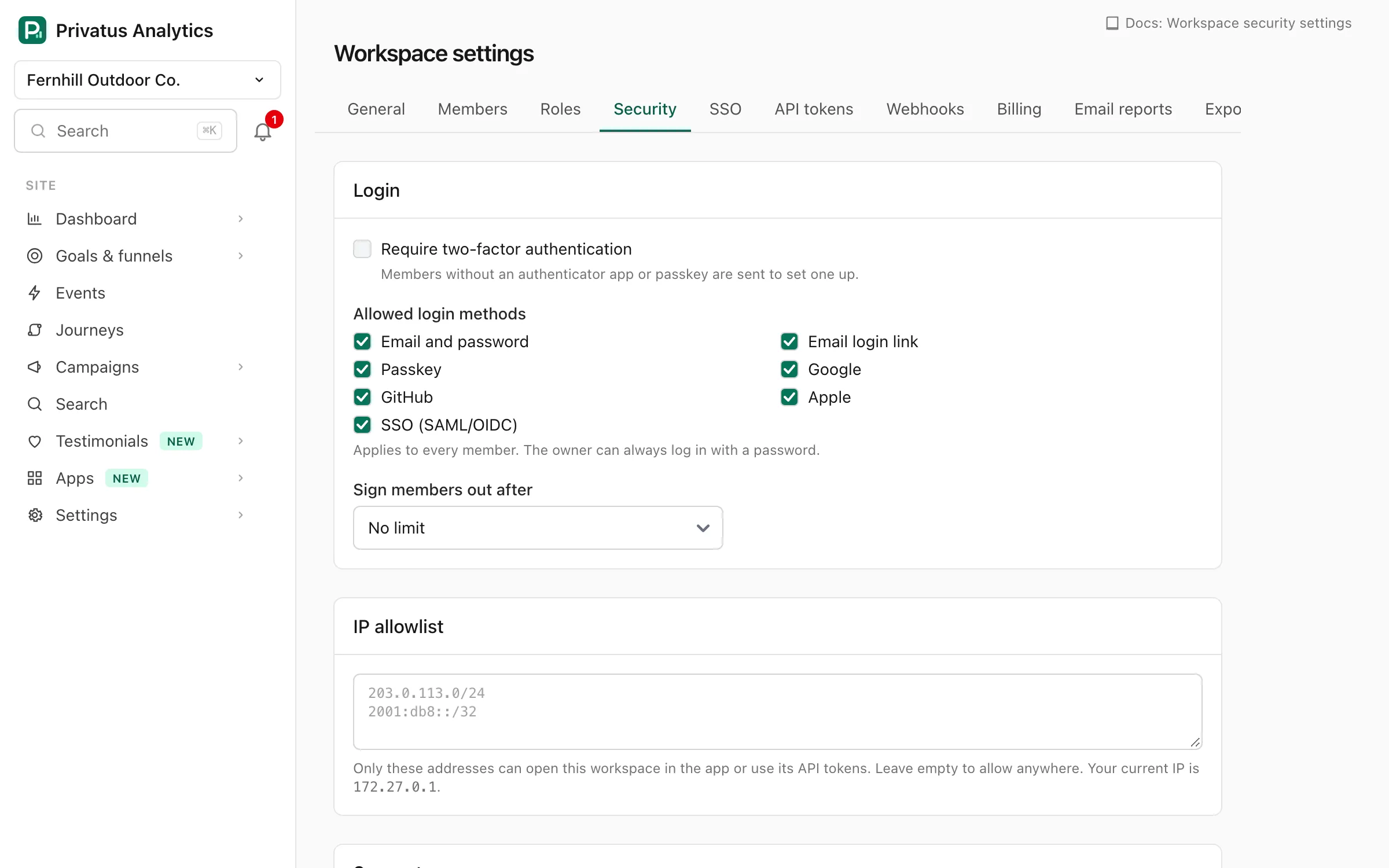
Members can log in through the IdP only. Needs an active configuration. The owner keeps password and passkey login. |
A person who already has a Privatus Analytics account but is not a member of the workspace is never added by SSO, with or without just-in-time provisioning. Invite them instead.
Set up#
- Workspace settings → SSO. Choose SAML 2.0 or OpenID Connect, enter the IdP's values, the email domains, the provisioning choice and the role for new members, and save. The status is Draft.
- Test SSO login sends your browser to the IdP and back. The status becomes Testing, then Tested once a login succeeds. Your current session stays as it is.
- Activate. The status becomes Active. This needs a successful test first.
- Optional: tick Enforce SSO and save, so members of this workspace must sign in through the IdP.
Members can use Log in with SSO from the moment a test starts (the statuses Testing, Tested and Active), not only once it is active.
Changing the protocol or any of the IdP's values returns the configuration to Draft and switches enforcement off, so test and activate again. Changing the domains, provisioning or role does not. Turn off returns it to Draft, ends SSO logins and switches enforcement off.
Over the API the settings are at /workspaces/<workspace id>/sso (GET
and PATCH), with POST .../sso/activate and POST .../sso/deactivate.
The MCP tools are sso_get, sso_update, sso_activate and
sso_deactivate. The test login runs in a browser only. Over MCP only
sso_get runs. The others return a link to the SSO page, see
Actions for a person.
Signing in#
On the login page choose Log in with SSO and enter your work email (or
the workspace id). You are sent to your IdP and back. Sign-in must start
from Privatus Analytics (SP-initiated): a login started from the IdP is
refused. Tiles in your IdP's app dashboard should link to
https://privatusanalytics.com/login/sso/new.
Each SAML response signs in once. Sending the same response again is refused, so start a new login instead of reloading the page your IdP sent you to. Single logout (SLO) is not supported: leave the logout URL empty in your IdP.
An SSO login is vouched for by your workspace's identity provider. It opens the workspace, but it can't change what belongs to the account itself. To add or remove passkeys and connected Google, GitHub or Apple accounts, set up an authenticator app or get new recovery codes, change your email address or your affiliate payout details, or download or delete your account, log in with an email link or your password first.
An SSO session opens the workspace whose identity provider signed you in, and only that one. Of your account it opens the display settings (theme, language, time zone, landing page and shortcuts). Your other workspaces and the rest of your account (name and email settings, security and login history, push notifications, the affiliate program, Help & Feedback) need a login of your own: an email link, your password, a passkey, Google, GitHub or Apple, whichever your workspaces allow. An API token or an MCP client connected from such a session has the same limits: it works for that workspace over the API and MCP, and is not offered the account tools the session is refused. Everything also opens after an SSO login that asked for your own two-factor code, which it does when your account has two-factor authentication and you belong to more than one workspace.
If your workspaces only allow single sign-on (SSO is enforced, or it is the only allowed login method), you have no login of your own. A member who also belongs to other workspaces then needs two-factor authentication on their account to open those. Set it up before you join, because it can't be set up from an SSO session.
A workspace that requires two-factor authentication asks for your own second factor in an SSO session too. The one exception is a member whom that workspace's login rules (or another workspace's enforced SSO) leave single sign-on only: its identity provider vouches for them while SSO is switched on, so turn on multi-factor authentication there. See Two-factor authentication.
The workspace owner is never signed in on the identity provider's word alone, because members who manage the workspace can change the SSO settings. An owner confirms an SSO login with their own two-factor authentication, and an owner without it is refused the SSO login. The owner can always log in with a password or a passkey instead. Testing SSO from the settings page works without it and leaves your current session as it is.
Guides#
Okta · Microsoft Entra ID · Google Workspace · JumpCloud. To create and remove members automatically, add SCIM.