Requests
Ask customers for a testimonial by email, sent from your own address through your own email provider, with a personal link and follow-ups. Part of Business.
A request is one email, written by you, sent to a list of people with a button that opens one of your forms. People who do not answer can get up to three follow-ups. Requests are under Testimonials in the site's sidebar, on the Requests tab.
Nothing is sent until you press the last button, and you see who will
be asked and who will be skipped before you press it. Writing and
sending needs the content.write permission.
Sent through your own email provider#
Request emails are part of the Business plan, and they are sent through your own email provider: Amazon SES, Postmark, SendGrid, Mailgun or Resend. They arrive from your own address, and replies come to you. Privatus Analytics never sends a request email from an address of its own.
| Your site | What the Requests tab does |
|---|---|
| On Free or Pro | Says what requests are and links to the plans. Requests cannot be created or sent |
| On Business, no provider connected | Starts with Connect your email provider. You can write and save a draft. It cannot be sent, and a test cannot be sent, until a provider is connected |
| On Business, provider connected | Everything on this page |
| The provider stopped accepting the connection | Says why, with a link to fix it. Emails wait and nobody is dropped |
Connect a provider under Settings, then Email sending. That page lists the key each provider needs.
Sharing a form's link, embedding it, the popup and the QR code work on every plan and need no email provider. See Share a form.
The list#
| Part | What it shows |
|---|---|
| Request emails sent this month | How many request emails the site has sent this month, against its monthly limit. From 80% the line says so, with the date the count starts again |
| How far people got | The funnel of all requests of the site: Queued, Sent, Opened, Clicked, Submitted, Bounced, Unsubscribed. Period is Last 7 days, Last 30 days (the default), Last 90 days, Last 12 months or All time. Percentages are a share of sent |
| Search requests | Matches the name and the subject |
| Status, Form | Filters the list. The form filter shows when the site has more than one form |
| The table | Name, Form, Status, People, Sent, Opened, Clicked, Submitted and Next send. A request made by a purchase connection has a Purchases label |
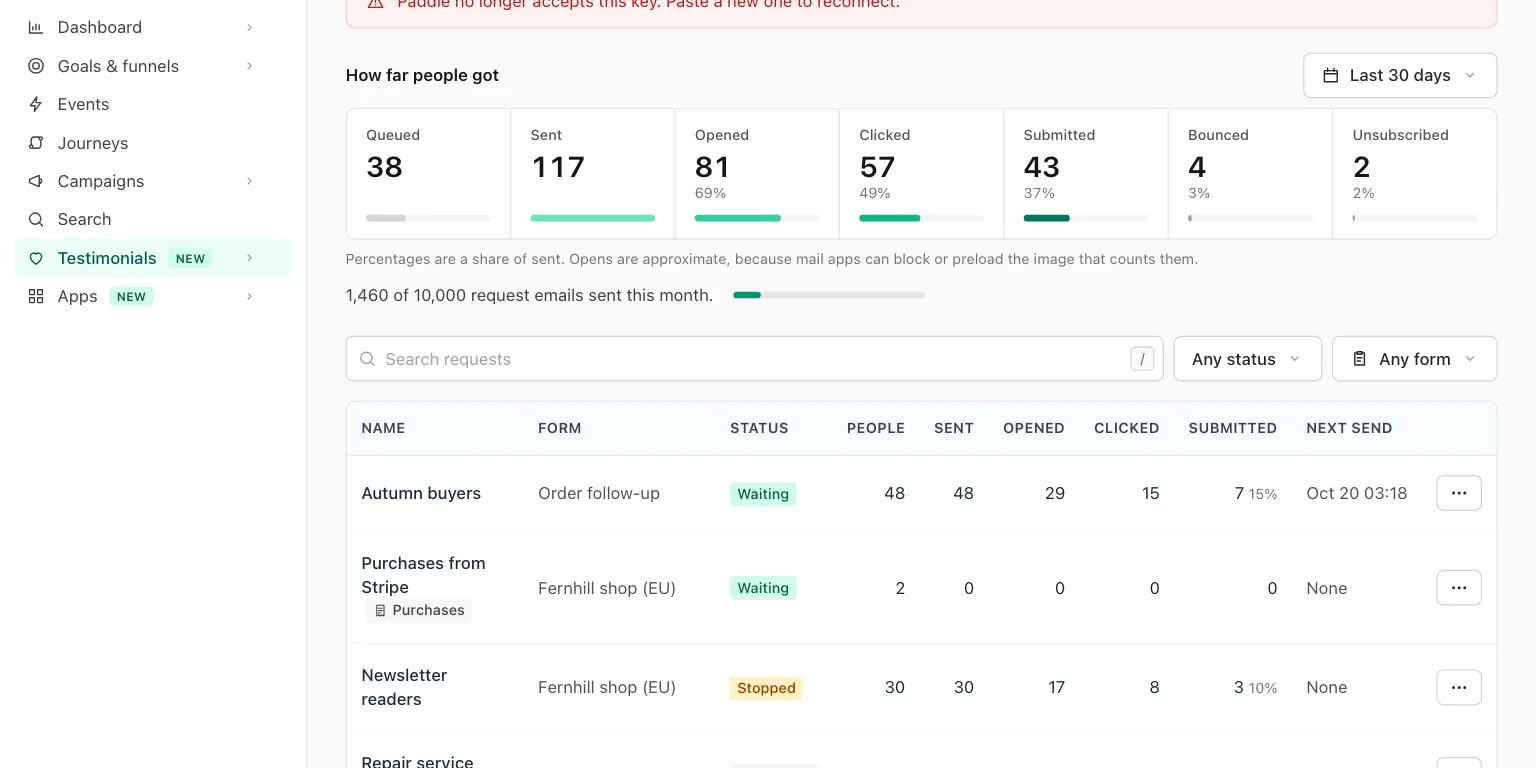
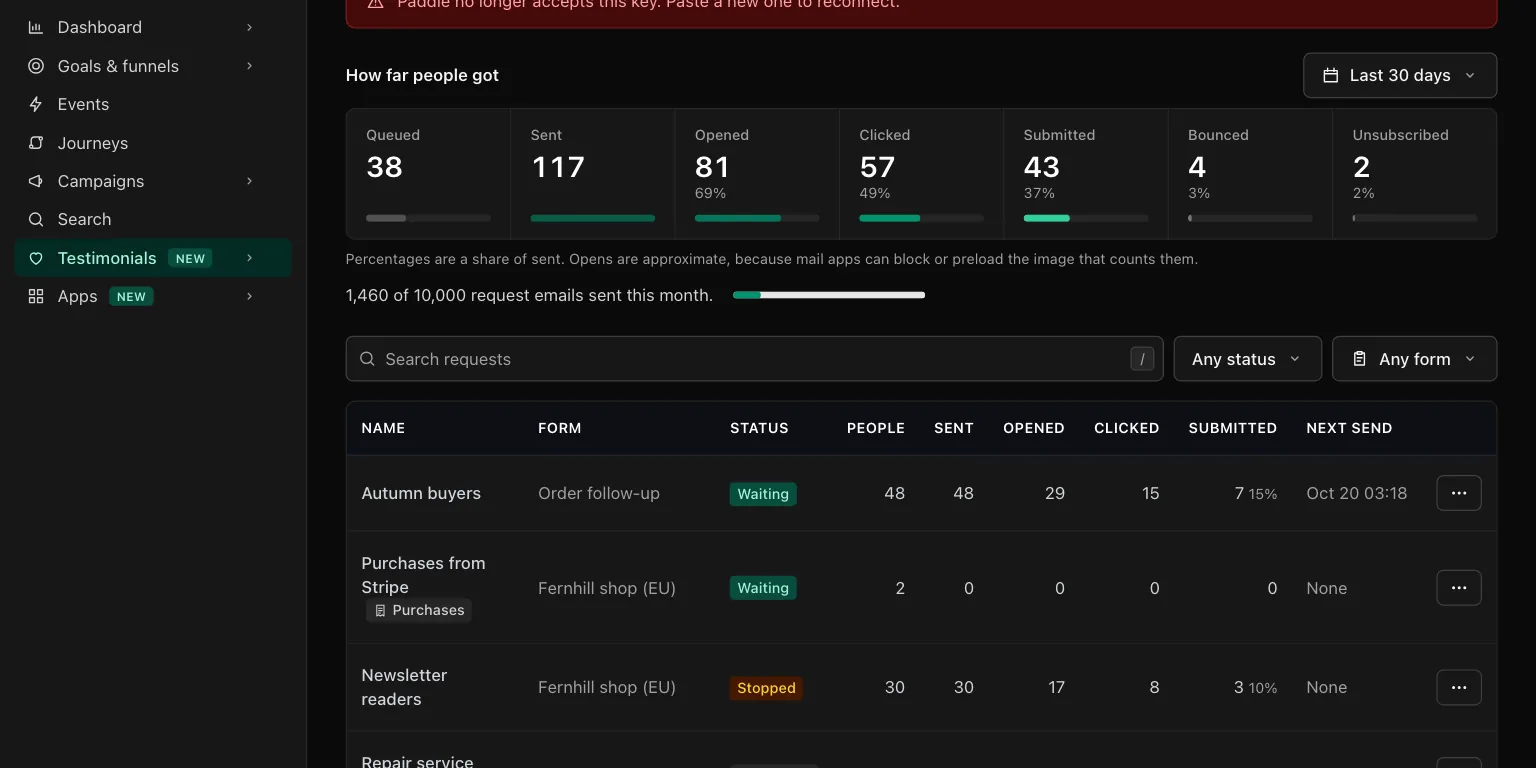
The menu of a row has Open, Stop or Resume, Duplicate as
a draft, and Delete for a draft. New request (or the N key)
starts one.
| Status of a request | Meaning |
|---|---|
| Draft | Not sent yet |
| Scheduled | Waiting for its time |
| Sending | First emails are going out |
| Waiting | First emails are out. Follow-ups are pending |
| Stopped | Nothing more is sent until you resume it |
| Finished | Everyone answered or got their last email |
Write a request#
New request opens one page with three steps, and the email shown beside them as the first person on your list will get it.
1. Who#
| Field | What it does |
|---|---|
| Name of this request | Only you see it. The default is "Request of" and the date |
| People to ask | One person per line, as Maya Chen <[email protected]> or just the address. Up to 500 at a time |
| Or upload a CSV file | Up to 5 MB and 10,000 rows. On the next screen you say which column is the email address, the name, the first name, the company, the job title or one of the site's custom properties. A column can also be ignored |
| Leave out anyone who already gave a testimonial through this form | On by default |
Save and check the list saves the draft, and the page then says how many people will be asked and how many will be skipped. See the list opens the request's page with each person and the reason.
| Skipped because | Meaning |
|---|---|
| Not an email address | The line could not be read as an address |
| Duplicate | The address is already in this request. Duplicates are counted and not listed |
| Already gave a testimonial | They answered this form before |
| Already being asked | They are in another request of this site that is still running |
| Asked recently | This site emailed them in the last 30 days, the address had 3 request emails in 7 days from anyone using Privatus Analytics, or the person unsubscribed from requests, or mail to the address hard bounced or was reported as spam. It does not say which, because that list is shared by every workspace |
The list is checked again when you send, because a draft can be days old.
Ask again on a person's page starts a draft with that one person in it. Such a draft does not leave out people who already gave a testimonial, because asking them again is the point.
2. What they get#
| Field | What it does |
|---|---|
| Form the button opens | One of the site's forms. Each person gets their own link to it |
| Sender name | The name shown beside your From address. Up to 60 characters. The default is the site's name |
| Replies go to | A person on your team. See the reply-to rule below |
| Subject | Up to 150 characters |
| Plain text with line breaks, up to 5,000 characters. Web addresses stay as text | |
| Insert | Puts a merge field at the cursor |
| Button text | Up to 40 characters. The default is "Share your experience". The button is always there |
| Show the logo from the brand kit above the email | On by default. The logo is the one in the brand kit |
| Follow-ups | None to three, each with a delay of 1 to 30 days counted from the email before it, a subject and a text. A follow-up with no subject uses the first email's. A new request starts with one follow-up after 5 days |
Follow-ups go only to people who have not answered, unsubscribed or bounced.
The reply-to rule. Replies never come to Privatus Analytics. They go to the member you choose, who must be able to open this site and have a confirmed email address. The default is you. Any other address is refused. If a reply address is set under Email sending, every reply goes there instead.
Merge fields put each person's details into the subject and the text:
| Field | Becomes |
|---|---|
{{first_name}} |
The first word of their name |
{{name}} |
Their name |
{{company}} |
Their company |
{{site_name}} |
The name of your site |
{{sender_name}} |
The sender name |
Add a fallback after a bar for when the value is not known, as in
{{first_name|there}}. A field that does not exist is refused when you
save, so nobody gets a broken greeting.
The preview beside the form shows From and Replies go to, and can be switched between the first email and each follow-up, and between desktop and phone width. Send me a test saves the page and sends the email shown to your own address, and to nobody else, through your email provider like the real ones.
3. When#
| Control | What it does |
|---|---|
| Send now, Send at a time | A date and time is in the site's time zone. A time already past sends now |
| These people are customers or contacts of your site, and I may email them | Must be ticked to send |
| Send to N people | Sends or schedules. Under it is the cost: at most how many emails with follow-ups |
| Save draft | Saves without sending |
First emails go out within a minute of sending.
If your workspace has used up the month's new testimonials, the page says so. Answers are still accepted and held until the 1st or an upgrade. Sending is not blocked.
What the email looks like#
- From: the sender name and your own From address, as set under Email sending. Replies go to the member you chose.
- Your logo, your words in plain text, and one button in your brand color.
- A small footer: who sent it, your postal address, and a link to unsubscribe.
- Nothing of ours: no logo, name, link or offer.


The personal link#
The button of each email leads to the person's own link to the form,
/f/<slug>/r/<token>. The same link is in the first email and every
follow-up.
- It is the form with the person's name filled in.
- An answer sent through it is tied to the person and the testimonial is marked verified.
- The giver's email address is the one the request was sent to, whatever is typed in the form's email field. The verified mark stands for that address, so an answer through one person's link never lands under another person.
- Loading it counts the click.
- The link holds a random token, never the email address. Only a SHA-256 of the token is stored, and the page is never cached.
After sending#
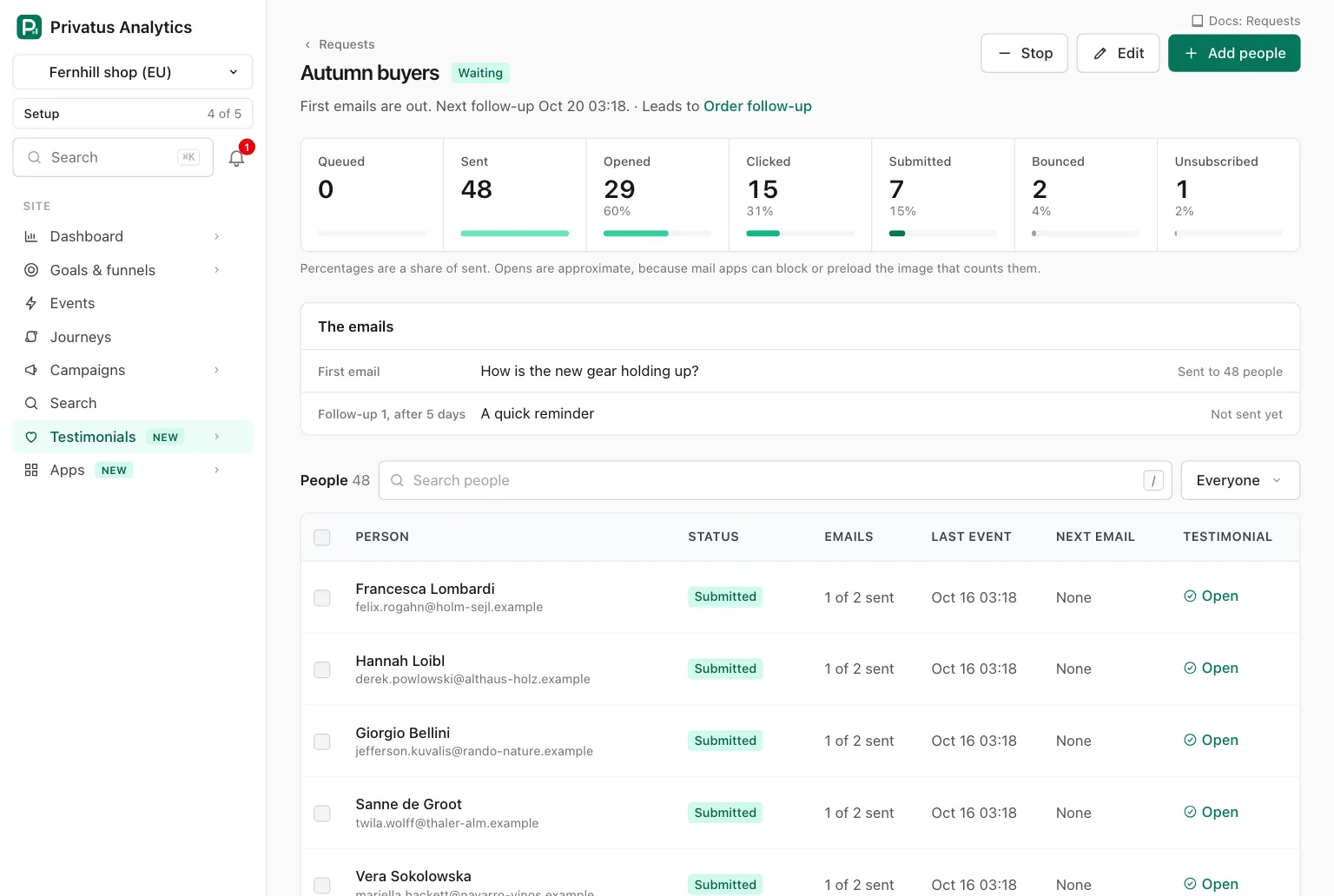
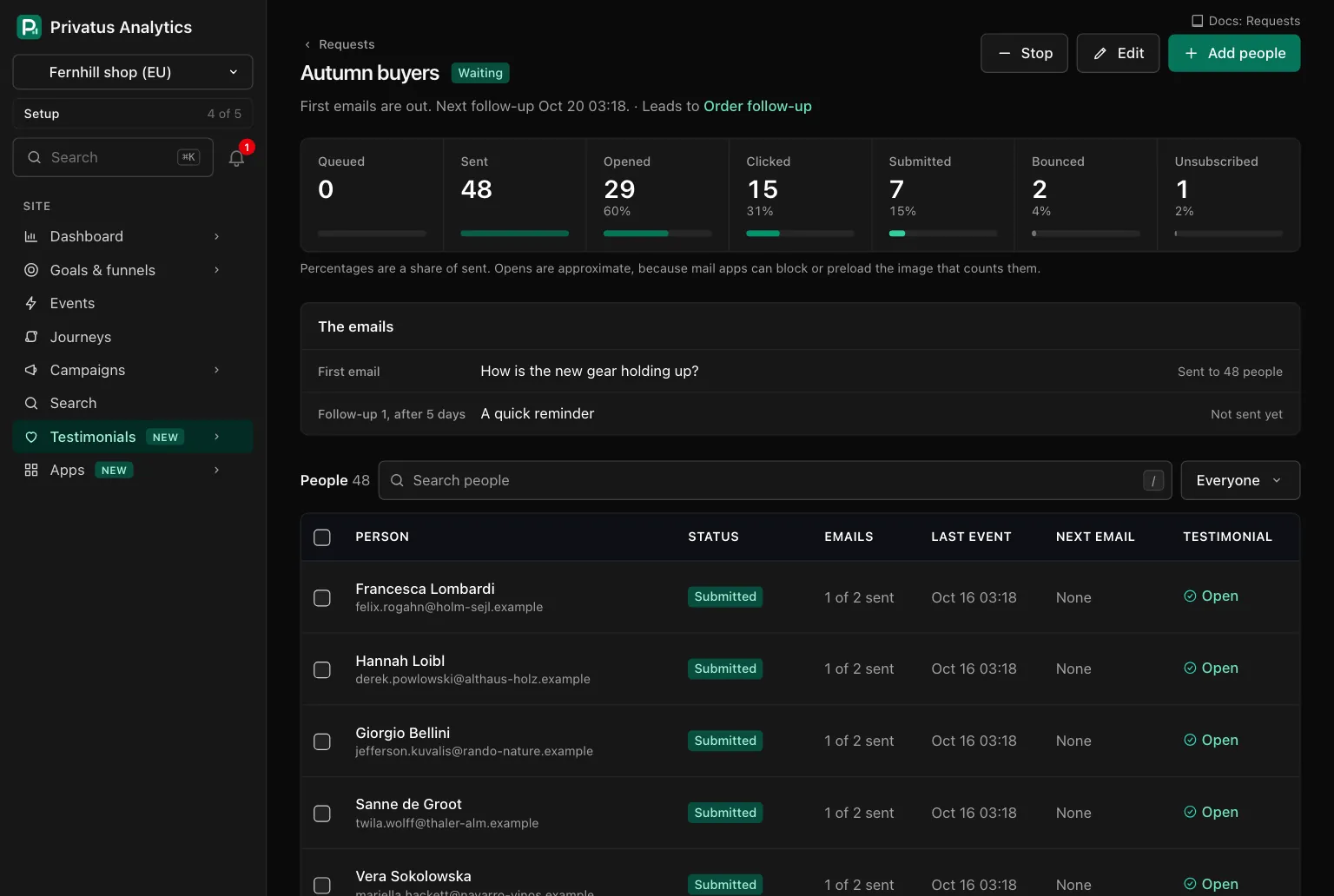
Open a request to see its state, its funnel, its emails and its people.
| Part | What it shows |
|---|---|
| How far people got | The funnel of this request |
| The emails | The first email and each follow-up with its delay, and how many people each was sent to |
| People | Each person with their status, emails sent, last event, next email and, once they answered, a link to the testimonial. Search by name, address or company and filter by status |
| Status of a person | Meaning |
|---|---|
| Queued | Waiting for the first email |
| Sent | At least one email went out |
| Opened | The email's one small image was loaded. What is recorded |
| Clicked | The person's own link was loaded |
| Submitted | They answered |
| Bounced | The mail could not be delivered, or was reported as spam |
| Unsubscribed | They opted out |
| Skipped | Never emailed, with the reason |
| Stopped | You stopped this person. They keep their place |
A person gets no further email once they answer, unsubscribe or bounce.
- Edit (or the
Ekey) changes the name, the form, the subject, the text, the delays and the number of follow-ups at any time. Changes apply to every email not yet sent. - Stop cancels every email not yet sent, at once. Resume continues where it stopped. A follow-up that came due meanwhile is timed again from the moment you resume, so nothing goes out in a bunch.
- Tick people in the list to stop, resume or remove just them, up to 100 at a time. Only people who were sent nothing can be removed.
- Add people adds to a request, by a pasted list or a CSV file. In a running request they get their first email within a minute. Adding to a finished request opens it again.
- A request that was sent cannot be deleted. It is the record of mail that was sent. A draft can.
Limits#
Each site can send 10,000 request emails a month through its email provider. Every email counts, first emails and follow-ups. A test you send to yourself does not. The number is set by us for each site: to raise it, write to [email protected]. See the monthly limit.
| Limit | What happens at it |
|---|---|
| The site's request emails for the month | Sending waits and the request says "Waiting for next month", with the date it starts again. It continues by itself on the 1st. Nobody is dropped |
| A limit of your email provider (a rate limit, a daily quota) | The email is tried again later |
| 30 sends an hour for a member | The send is refused. Try again later |
| 3 request emails to one address in 7 days, from everyone | Before the first email the person is skipped as "Asked recently". Later, their follow-ups end |
| 10 test sends an hour for a member | The test is refused. Try again later |
Unsubscribing and the opt-out list#
Every email has an unsubscribe link, and mail apps show their own unsubscribe button for it. The link opens a page with one button. Pressing it:
- marks the person Unsubscribed in the request the email came from,
- puts the address on the opt-out list, which stops testimonial requests to it from every workspace, not only yours. Emails already waiting for the address anywhere are dropped when their turn comes.
No workspace can see the list or override it. Only a keyed hash (HMAC-SHA256) of the address is kept on it, never the address itself.
The same page offers Receive requests again, which sends the person a confirmation email with a link that works for 7 days. Confirming takes the address off the list. That is the only way back, and only the person with the mailbox can use it.
Bounces#
Privatus Analytics asks your email provider for recent bounces and spam complaints, about every 15 minutes, and matches each to the request email it is about. Anything that is not about a request email sent from here is ignored. See Email sending for what each provider reports.
| Event | What happens |
|---|---|
| A soft bounce, such as a full mailbox | The person is marked Bounced and gets no further email from this request. The address is not put on the opt-out list |
| A hard bounce: the address does not work | The same, and the address goes on the opt-out list for every workspace |
| The email is reported as spam | The same as a hard bounce |
An address that hard bounced or was reported as spam cannot be taken off the list with Receive requests again.
What the open counter records#
Each request email carries one small image, served from our own domain
at an address that holds the id of that one email (/requests/o/<id>.gif).
When a mail app loads it, this is everything that is stored:
| Where | What |
|---|---|
| The record of that one email | The time it was first opened. Loading the image again changes nothing |
| The person in the request | The time of their first open and the time of their last event. Their status moves from Sent to Opened |
| The request | One more in its Opened count, once for each person, however many emails they open |
| The site's daily totals | One more open for that request on that day, also once for each person |
So an open is recorded per email and per person. Nothing else is recorded:
- No IP address and no User-Agent is read, stored or written to a log.
- No cookie is set or read.
- Nothing is recorded about the device, the mail app or the place.
- The image address holds an id of the email, never the person's address. An address with an unknown id gets the same image.
Opens are approximate. Mail apps can block images, and then an email that was read is not counted. Some mail apps and their image proxies load images before anyone looks, and then an email that was not read is counted.
A click is counted the same way: the person's own link was loaded, once, with the time. There is no redirect that tracks links, and no other link in the email is counted.
A test you send to yourself has no image and no personal link. The plain text version of an email has no image.
API and MCP#
Every operation is in the API reference and the MCP reference with its inputs and response fields.
| Action | MCP tool | Permission |
|---|---|---|
| List and read requests, with their funnel counts | testimonial_requests_list, testimonial_requests_get |
analytics.read |
| One email as its first recipient gets it | testimonial_requests_preview |
analytics.read |
| Start a draft, change a request | testimonial_requests_create, testimonial_requests_update |
content.write |
| Send a test to your own address | testimonial_requests_send_test |
content.write |
| Send, now or at a time | testimonial_requests_send |
content.write |
| Stop, resume | testimonial_requests_stop, testimonial_requests_resume |
content.write |
| Copy into a draft, delete a draft | testimonial_requests_duplicate, testimonial_requests_delete |
content.write |
| The people of a request | testimonial_request_recipients_list |
analytics.read |
| Add people, from a list or a CSV file | testimonial_request_recipients_create, testimonial_request_recipients_import |
content.write |
| Stop, resume or remove chosen people | testimonial_request_recipients_stop, testimonial_request_recipients_resume, testimonial_request_recipients_delete |
content.write |
Sending needs confirm_relationship: true. Addresses of chosen people
are sent in the body, never in a URL.
Errors are a 422 with a code: unknown_merge_field,
confirmation_required, no_form, no_recipients, wrong_state,
too_many, unknown_ids, upload_expired, and for sending and test
sends no_email_connection (no email provider is connected) and
email_connection_paused. On a plan without request emails, creating,
sending, resuming and duplicating respond with 402 and plan_limit.
Past an hourly limit the server responds with a 429 and rate_limited.
The monthly limit is never an error: the people stay queued.
An AI assistant cannot delete anything. The MCP tools
testimonial_requests_delete (delete a draft) and
testimonial_request_recipients_delete (remove chosen people) run
nothing: each responds with human_only and the address of the
request's page, and the assistant hands you that link. The API runs
both.
Connecting the email provider itself is done in the web app only. It has no API operation and no MCP tool.
Sending emails people outside your workspace. So when an AI assistant sends a request, resumes a request or people in it, or adds people through MCP, the tool runs and you get an email saying what it did. The API runs the same operations without that email.
Webhooks: testimonial_request.sent when the first email of a request
goes out, and testimonial_request.completed when everyone has
answered or had their last email.
Good to know#
- What counts toward the site's month is every request email that is sent: first emails and follow-ups, also those to buyers from a purchase connection. Test sends do not count.
- A testimonial that comes in through a request counts toward the month's new testimonials like one from a form.
- An address is in a request once. Adding it again is counted as a duplicate.
- A follow-up delay is counted from the email before it. Changing a delay re-times the follow-ups that are waiting.
- A request made by a purchase connection never finishes while the connection exists, because buyers keep arriving.