Install a widget on your site
The four ways to embed a widget, with numbered steps for WordPress, Shopify, Webflow, Squarespace, Wix, Framer, Carrd and plain HTML.
Putting a widget on your site is copy and paste: you copy a snippet from the widget's page in Privatus Analytics and paste it into a part of your page that accepts code. The code is on the widget's page: open Testimonials in the site's sidebar, the Widgets tab, and choose Embed in the menu at the end of the widget's row.
The widget's page#
The page opens by itself after you create a widget. It has three parts.
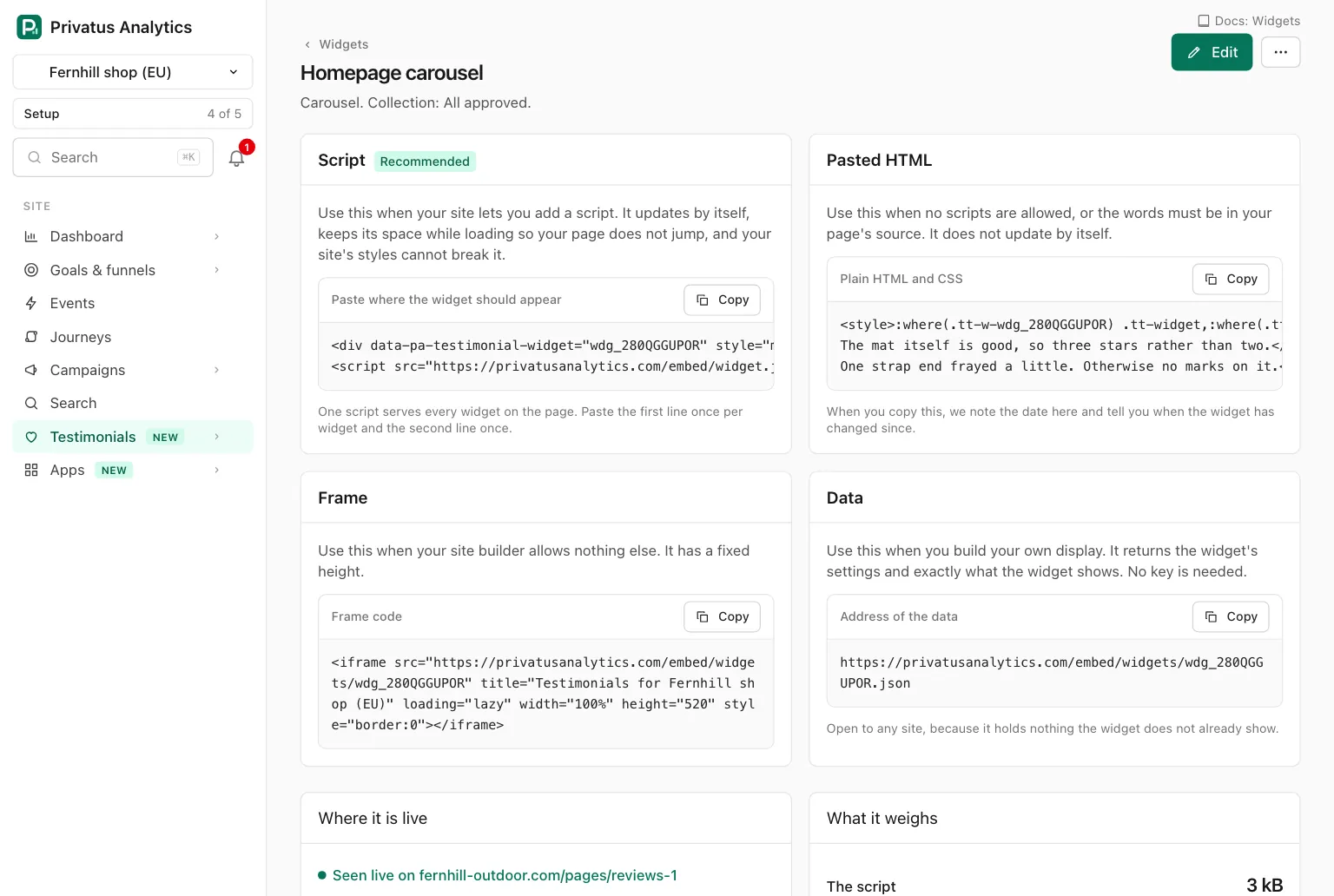
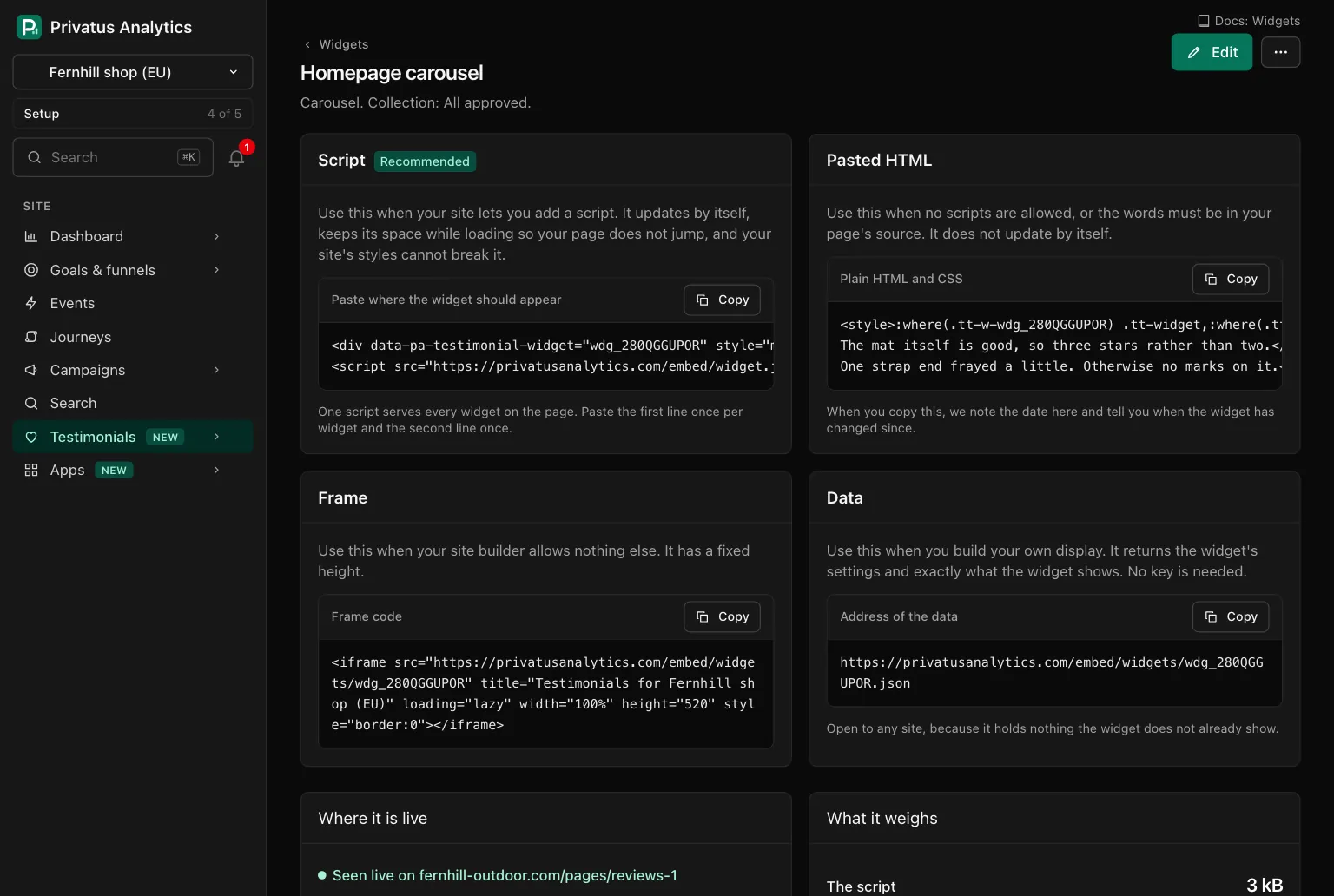
| Part | What it shows |
|---|---|
| The four embed methods | Script (marked Recommended), Pasted HTML, Frame and Data, each with one line on when to use it and a copy button above the code |
| Where it is live | The pages the widget was seen on. See Check that it works |
| What it weighs | The measured, compressed size of the script and of this widget |
A warning at the top says when the widget is empty, because nothing feeds it yet or nothing approved matches, with a Choose what feeds it link. Edit opens the builder, whose Embed tab has the same four methods.
The four methods#
Use the first of these that your site accepts.
| Order | Method | Use it when |
|---|---|---|
| 1 | Script | Your site lets you add a script. It updates by itself and keeps its place while loading |
| 2 | Frame | Scripts are not allowed, or the script line disappears when you save. It updates by itself and has a fixed height |
| 3 | Pasted HTML | Neither works, or the words must be in your page's source. It does not update by itself |
| 4 | Data | You build your own display from JSON |
A corner popup belongs to the window, not to a place on the page. It is offered as the script and the data only.
Script#
<div data-pa-testimonial-widget="wdg_..." style="min-height:300px"></div>
<script src="https://privatus.page/embed/widget.js" async></script>
Paste the first line where the widget should appear, once per widget. Paste the second line once: one script serves every widget on the page. Pasting both lines together for each widget is fine too.
The widget is drawn inside its own boundary, so your site's styles cannot break it and its styles cannot leak into your page. The minimum height keeps the widget's place while it loads, so your page does not jump. It differs by layout, and the widget grows past it when it needs to. A corner popup has none, and an empty widget takes no room.
Frame#
<iframe src="https://privatus.page/embed/widgets/wdg_..." title="Testimonials for Your site" loading="lazy" width="100%" height="520" style="border:0"></iframe>
A frame has a fixed height: 520 pixels, 80 for an avatar strip and 90
for a rating badge. Change the height to fit your layout. In a frame
the widget follows the visitor's device for light or dark, and review
markup stays inside the frame and does nothing for your own page.
Pasted HTML#
Plain HTML and CSS, with no script. It is a copy of the widget as it is now.
- When you copy it, the app notes the date. From then on the page says how many times the widget has changed since, so you know when to copy it again.
- Every card is shown. There is no "Read more" and no "Load more".
- A carousel is a row to scroll, without arrows and dots. A single quote shows its first testimonial.
- Videos use the browser's own player.
- Views are not counted and the widget is never "seen live".
Data#
https://privatus.page/embed/widgets/wdg_....json
The widget's settings and exactly what the widget shows, for a display
you build yourself. No key is needed, and it is open to any site,
because it holds nothing the widget does not already show. Ask for it
plainly, as fetch(url) does. A request that sends the header
Accept: application/json gets the same data, a little slower, because
it is not served from our cache.
Steps by site builder#
The steps below follow each site builder's own way of adding custom code. Builders rename and move things, and we have not tested every builder and every plan. If a step does not match what you see, look for a block or element called custom code, embed or HTML.
Any site builder with a code block#
- Open the page in your site builder's editor.
- Add a block or element for custom code.
- Paste the Script code into it.
- Save and publish, then open the published page. Many editors do not run scripts in their own preview.
- If the widget does not appear, replace the code with the Frame code.
WordPress#
- Edit the page or post where the widget should appear.
- Add a Custom HTML block in that place.
- Paste the Script code into the block.
- Update the page and open it on your site.
- If the script line is gone after saving, your site or your role does not allow scripts there. Paste the Frame code instead.
Shopify#
- In your Shopify admin, open the theme editor for your theme.
- Go to the page or template where the widget should appear and add a Custom Liquid section or block.
- Paste the Script code into its field.
- Save, then open the page in your store.
If your theme has no Custom Liquid section, look for a custom HTML or custom code block in the theme.
Webflow#
- Open the page in the Webflow designer.
- Add an Embed element where the widget should appear.
- Paste the Script code into it and save the element, if your plan allows custom code.
- Publish the site and open the published page. Custom code may not run inside the designer.
Squarespace#
- Edit the page and add a Code block where the widget should appear.
- Set the block to HTML, and make sure it is not set to show the code as text.
- Paste the Script code, if your plan allows custom code.
- Save and open the page on your site.
- If scripts are not available on your plan, paste the Frame code instead.
Wix#
- In the Wix editor, add an embed element for HTML or custom code.
- Paste the Script code into it and apply.
- Size the element to the height the widget needs. Wix shows embedded code in a box of the size you give it.
- Publish and open your site.
Inside such a box the widget cannot read your page's colors. If your site is dark and the widget is not, choose Always dark under Light or dark on the widget's Style tab.
Framer#
- Open the page in Framer and insert an Embed component where the widget should appear.
- Set it to HTML and paste the Script code. Or set it to URL and
paste the address from the Frame code (the part inside
src). - Size the component to the height the widget needs.
- Publish and open the published page.
Carrd#
- Add an Embed element where the widget should appear, if your plan allows custom code.
- Set it to code and paste the Script code.
- Save, publish and open your site.
Plain HTML#
- Open the HTML file of the page.
- Paste the first line of the Script code where the widget should appear.
- Paste the second line once, anywhere in the page. Just before
</body>is a good place. - Upload the file and open the page.
Check that it works#
- Open the published page in your browser. The widget should be there.
- Go back to the widget's page in Privatus Analytics. Under Where it is live it says Seen live on with the address of your page, and lists each page with when it was first and last seen.
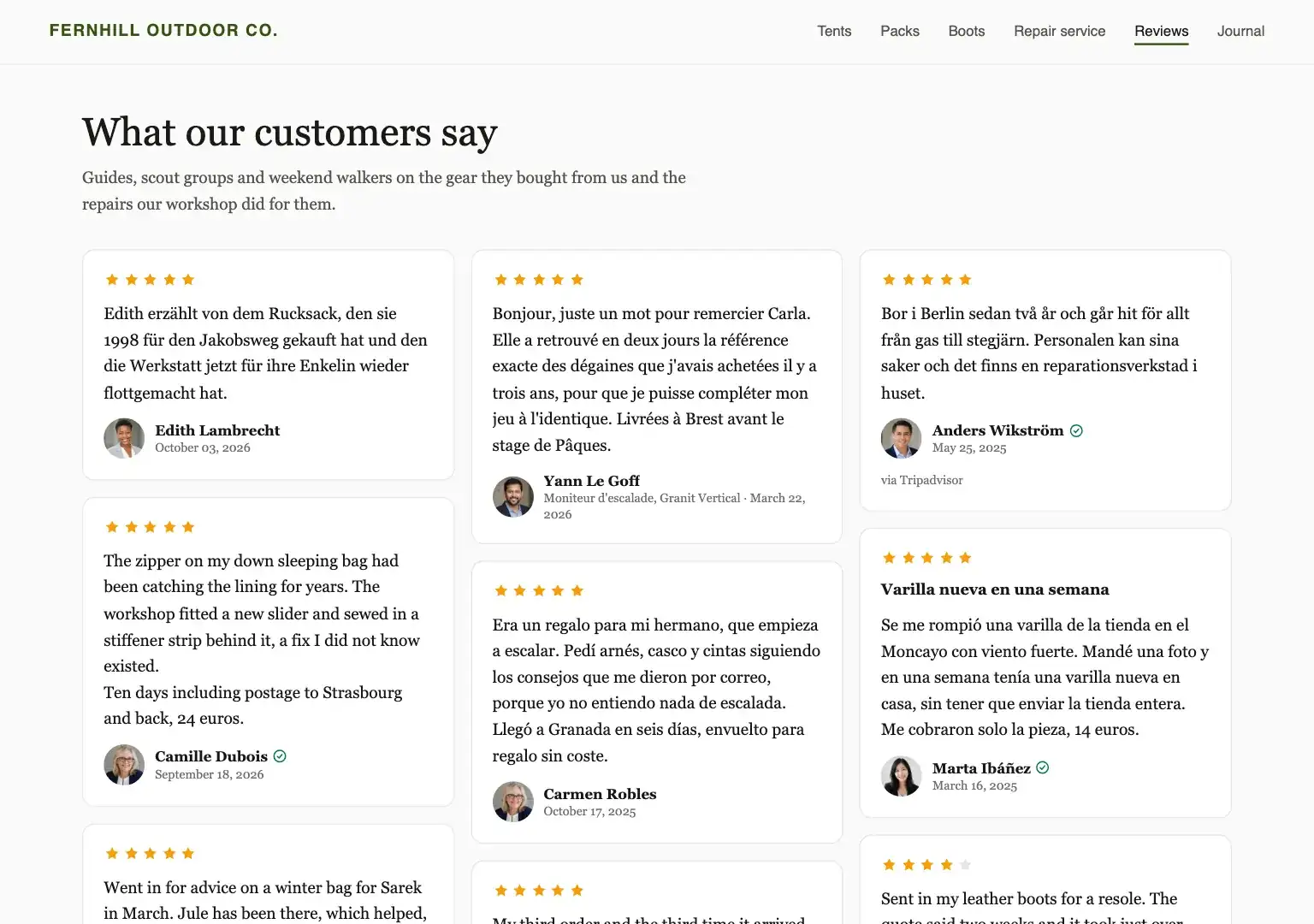
While nothing was seen yet the panel reads "Not seen yet." and checks again every few seconds, so you do not need to reload.
"Seen live" needs a view from a real page. It works for the script and
the frame, and only while Count views and clicks is on for the
widget. Pasted HTML and the data address send us nothing. A page on your
own computer, such as localhost, does not count.
If nothing shows#
| What you see | What to do |
|---|---|
| An empty place, or nothing at all | Check the widget in Privatus Analytics. A widget with nothing feeding it, or with nothing approved that matches, shows nothing and takes no room. Its page says so |
| It shows in the builder's editor but not on the site, or the other way around | Trust the published page. Many editors do not run scripts in their preview |
| The script line disappears when you save | Your builder or plan does not allow scripts. Use the Frame code |
| The widget is cut off, or has a scroll bar | You used the Frame code. Raise its height |
| A change in Privatus Analytics does not reach the site | With Pasted HTML, copy the code again. With the script or the frame, a change reaches your site within about ten seconds, and your own browser keeps the widget for five minutes, so wait that long and reload |
| It worked and now shows nothing | The widget may be in the trash. Restoring it brings it back without touching your site |
| Your site has a content security policy | Allow the addresses listed under For developers |
For developers#
Adding a widget after the page has loaded. The script looks for
widget elements when it loads and again when the page is ready. It
looks again each time the script tag is run again and after every Turbo
visit, so a site that uses Turbo needs nothing more. If your site adds
one later in another way (a single page app, a tab, a dialog), call
window.PrivatusTestimonialWidgets.load() afterwards. An element that
was already drawn is left alone.
The data address responds with JSON that any origin may read. A key with no value is left out.
| Key | What it holds |
|---|---|
data.id, data.language |
The widget and the language of its own words |
data.settings |
The layout, its options, the order, the limit and the card switches |
data.style |
The resolved custom properties, for light, dark or both |
data.summary |
count, rated and average_rating of everything that feeds it |
data.testimonials |
One entry per testimonial shown: id, kind, body, highlight, title, rating, language, translated, date, person (name, role, photo_url), source (name, url), verified, verified_reason, media (kind, url, poster_url, duration_seconds, content_type) and url |
A content security policy on your site needs these entries:
| Directive | Allow |
|---|---|
script-src |
https://privatus.page |
connect-src |
https://privatus.page and https://privatusstats.com (view and click counts) |
img-src |
https://media.privatusanalytics.com (photos and video posters) |
media-src |
https://media.privatusanalytics.com (video and audio) |
frame-src |
https://privatus.page, only for the frame embed |
A snippet that loads widget.js from https://privatusanalytics.com keeps working
and fetches from the same hosts, so also allow https://privatusanalytics.com in
script-src, or replace the snippet with the current one.
The script applies the widget's styles through the browser's stylesheet
interface, not through an inline style element. If your policy blocks
inline style attributes, the min-height on the first line of the
snippet is ignored. Set it in your own stylesheet instead.
Limits. The widget's addresses take 120 requests a minute from one connection. Over that, the last copy we drew is served when there is one, so a limit does not blank a widget.
A Wall of Love#
The simplest way to use a Wall of Love is to link to it. To place it inside one of your own pages, copy the code from the Embed tab of the wall's builder and follow the same steps as for a widget.
Good to know#
- The script is the same for every widget and wall. A page with several loads it once.
- Nothing is stored in your visitor's browser and nothing is loaded from another company. See What the script does on your site.
- A widget in the trash shows nothing and takes no room. The code you pasted can stay where it is.
- A frame cannot grow. It keeps the height in its code, so a "Load more" inside it scrolls within the frame.
- Pasted HTML is a copy. It changes only when you copy it again, so a testimonial you unapprove stays in it until then.