Add a testimonial by hand
Add praise that arrived by email, chat or in person. Every field of the form, the duplicate warning and what happens at the monthly limit.
Some praise never comes through a form: it arrives in an email, a chat or
a conversation. Add testimonial at the top of
the Inbox (Testimonials in the site's
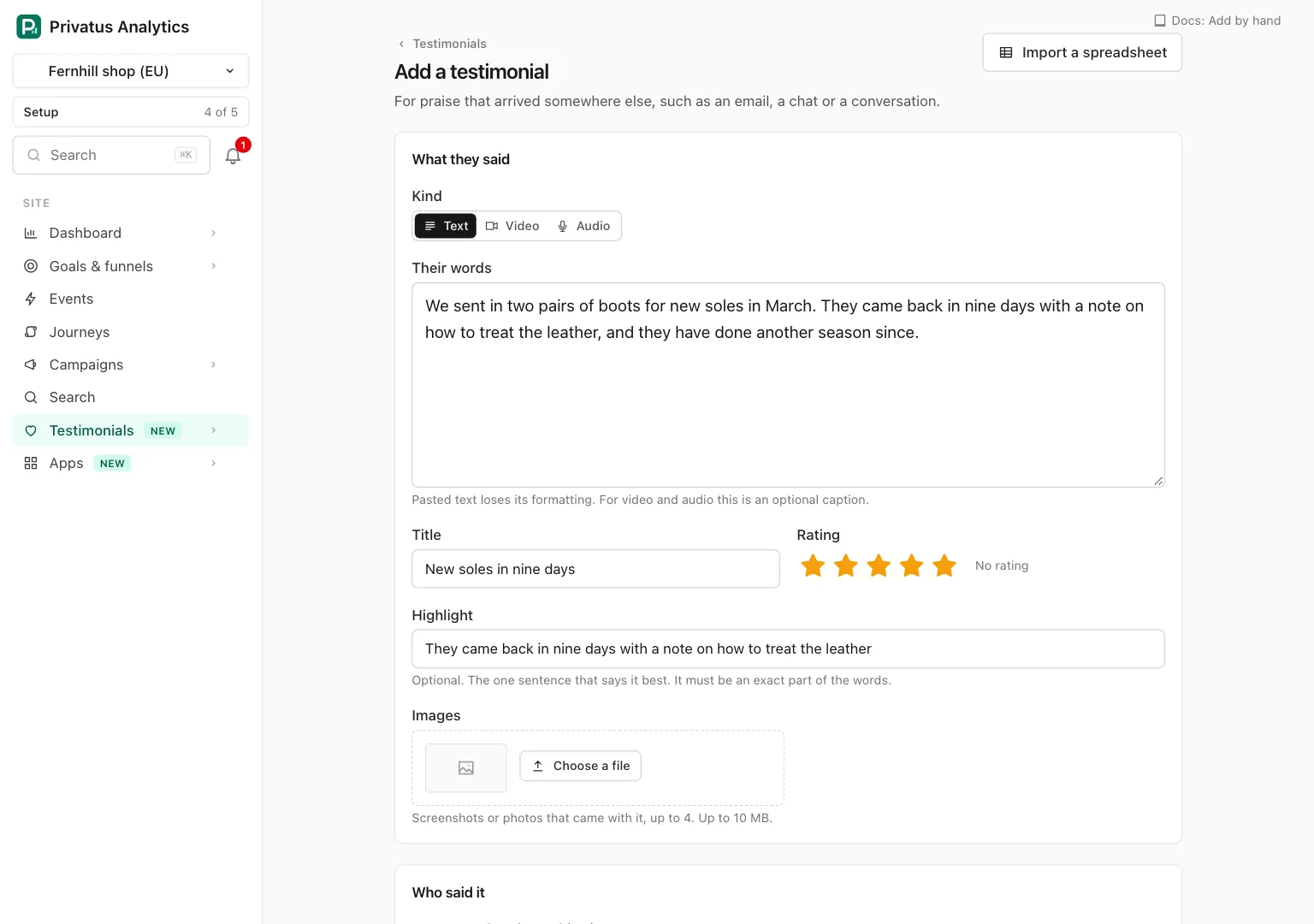
sidebar) opens one page where you type it in yourself, at
/sites/<site id>/testimonials/new. The N key opens it too.
The button is shown to members who hold content.write. The arrow beside
it also offers From a spreadsheet and From a review page, which
are imports.
The page has four cards. Import a spreadsheet at the top opens the spreadsheet import for when you have many to add.
What they said#
| Field | What it is |
|---|---|
| Kind | Text, Video or Audio. The form shows only what applies to the kind |
| The video or The recording | Shown for Video and Audio, and required for them. Press Choose a file. The file goes straight to storage and is then processed. The line beside the button reads "Uploaded" when it is ready |
| Their words | The testimonial itself, up to 10,000 characters. Required for Text. For Video and Audio it is an optional caption. Pasted text loses its formatting |
| Title | Optional, up to 200 characters |
| Rating | Optional, 1 to 5 |
| Highlight | Optional. The one sentence that says it best. It must be an exact part of the words |
| Images | Optional. Screenshots or photos that came with it, up to 4. A new slot appears when the last one is filled |
A video or audio file can be up to 500 MB and as long as your plan takes: 2 minutes on Pro, 10 minutes on Business and above. On Free the upload is locked and says "Video and audio testimonials are part of the Pro plan." An image can be up to 10 MB. The limits are written under each upload. See Media.
Wait for "Uploaded" before you save: a file that is still processing is not attached yet. Remove takes a file off the form. If the save fails for another reason, the files you uploaded are still on the form when it comes back.
Who said it#
| Field | What it is |
|---|---|
| Someone already on this site | A menu of the people of the site, shown once there are some. Choose one and the new testimonial joins them. Leave it on A new person to type the details below |
| Name | Required for a new person |
| Job title, Company | Optional |
| Company website, Social link | Optional links |
| Optional. Never shown publicly. It groups what the same person says and lets you ask them again. An address that is already on the site links the testimonial to that person | |
| Photo | Optional. An image up to 10 MB |
Two reminders sit under this card: a testimonial added by hand will not carry the verified mark, and you should have the person's permission to share it.
Where and when#
| Field | What it is |
|---|---|
| Received on | The day they gave it. Starts on today |
| Where it came from | A menu. It starts on Somewhere else, then lists the review platforms Privatus Analytics knows by name, such as Trustpilot, G2 and Capterra, then Email, Chat and In person |
| Name of the place | Shown for Somewhere else. For example a conference or a letter. Optional |
| Link to it | Optional. A public link to the original |
| Language | The language of the words. Left on The site's language, the first choice, the testimonial takes the default language of the site's testimonials |
Organize#
| Field | What it is |
|---|---|
| Status | Pending (the default) or Approved |
| Tags | Tick any of the site's tags, and type one more in A new tag to create it |
| Collections | Tick any manual collection. Shown once the site has one |
| Custom properties | One field for each custom property of the site |
| Pin it | A pinned testimonial is shown first wherever it is displayed |
Saving#
| Button | What it does |
|---|---|
| Save | Stores it and opens the new testimonial |
| Save and add another | Stores it and opens an empty form again |
| Cancel | Goes back to the Inbox |
If something is missing, the form comes back with what you typed still in it and a message that says what to fix.
The duplicate warning#
If this person already said these same words on the site, nothing is saved and the form comes back with a warning: "This looks like one that is already here." It names the person and has two buttons.
| Button | What it does |
|---|---|
| Open the other one | Opens the testimonial that is already stored, in a new tab |
| Save anyway | Saves yours as a second testimonial |
Words count as the same when only capitals, spacing or punctuation differ.
At the monthly limit#
Each testimonial you add counts toward the workspace's monthly limit of new testimonials. When the limit is used, the form comes back with what you typed and "This month's allowance of new testimonials is used", and nothing is added until the 1st or until the plan grows. What your customers send through a form is different: it is still stored and waits for you.
API and MCP#
| Action | MCP tool | Permission |
|---|---|---|
| Add a testimonial | testimonials_create |
content.write |
The inputs follow the form and are in the API reference and the MCP reference. What is worth knowing beside them:
- A testimonial added with an API token is stored with the source
api("API" in the app). A token may sendviaasextensionfor words taken from a web page, which the app shows as "Captured from a page". Neither is ever verified. - Send your own
external_idto make a call safe to repeat. The same id again responds with the testimonial already stored and adds nothing. - Send
person_idfor a person already on the site, orperson_nameand the other person fields for a new one. - A video or audio testimonial needs
media_id, the id of the uploaded file. See Media.
A call that is refused responds with 422. error.code is
allowance_reached when the month's limit is used, duplicate when this
person already said these words (send allow_duplicate as true to
store it anyway), and validation_failed with the field in
error.details for anything else, such as a missing name.
Ask your assistant:
- "Add this as a testimonial from Dana Reyes at Northwind, five stars: 'The setup took one afternoon.'"
- "Add it straight to the Homepage picks collection and approve it."
- "It says she already said that. Save it anyway."
Good to know#
- The verified mark means Privatus Analytics has evidence of who said it. A testimonial typed in by a member has none, so it never carries the mark, whatever you enter. Its page says "Added by hand, not verified". Editing never changes the mark either.
- In place of a consent form, its consent record says who added it and when. You vouch for the permission to share it.
- At the monthly limit, adding by hand and through the API is refused. An import never counts toward the limit, so use the spreadsheet import to bring in testimonials you already have.
- A testimonial saved as Approved can be shown at once. One saved as Pending waits in the Inbox for a decision.
- Words that are close to another testimonial's, without being the same, are saved and show up under Duplicates.