Forms
Build a form that collects testimonials: its steps, questions, skip logic, consent wording, look, settings and rewards, and what each plan includes.
A form is the page where a customer gives you a testimonial. Each form
has its own link (https://privatus.page/f/<slug>), and you can also
print it as a QR code or put it on your site. Forms are under
Testimonials in the site's sidebar, on the Forms tab.
Building and changing forms needs the content.write permission. A
member who can only read sees the list and each form's Share page.
What each plan includes#
- Every plan: any number of forms, every step and question type, skip logic, URL parameters, QR codes, embeds, rewards and text answers.
- Video and audio answers: not on Free. A form on Free offers the written answer only. Pro takes recordings up to 2 minutes, Business up to 10 minutes. A file can be up to 500 MB on every plan, which is a safety limit and not a plan limit.
- Custom CSS: Business and up.
- Private feedback for low ratings: Business only. See Private feedback.
- Hiding the "Collected with Privatus Analytics" badge: Business only.
A form is never changed by a plan. What a plan lacks is switched off and says so:
| Setting | What a member on a lower plan sees | What the giver sees |
|---|---|---|
| Video and audio under Answers accepted | The two boxes are locked, with "Video and audio answers are part of Pro and up. This form collects text until then." and a link to the plans. What the form has stored is kept | Only the written answer. Never a message about your plan |
| Longest recording | On Free the field is locked. On Pro the choices stop at 2 minutes | A recording stops at the limit |
| Send low ratings to private feedback | The switch is locked, with "Sending low ratings to private feedback is part of the Business plan." | Every rating goes on to the questions |
| Collected with Privatus Analytics badge | The menu is locked on "Show the badge", with "The badge can be hidden on the Business plan." | The badge under the form |
| Custom CSS | The box is locked, with "Custom CSS is part of the Business plan." | The form without your CSS |
A form that already has one of these when the workspace moves to a lower plan keeps the setting. It is not applied until the plan has it again. Recordings you already collected keep playing.
Note: The logo from the brand kit is shown on forms on every plan. Only the badge depends on the Business plan.
The list#
The Forms tab lists the forms of the site. New form (or the N
key) opens the builder.
| Column | What it shows |
|---|---|
| Name | The name, the form's link with a Copy button, and "Private feedback on" or "Private feedback paused" when low-rating routing is switched on |
| Answers accepted | Text, Video, Audio. Video and audio are marked as not offered on a plan without them |
| Language | The language of the form |
| Views, Starts, Submissions, Completion | Totals for the last 30 days. Completion is submissions divided by views |
| Last submission | The date of the newest answer, or "Never" |
Above the table:
| Control | What it does |
|---|---|
| Search forms | Matches the name and the link |
| Language | Shown when the site has more than one language. Filters by the form's language |
| Sort | Name, Newest or Most submissions |
The menu at the end of each row has Edit, Share, Open the form, See its testimonials (the Inbox filtered to this form), Private feedback (when the form has it on or has answers), Duplicate and Move to trash.
When the workspace has used its new testimonials for the month, the list says so. New answers are still accepted in full and held as waiting, and are released on the 1st or when you upgrade. The person filling in the form sees the same thank you.
The trash#
Move to trash closes the form's link: it shows "This form is closed." The Trash view appears on the Forms tab once a form is in it. A form stays there for 30 days. Restore brings the link back.
Delete permanently needs the sites.manage permission and asks you
to type the form's name. It deletes the form, its submission records,
its reward and its private feedback. The testimonials it collected are
kept.
The builder#
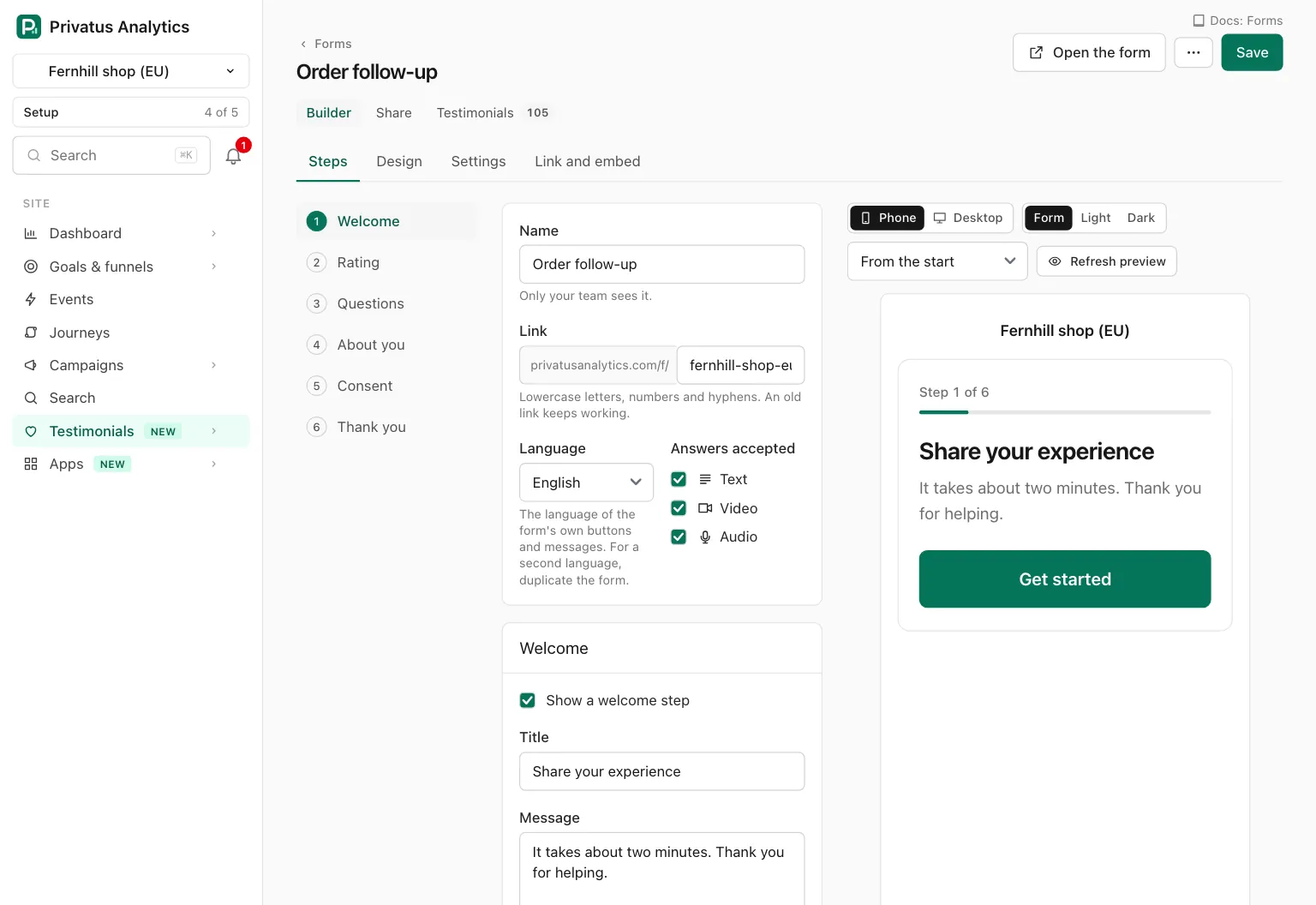
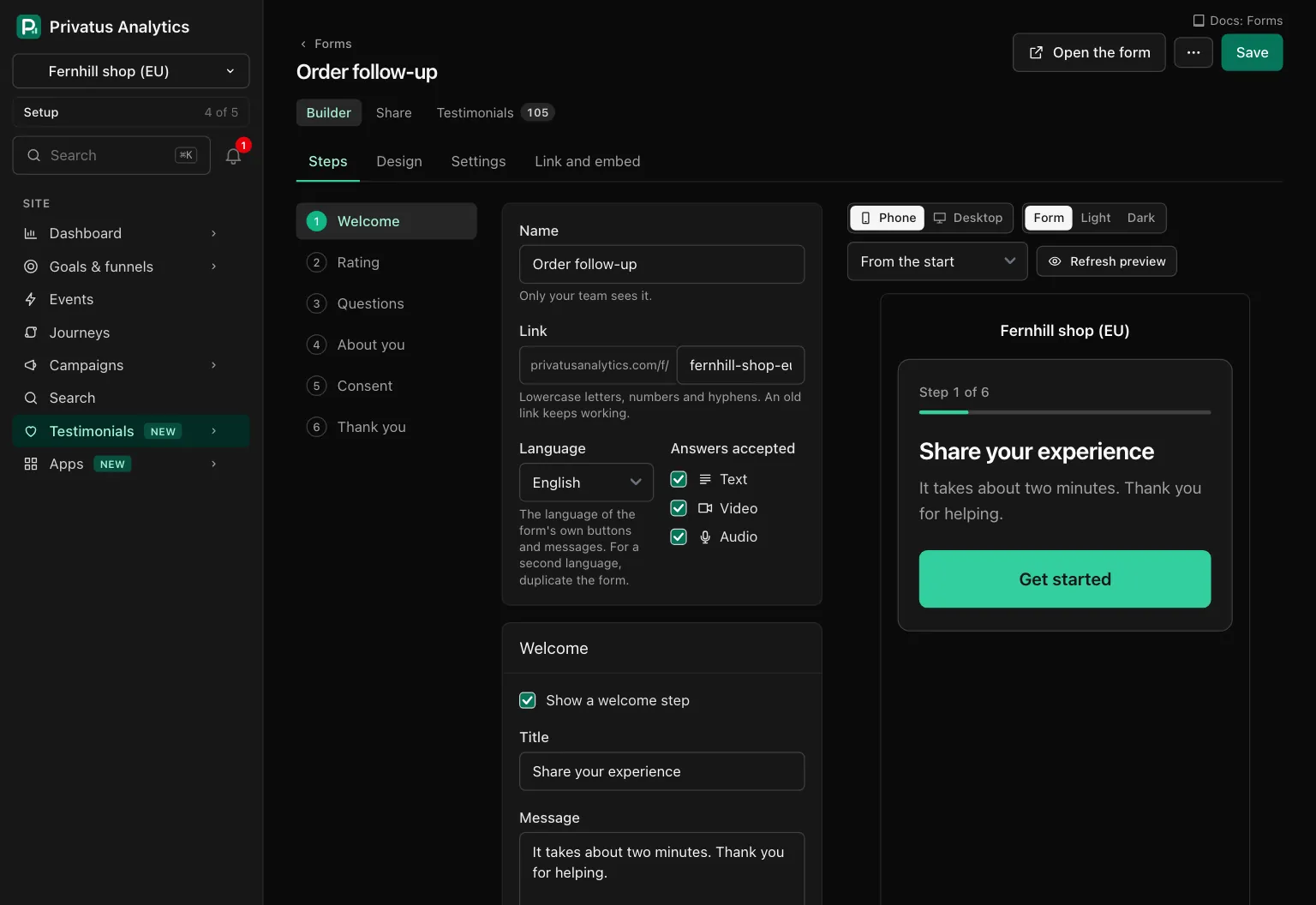
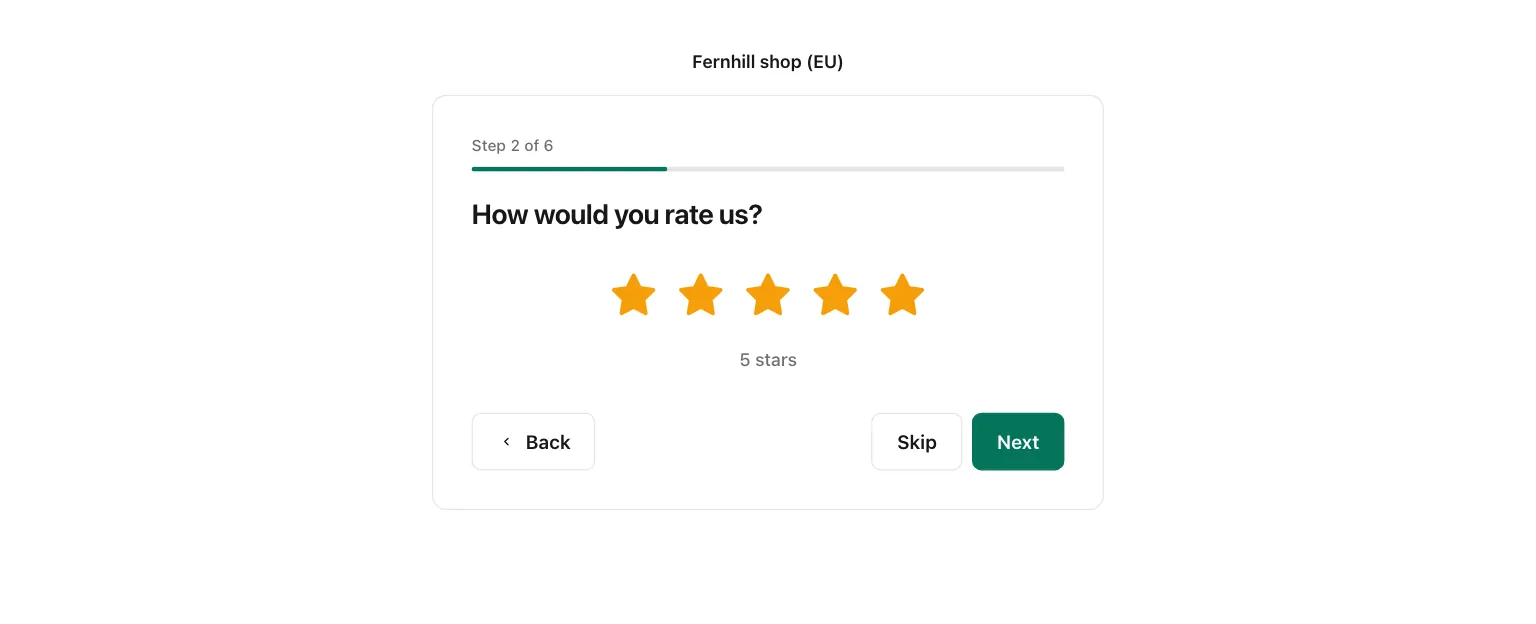
The builder has four tabs: Steps, Design, Settings and Link and embed. Beside them is a live preview: the real form, drawn from what you have typed. You can click through it, and nothing is stored or uploaded from it.
| Preview control | What it does |
|---|---|
| Phone, Desktop | The width of the preview. The P key switches |
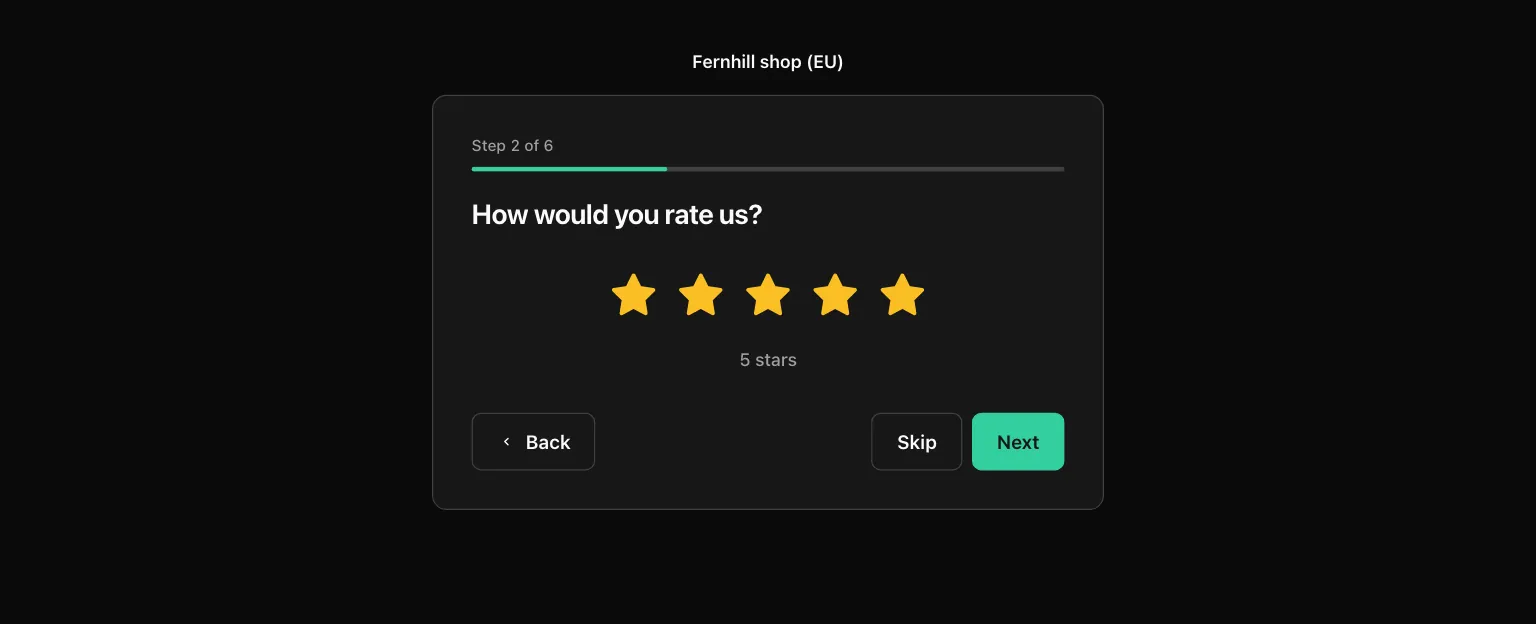
| Form, Light, Dark | The theme of the preview. "Form" uses the form's own theme. The D key switches |
| Jump to a step | Opens the preview at one step |
| Preview as a low rating | Shown when private feedback is on. Shows the private feedback step |
| Refresh preview | Draws the preview again from what is typed |
Nothing is saved until you press Save. Leaving with unsaved changes asks first. A problem is listed at the top with a link to its field. A save that changes a step, a question, the kinds of answer or the consent wording raises the form's version, and every consent record stores the version it was given on.
The header of a saved form has Open the form and a menu with See its testimonials, Duplicate and Move to trash. Under it, a second row of tabs leads to the Builder, Share, Testimonials and, when the form has it, Private feedback.
Steps#
Four fields at the top of the Steps tab apply to the whole form:
| Field | What it does |
|---|---|
| Name | Only your team sees it. Up to 100 characters |
| Link | The last part of /f/<slug>: lowercase letters, numbers and hyphens, up to 60 characters, and unique across Privatus Analytics. A taken link is refused with a free one suggested. When you change it, the old link keeps working |
| Language | The language of the form's own buttons and messages. One of the site's languages. For a second language, duplicate the form |
| Answers accepted | Text, Video, Audio, at least one. Video and audio are on Pro and up |
The order of the steps is fixed: Welcome, Rating, Questions, About you, Consent, Thank you.
| Step | Settings |
|---|---|
| Welcome | Show a welcome step, a title, a message and the button label |
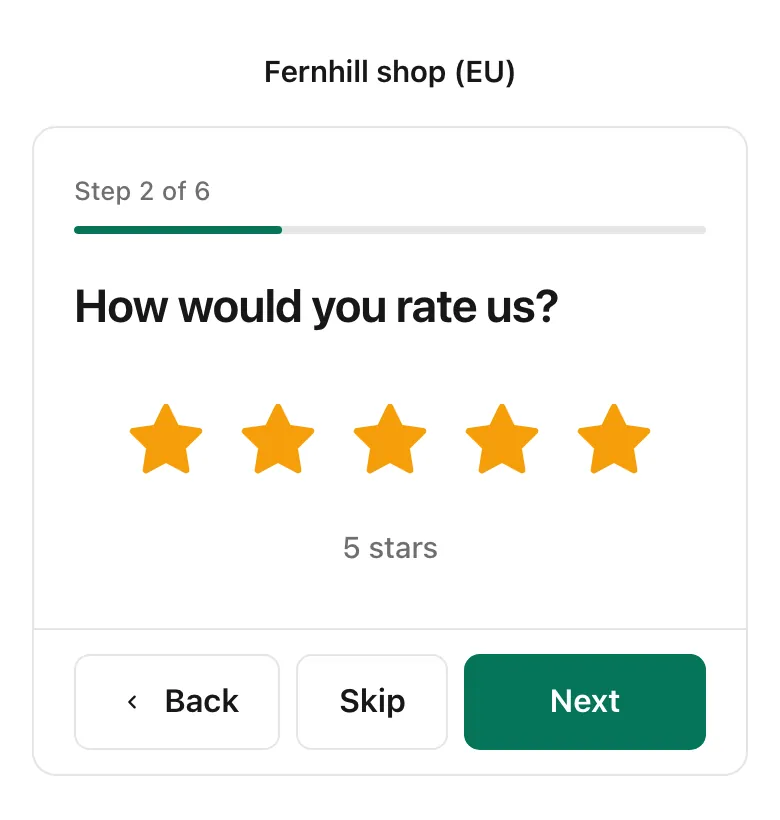
| Rating | Ask for a rating, a title, the Rating style (From the brand kit, Stars or Hearts), A rating is required, and Send low ratings to private feedback with the title, message and closing line of that step (Business) |
| Questions | One to ten questions. See below |
| About you | A title and a message. Name is always asked and is Required or Optional. Email, Photo, Job title, Company, Company website and Social profile are each Required, Optional or Not asked. An email is never shown publicly. Someone who gives no name is shown as "A customer" |
| Consent | A title, the consent text, and either one checkbox for everything or one checkbox per permission. See below |
| Thank you | A title and a message, an optional button (a label and a link that must start with https://), Go to the button link after 5 seconds, Offer to share the words, and the form's reward |
Go to the button link after 5 seconds is not used when a reward is shown, so there is time to copy the code. Offer to share the words is for text answers only: plain links to three social networks with the giver's own words filled in.
The giver's photo. When Photo is asked, the giver has two buttons: Take a photo and Upload a photo. On a computer, Take a photo opens the camera in the form, shown as in a mirror. The giver presses Take the photo (or Cancel), then Use this photo, Retake or Cancel. Upload a photo takes a JPG, PNG or WebP up to 10 MB. On a phone or a tablet it opens the device's own camera. The picture stays on the device until the giver uses it, the camera is switched off as soon as they do, and the photo is then sent and cropped to a square exactly as an uploaded one is. If the camera is blocked, busy or missing, one sentence says so and Upload a photo is right there. An embedded form can use the camera too.
Questions#
Exactly one question is The testimonial: its answer becomes the testimonial, and it cannot be removed or made optional. Each question has the question itself and an optional line under it.
| Setting of the testimonial question | What it does |
|---|---|
| Tips | Up to 5 short prompts, one per line, shown beside the recorder and the text box |
| Longest recording | 30 seconds, 1, 2, 3, 5 or 10 minutes, up to what your plan takes: 2 minutes on Pro, 10 minutes on Business. The default is 2 minutes |
| Longest text, in characters | The default is 5,000 |
| Let people attach up to 3 images | Adds an image field to the answer. An image can be up to 10 MB |
The recorder shows the time used, the limit and the time left, warns 10 seconds before the end and stops by itself at the limit. A giver can upload a file instead of recording. A file may be as long as your plan takes. It is checked in the browser, and one that is too long or over 500 MB is refused before it is sent. A file that is plainly not a recording (a document renamed to .mp4) is refused when it arrives, with "This file could not be read", while the giver is still on the form. A recording that fails in processing before the giver presses Send is not sent either: the form says so and they can record again, upload another file or write their answer.
The other types are Short text, Long text, One choice, Several choices and Yes or no. A choice question takes 2 to 20 choices, one per line. Each of these questions has An answer is required, and Save the answer to, which stores the answer in one of the site's custom properties. Move a question with Move up and Move down.
Skip logic#
Under each question, After this question holds rules, up to 10 for a question. A rule is a condition and a destination, both chosen from menus. Rules run top to bottom and the first match wins. With no match the form goes on to the next step.
| Part | Choices |
|---|---|
| What it looks at | The rating, the kind of answer (text, video or audio), the answer to this or an earlier choice or yes or no question, or a mapped URL parameter |
| How it compares | Rating: is, is at least, is at most. Kind of answer: is, is not. One choice and yes or no: is, is not, was answered, was skipped. Several choices: includes, was answered, was skipped. URL parameter: is, is not, was answered, was skipped |
| Where it goes | Any later question, or About you. The consent step is never skipped |
A sentence beside each question says what its rules do, for example: If the rating is 4 or more, go to "What would you tell a friend?". Otherwise continue. A rule that points at a removed or earlier question is marked, and the form cannot be saved until it is fixed.
Consent#
The consent text is shown in full above the checkboxes and stored word for word with every testimonial, along with what was agreed to, when, the form's version and whether a reward was offered. No checkbox is ever ticked in advance.
With One checkbox for everything, ticking it grants all four permissions: show the name, show the photo, show the recording, and use in marketing. With One checkbox per permission, each has its own wording and is Required, Optional or Not asked. Use in marketing is always asked. A permission that is not asked is recorded as not granted. The recording permission is asked only when the answer is a video or audio recording.
Design#
| Setting | What it does |
|---|---|
| Theme | Follows the giver's device, Light or Dark |
| Accent color, Background color | Leave empty to use the brand kit |
| Show the logo | Shows the brand kit's logo |
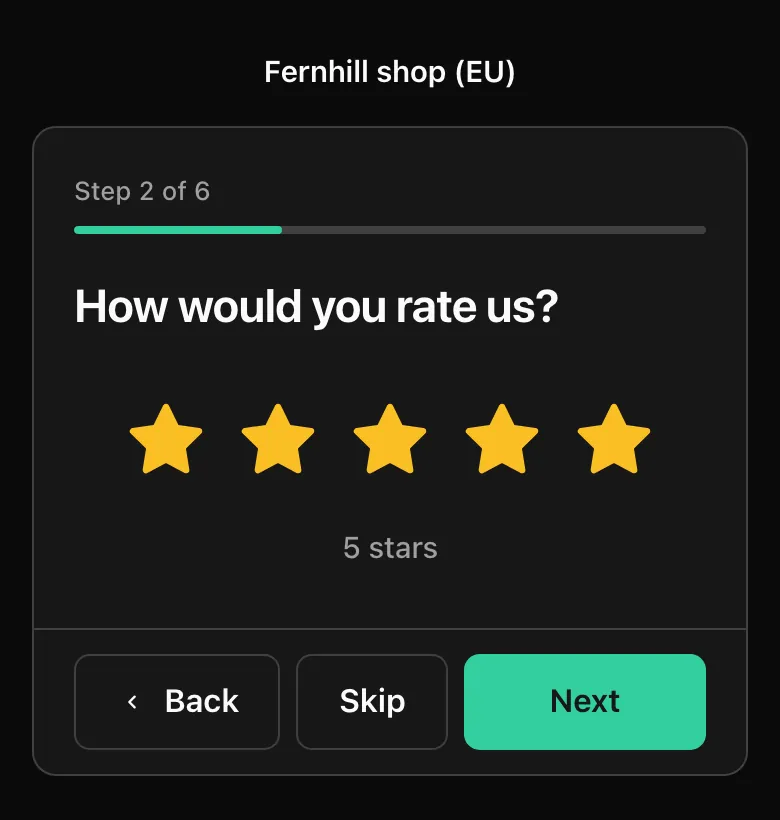
| Show progress | "Step 2 of 5" and a bar |
| Collected with Privatus Analytics badge | Always shown on Free and Pro. On Business choose Follow the brand kit, Show the badge or Hide the badge. The badge is a plain link to Privatus Analytics, with nothing in it about the person who clicks |
| Custom CSS | Business and up. Applied after the brand kit's CSS. Anything that loads a file is removed |
Settings#
URL parameters save a value from the link with the answer. Every
custom property of the site is already filled from its own parameter
(its Form URL parameter, or its key): /f/<slug>?product=pro saves
"pro" to the property product with nothing set here. Use this setting
to map a parameter of another name to a property. Up to 20 parameters.
Names use a to z, 0 to 9 and underscores, up to 40 characters. Values
are cut at 200 characters, and parameters that neither a property nor
the form declares are ignored. The site needs at least one custom
property before a parameter can be mapped. See
Custom properties.
Check that the giver is a person uses Cloudflare Turnstile before the first answer is accepted. When it is off, a hidden trap field and a limit per connection still apply.
Share#
The Share tab of a saved form shows its link, QR code and embed code. See Share and embed a form.
Duplicate a form#
Duplicate copies every setting except the link, the statistics and the reward, names the copy after the form with "copy" added, and opens it in the builder. Over the API and MCP the copy can be given a name and another language of the site. The wording is copied as it is, for you to translate.
Rewards#
A reward is a thank you on the last step of a form: a title, a line of
text and one code, with a Copy button. Set it under
Testimonials, Settings, Rewards, which lists every form of
the site with its reward On or Off. Setting a reward needs the
sites.manage permission.
| Field | What it does |
|---|---|
| Show this reward | Switches the reward on for this form |
| Title | Up to 80 characters. The default is "A thank you from us" |
| Code | One shared code, up to 64 characters |
| What they get | The line of text, up to 280 characters, for example "20% off your next order". Needed when the reward is on |
| Copy this reward to | Copies the title, the text, the code and whether it is on to the forms you tick |
Every giver who completes the form sees the reward, whatever rating they gave, also when the answer went to private feedback. You supply the code. Privatus Analytics does not create, check or expire it. Each consent record notes that a reward was offered.
What happens next#
A completed form becomes a testimonial in the Inbox, waiting for your decision. A low rating on a form with private feedback on goes to that form's Private feedback page instead. A recording or image is processed before it shows. See Video, audio and images.
API and MCP#
Everything on this page is also an API operation and an MCP tool. The inputs and the response fields are in the API reference and the MCP reference.
| Action | MCP tool | Permission |
|---|---|---|
| List, read one | testimonial_forms_list, testimonial_forms_get |
analytics.read |
| Create, change, duplicate | testimonial_forms_create, testimonial_forms_update, testimonial_forms_duplicate |
content.write |
| Move to trash, restore | testimonial_forms_trash, testimonial_forms_restore |
content.write |
| Delete for good | testimonial_forms_delete |
sites.manage |
| Link, embed code and QR code | testimonial_forms_share, testimonial_forms_qr |
analytics.read |
| List the reward of every form | testimonial_rewards_list |
analytics.read |
| Set a form's reward, copy it to other forms | testimonial_rewards_update, testimonial_rewards_copy |
sites.manage |
One testimonial_forms_create call carries a whole form. Anything you
leave out starts from a default in the form's language. A reward is
addressed by its form's id.
An AI assistant cannot delete anything or move anything to the trash.
The MCP tools testimonial_forms_trash and testimonial_forms_delete
run nothing: each responds with human_only and the address of the page
where a person does it (the form's page, and the trash of the Forms
tab), and the assistant hands you that link. The API calls run as
usual, and testimonial_forms_restore runs over both.
Switching on custom CSS, private feedback for low ratings or hiding the
badge on a plan without it responds with 402 plan_limit. Asking for
video or audio on a plan without it is not an error: the form is saved
and offers text.
The webhook testimonial_form.submitted is sent each time a form is
completed, whatever happens next: a testimonial, one held as waiting,
or private feedback. It never carries the giver's email.
Good to know#
- What gets counted. A view is counted each time the form is opened in a browser. A start is counted when the first answer is entered. A submission is a completed form, private feedback included. Each is also counted by channel: link, QR code, inline embed, popup and request email. Only a total per day is kept. A view of a form is never a pageview or an event of your site's analytics, and it does not count toward your events.
- Nothing is kept in the giver's browser. The form sets no cookie and uses no localStorage or sessionStorage. Reloading the page starts the form again. A started form can be sent for 2 hours.
- No IP address and no browser details are stored with an answer. The address is used for a moment to limit how often one connection can view, start, upload or send: 120 views, 30 starts, 60 uploads and 30 sends an hour for each form. The counter is kept under a scrambled value that changes every day, never the address.
- Nothing is loaded from another company, with one exception you control: with Check that the giver is a person on, Cloudflare Turnstile is loaded.
- Files. A file goes from the giver's browser straight to a private upload store. The giver never gets an address for it, and the app gives the address of the processed file only to members of the site until the testimonial is approved. See Video, audio and images.
- Without JavaScript the form takes written answers only. Recording, photos and URL parameters are left out.