Import data from GA4 and other tools
Import your history from Google Analytics 4, Universal Analytics, Plausible, Fathom or Matomo and keep your past traffic next to your new data.
Switching to Privatus Analytics is easy, and you keep your history. Bring it over from Google Analytics 4 in a few clicks, or from another tool with a CSV file, and your past traffic sits next to what Privatus Analytics collects from day one. Imports are included on every plan and are free: imported data never counts toward your usage.
Watch: Leave Google Analytics without losing your history (2:06)
Leave Google Analytics without losing your history: import years of data with read-only access and see old and new on one chart, as if you'd never switched.
Transcript
You don't want to hand your visitors to Google anymore. But years of history are locked inside Google Analytics, so you stay.
I'm James, founder of Privatus Analytics. Today you can leave, and take every one of those years with you.
You've thought about leaving more than once. Then you open last year's reports and remember what's in there. Which month is always slow. What the launch did. How this quarter compares to the same one three years ago. Start fresh somewhere else, and all of that is gone. Day one, empty chart. So you stay, and the price of staying keeps adding up. Every visit sent to an advertising company. A banner on every page. Reports that miss everyone who said no. And here's the part that should bother you most. That history is your data. Your visitors, your site, your years. Yet it lives in a tool you can't easily get it out of, which is exactly how the tool likes it. The longer you wait, the more there is to lose, and the harder leaving feels.
Privatus Analytics brings your history with you, in a few clicks. Connect your Google account with read-only access, pick your property, and choose how far back to go. The import runs by itself. When it's done, your old data and your new data sit on one chart, one continuous line, as if you'd never switched. Your pages, your sources, your countries and your devices are all still there. A small note marks where the old data ends and the new begins. Coming from Fathom, Plausible, Clicky or Matomo? Upload your export, and it comes across too. And from that day on, the data is yours in every sense. Nothing goes to an advertising company, and everything you see, you can take back out, any time.
You leave without losing a thing. Last year's numbers are right there whenever you need them. And your visitors' data finally stays yours.
Your history is waiting. Start free at privatusanalytics.com, and bring it with you.
Turn on Show imported data in the Overview's toolbar (it appears once a site has a finished import). Imported data:
- fills the days before the site's first tracked event, so every day is counted once,
- shows in the totals, the chart and the page, source, country, device, browser and operating system tables of the unfiltered view.
Each finished import also adds a note spanning the imported dates.
Google Analytics 4#
- Imports → New import → Google Analytics 4 (Imports is in the site menu and in Site settings).
- Connect Google Analytics, sign in with Google and grant read-only access.
- Choose the GA4 property.
- Choose the date range. From is required. Leave To empty to import up to the day before your first tracked visit.
- Start the import. It runs in the background.
Access is read-only, and we store the access tokens encrypted. Once your
imports have finished, click Disconnect next to Connected as on the
import form to delete the stored tokens. Imported data stays until you
delete the import. Disconnecting waits until your running Google Analytics
imports have finished. You can also remove Privatus Analytics in your
Google Account's third-party access settings at any time. Over the
API or MCP, call DELETE /sites/{site}/imports/google/connection
(imports_google_disconnect).
We import daily aggregates: visitors, visits, pageviews, bounce rate and duration, in total and by page, source, country, device, browser and operating system. GA4's own definitions are kept (users, sessions, views and engagement time), so your history reads just as it did in GA4 (see how the definitions compare).
The Free plan shows the last 3 months of imported days, the same history as your own data. Paid plans show all of it, and every imported day is kept, ready for the day you upgrade.
An import holds up to 1,000,000 rows and its daily totals are always complete. On a very large property the busiest pages and sources are read first. Import the history in shorter date ranges to bring the whole long tail with you.
CSV imports#
Choose the tool the file came from and upload one CSV file per import.
There are templates for Universal Analytics, Fathom, Simple
Analytics, Plausible, Matomo, Umami and Clicky. The
template sets which date formats and column names are understood. For
Plausible, unzip the export and upload each imported_*.csv file as its
own import.
| Setting | What it does |
|---|---|
| CSV export | The file. Comma, semicolon and tab separated files are read |
| Rows contain | What each row is about: daily totals, pages, sources, countries, devices, browsers or operating systems. Detect from the columns uses the first such column in the file, or daily totals if there is none. Choose it yourself for Matomo exports with a Label column |
| From and To | Optional. Rows outside the range are skipped. If the file has no date column, every row is dated the From day |
Columns are matched by their header, ignoring case and punctuation:
| Column | Headers that match (examples) |
|---|---|
| Date | date, day, period |
| Visitors | visitors, uniques, users, unique_visitors |
| Visits | visits, sessions. Without one, visits are set to visitors |
| Pageviews | pageviews, views, page_views, hits |
| Bounces | bounces, or bounce_rate (as a percentage or a fraction) |
| Duration | avg_duration, visit_duration, time_on_site and similar, in seconds or HH:MM:SS |
| Dimension | page or path, source or referrer, country, device, browser, os |
The file needs at least one of visitors, visits or pageviews, and either a date column or a From date. If it doesn't match, the import stops and names the reason, with nothing half imported, so you can fix the file and run it again.
A file can be up to 50 MB and hold up to 1,000,000 rows (counted after rows for the same day and value are added up). For a bigger export, set the From and To dates and import it in two or more date ranges. A workspace can have 5 imports queued or running at once.
Managing imports#
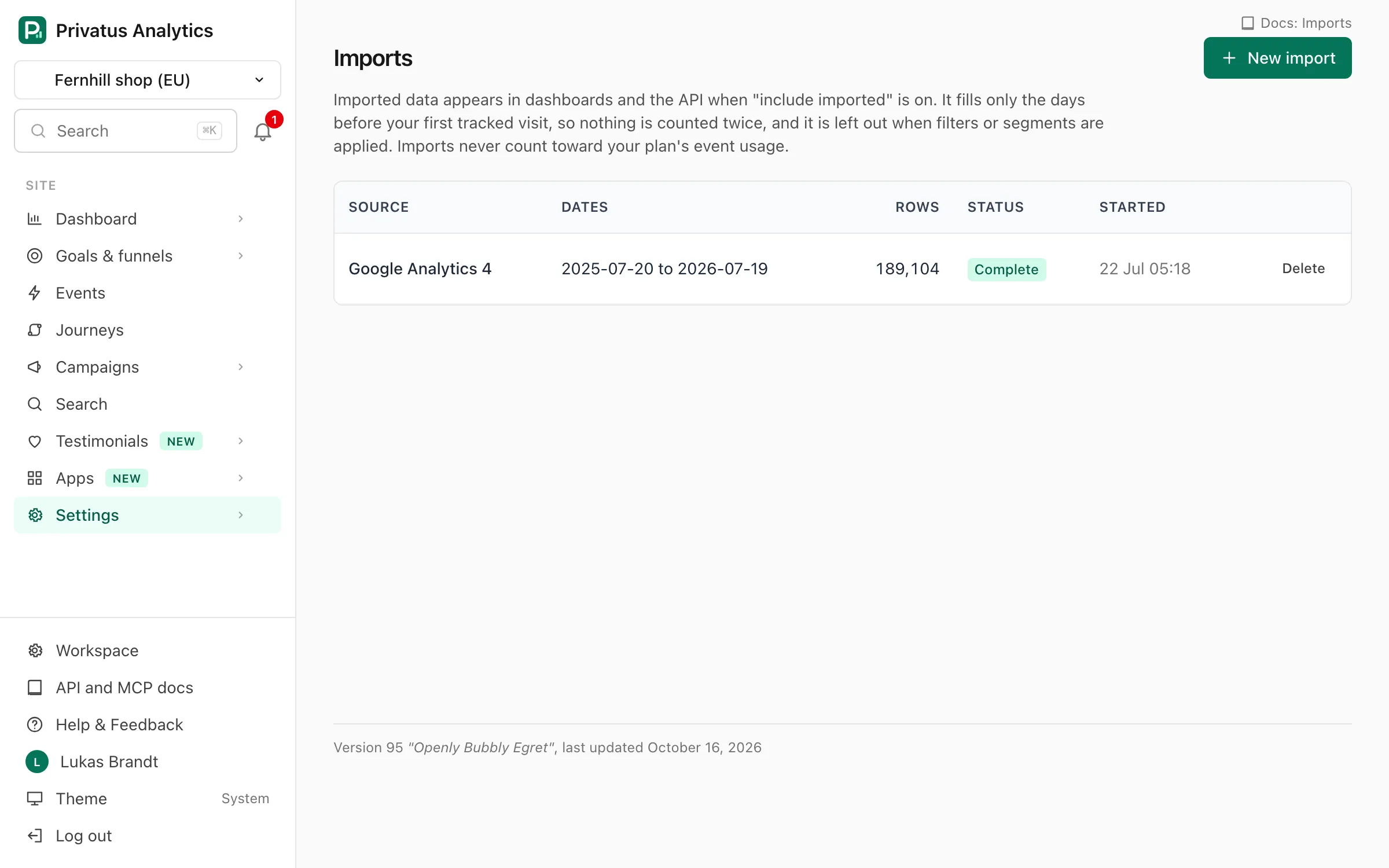
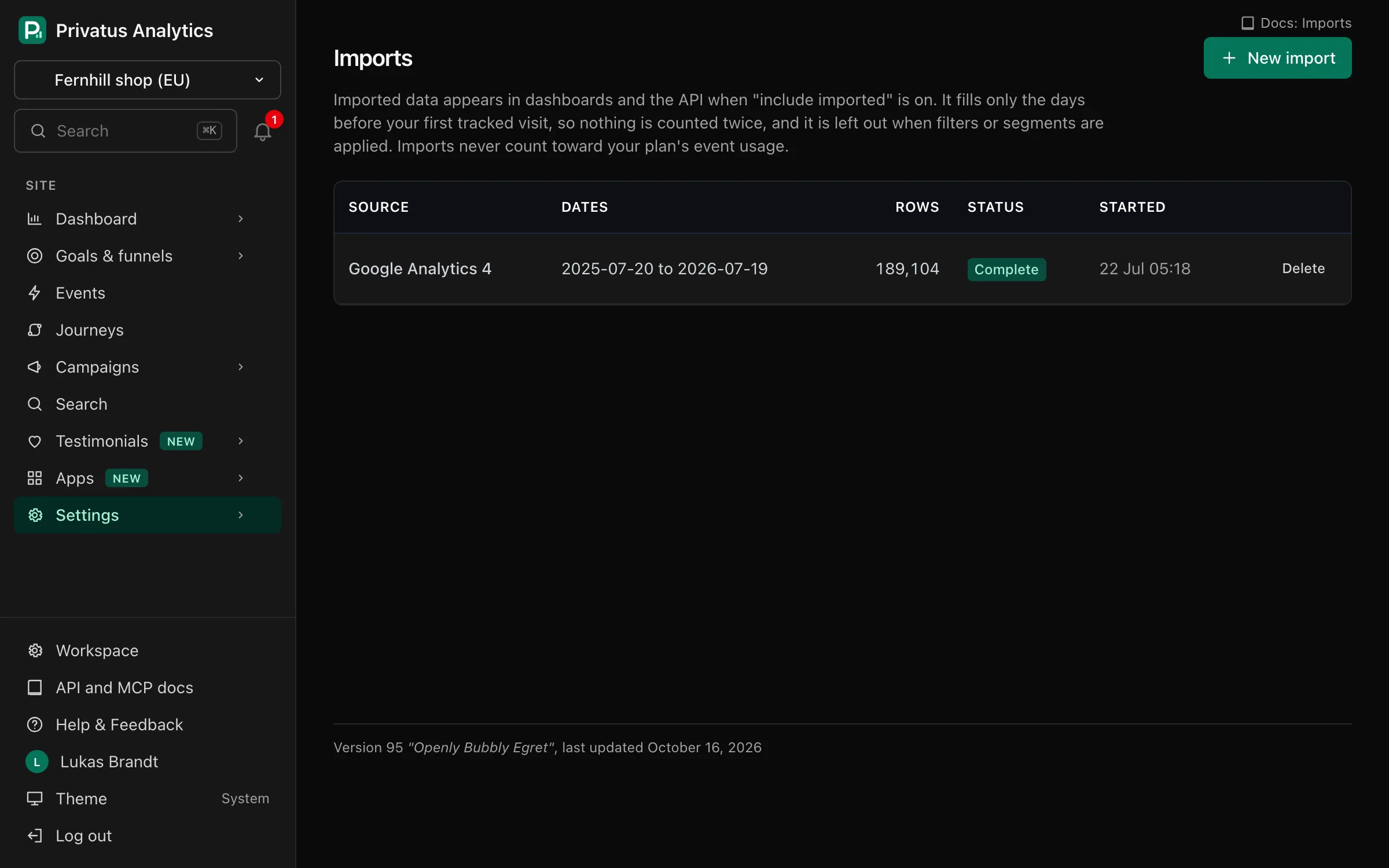
The import list shows the source, dates, rows and status (queued, running,
complete, failed). A failed import shows its error. Deleting an import
removes its data but doesn't touch anything Privatus Analytics collected.
Finished and failed imports send the import.completed and
import.failed webhooks.