Team access and security
Manage workspaces, members, roles and site access for your analytics team, and secure sign-in with SSO, SCIM, two-factor authentication and an audit log.
Workspaces and members#
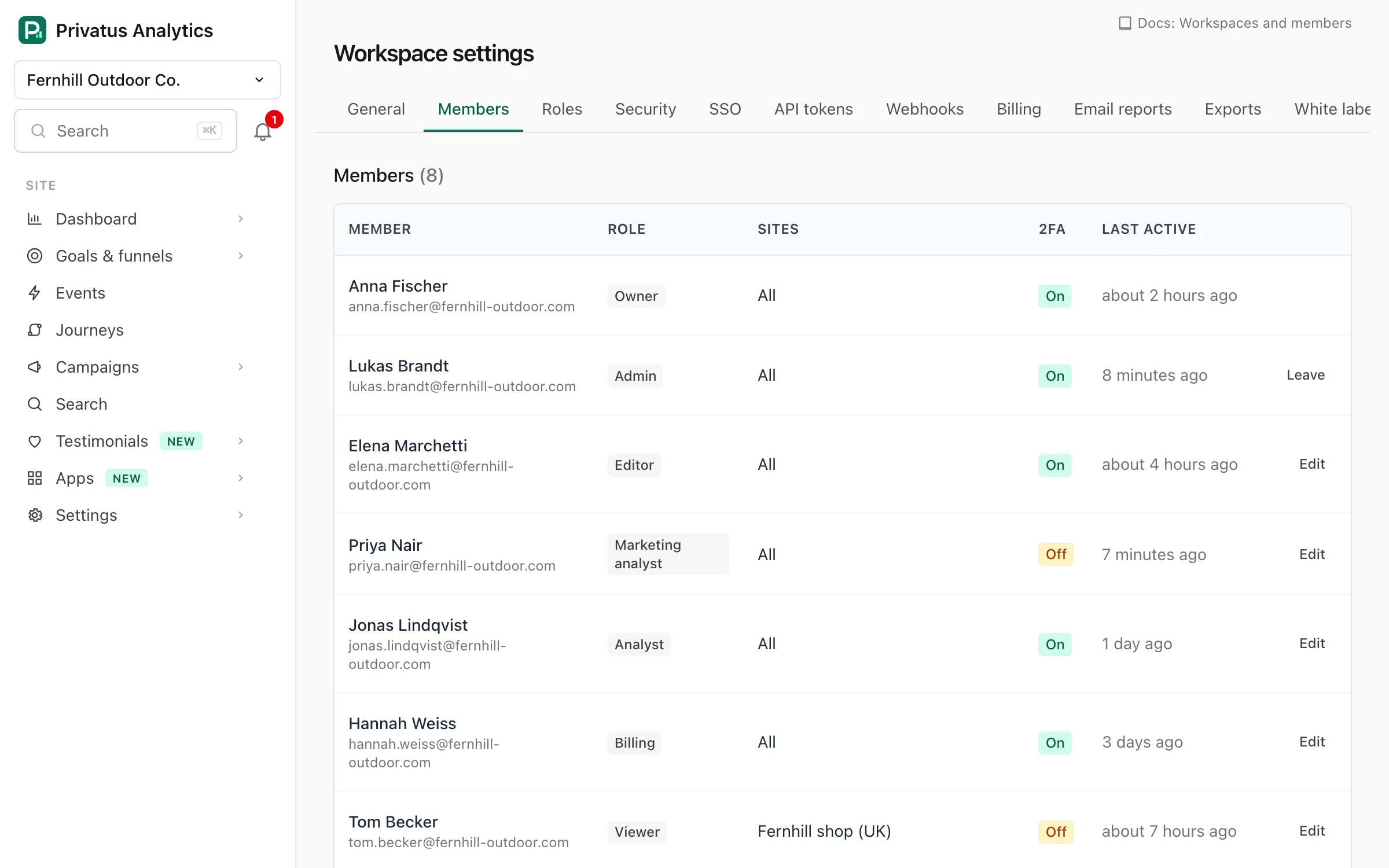
A workspace owns sites, members, billing, API tokens and webhooks. Everyone in it is a member with one role and access to all sites or selected sites.
- Invite from Workspace settings → Members: enter up to 50 email addresses, then choose a role and site access. Invitations are emailed and expire after 14 days. You can revoke pending ones. Inviting an address again replaces its pending invitation. Only an account with the invited email address can accept it.
- Change role or site access at any time. "All sites" includes
sites added later. A member limited to selected sites keeps those sites
only, and a site added later is not theirs until you tick it for them
(over the API, send
include_future_sitesas true to give them new sites too). You can't change your own access, give someone a role or sites beyond your own, or change or remove a member who holds a permission or a site that you don't. - Remove a member: their API tokens for this workspace stop working immediately. Members can also leave on their own.
- Transfer ownership to another member with Make owner (the owner only). The new owner gets all sites, and the previous owner becomes an admin. The owner can't be changed, removed or leave before that.
| Invitation field | What it does |
|---|---|
Email addresses (emails) |
Up to 50 addresses, separated by commas or new lines. Addresses that are already members are skipped. |
Role (role, custom_role_id) |
Any built-in role except Owner, or a custom role on Business. Viewer when left out. |
All sites, including future ones (all_sites true) |
The member sees every site, and each site added later. |
Only selected sites (all_sites false, site_ids) |
The member sees only the ticked sites. |
Every member can see the Members list. Inviting, changing and removing
members need the members.manage permission (see
Roles & permissions). Per-site access can also be
managed from a site's Access tab. The list shows each member's role,
sites, whether they have two-factor authentication, and when they were last
active.
The Free plan is for one person, the owner, so inviting anyone needs a paid plan or the Pro trial. Paid plans are unlimited.
Members and invitations are REST resources under
/workspaces/<workspace id>/members and
/workspaces/<workspace id>/invitations, and MCP tools named members_*
and invitations_*. The API reference lists every input.
In this section#
- Roles & permissions, including custom roles.
- Single sign-on with guides for Okta, Microsoft Entra ID, Google Workspace and JumpCloud.
- SCIM provisioning.
- Two-factor authentication.
- Audit log.
Workspace security settings#
Workspace settings → Security holds the sign-in rules for everyone
in the workspace. Changing them needs the workspace.manage permission,
which the Owner and Admin roles have.
| Setting | Options | Plan |
|---|---|---|
| Require two-factor authentication | On or off | Business |
| Allowed login methods | Email and password (password), Email login link (magic_link), Passkey (passkey), Google (google), GitHub (github), Apple (apple), SSO (SAML/OIDC) (sso) |
All |
| Sign members out after | No limit, 8 hours, 24 hours, 7 days or 30 days | All |
| IP allowlist | IP addresses and CIDR ranges, IPv4 or IPv6 | Business |
| Support access | On or off, for 7 days at a time | All |
- Require two-factor authentication. Members without an authenticator app or a passkey are sent to set one up before they can open the workspace. Only a member whom the workspace's login rules leave single sign-on alone is let in without it, in a session that this workspace's identity provider opened. See Two-factor authentication.
- Allowed login methods apply to every member, and at least one method must stay selected. The owner can always log in with a password or a passkey, so a login rule can't lock the owner out. Someone who belongs to several workspaces can use only the methods that all of them allow. When SSO is enforced, members sign in through SSO only. When you take a method away, members who ticked "Keep me logged in" log in once more.
- Sign members out after ends a session that many hours after the member signed in, however active they are. Someone who belongs to several workspaces gets the shortest lifetime among them.
- IP allowlist. Only the listed addresses can open the workspace in
the app or use its API tokens. Put one entry per line, such as
203.0.113.0/24or2001:db8::/32. An empty list allows any address. A request from another address is refused with a 403. The list must include the address you are saving from (the page shows it), so you can't lock yourself out. - Support access lets Privatus Analytics support view the workspace for 7 days from the time you save. Support staff cannot see your workspace unless you allow it. Turn it off to end access at once. Access is read-only, each support session lasts at most one hour, and every page viewed is written to the audit log.
The mobile app follows the same rules. Its login is judged by how the member logged in when they approved the app, and the rules are checked again every time the app renews its access. A workspace whose rules the login doesn't meet is left out of the app, with the reason shown when logging in.
Note: On a plan below Business the two Business settings are shown switched off. If a workspace moves to a lower plan, its 2FA requirement and IP allowlist are kept but stop applying until it is back on Business.
Security settings are a REST resource at
/workspaces/<workspace id>/security (GET to read, PATCH to change)
and the MCP tools workspace_security_get and
workspace_security_update. The inputs are enforce_2fa,
login_methods, session_ttl_hours, app_ip_allowlist and
support_access. Over the API, session_ttl_hours takes any whole number
of hours up to 2,160 (90 days), and 0 means no limit. The
API reference lists every input. Over MCP
workspace_security_update only returns a link to the security page, see
Actions for a person.
See what each built-in role (Owner, Admin, Editor, Analyst, Viewer, Billing) can do, how custom roles work on Business, and how API tokens narrow access.
Set up single sign-on for your analytics workspace with SAML 2.0 or OpenID Connect: IdP values, email domains, just-in-time provisioning and enforcing SSO.
Connect Okta to Privatus Analytics with SAML 2.0 or OpenID Connect single sign-on. Create the app integration, copy the values, assign people and test.
Connect Microsoft Entra ID (Azure AD) to Privatus Analytics with SAML 2.0 single sign-on, step by step: enterprise app, claims, certificate and testing.
Connect Google Workspace to Privatus Analytics with a custom SAML app for single sign-on, including the ACS URL, entity ID, Name ID and provisioning options.
Connect JumpCloud to Privatus Analytics with SAML 2.0 single sign-on: create the custom app, enter the SP entity ID and ACS URL, bind user groups and test.
Set up SCIM 2.0 to create, update and remove workspace members automatically from your identity provider, with the base URL, token and supported endpoints.
Turn on two-factor authentication with an authenticator app or passkeys, save recovery codes, and enforce 2FA for every member of your analytics workspace.
Use the audit log to see who changed sites, members, API tokens, SSO and workspace settings, and when. Filter by member, type or date, and export to CSV.