The Inbox
Every testimonial of a site in one list: the status row, layouts, columns and filter rail, and a testimonial's own page with approving, editing and history.
The Inbox is where you read every testimonial of a site and decide
which ones may be shown. Open Testimonials in the site's sidebar: the
Inbox is the first tab, at /sites/<site id>/testimonials.
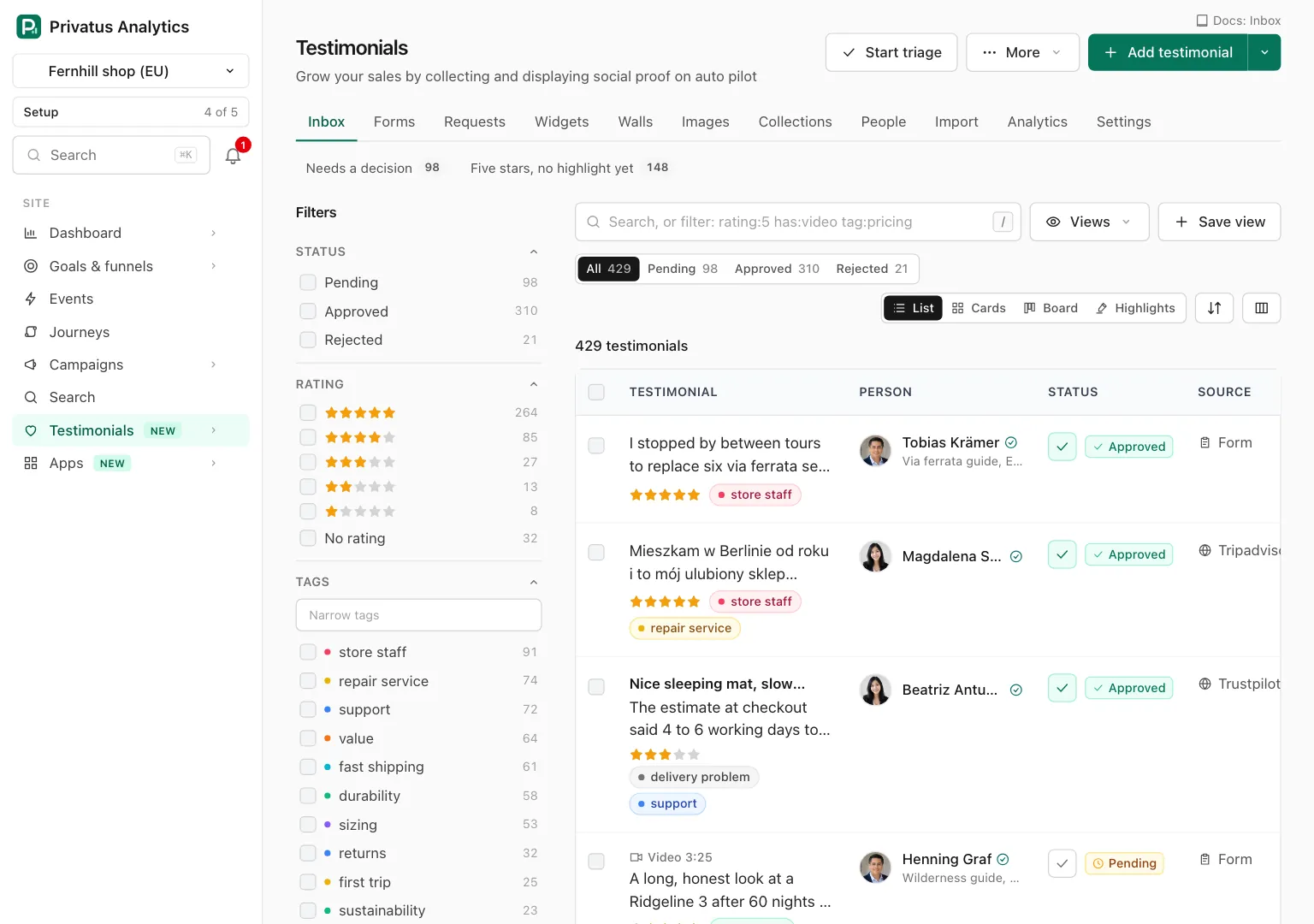
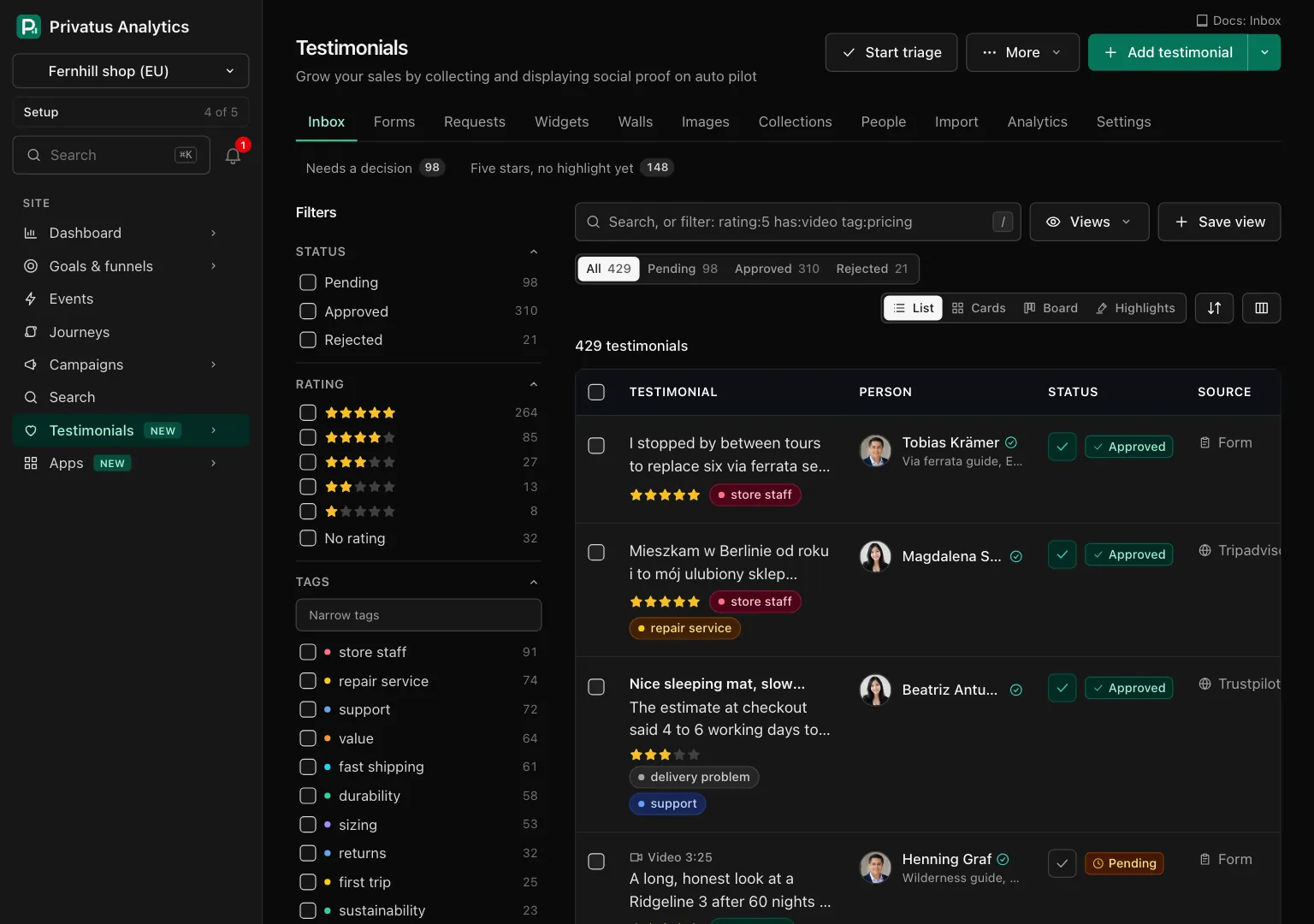
A testimonial has one of three statuses. Only an approved testimonial is ever shown outside the app.
| Status | What it means |
|---|---|
| Pending | It arrived and nobody has decided yet |
| Approved | It may be shown by widgets, walls, images and its public page |
| Rejected | It is kept and shown nowhere |
When an approved testimonial is rejected, returned to pending or moved to the trash, it comes off every widget, wall and public page: it is gone from new visits within about ten seconds, and from a browser that already loaded the widget within 5 minutes, which is how long a browser keeps a widget it has shown. See When your changes show.
A testimonial can carry more badges beside its status: Waiting for allowance (held by the monthly limit, in place of its status), In trash, Edited, Possible duplicate and Over two years old.
The top of the page#
| Control | What it does |
|---|---|
| Start triage | Opens triage on the pending testimonials, oldest first. Shown while something is pending |
| More | Opens the pages behind the Inbox: Tags and rules, Mentions, Duplicates and Trash. Duplicates and Trash show their count. Each of those pages keeps the tab bar with Inbox selected, and has a second row under it (Inbox, Tags and rules, Mentions, Duplicates, Trash) to move between them |
| Add testimonial | Opens the form to add one by hand. The arrow beside it offers By hand, From a spreadsheet and From a review page. Shown to members who hold content.write |
Under the header, up to four things can appear before the list.
| Block | When it shows |
|---|---|
| The monthly limit strip | While testimonials are waiting for allowance. It says how many, the date they become usable, and has See them, which filters the list to the waiting ones |
| The setup checklist and five numbers | While the site has fewer than 25 testimonials and the block was not dismissed. See the setup checklist |
| The pinned views row | Once a saved view you can open is pinned. Each one shows its count |
| A progress strip | While a bulk action of yours runs in the background |
The toolbar#
| Control | What it does |
|---|---|
| The search box | Takes words and operators such as rating:5 has:video. See Search and filters |
| Views | Lists My views and Shared views, and Manage views. While a view is open the button carries its name |
| Save view | Keeps the filters, search, sort, layout and columns under a name. See Saved views |
| The status row | All, Pending, Approved and Rejected, each with its count. One click shows that status alone. The Board layout has no status row, because its columns are the statuses |
| The layout buttons | List, Cards, Board and Highlights |
| The sort button | Lists the orders in words, from Newest received to Least used. Best match is offered when the search has words |
| Columns | Chooses the columns of the List layout. Tick them and press Apply |
Under the toolbar a line says how many testimonials match, with one chip
for each filter that is on. A chip removes its filter. When a filter is on
and something matches, members who hold content.write also get
Triage these, which opens triage on exactly what the list shows.
On a phone the toolbar is the search box, Filters and one menu that holds the layouts, the sorts and the views.
The filter rail#
The rail on the left filters the list. Every value shows how many testimonials it would leave, counted with the other filters applied. The groups appear in this order, and a group is left out when the site has nothing for it (no platform, one language, no form).
| Group | Choices | API input |
|---|---|---|
| Status | Pending, Approved, Rejected | status |
| Rating | 5 stars to 1 star, No rating | rating (1 to 5, none) |
| Tags | The site's tags, Untagged, and Match any or all of the ticked tags | tag_id, untagged, tag_match |
| Kind | Text, Video, Audio | kind |
| Source | Form, Import, Added by hand, API, Migration, and Captured from a page once the site holds one | source (form, import, manual, api, migration, extension) |
| Platform | The platforms and places the site's testimonials name | source_name |
| Form | The site's forms | form_id |
| Collections | The site's collections, In no collection | collection_id, no_collection |
| Language | The languages in the site, once there are two | language |
| Has photo, Has video, Verified | Any, Yes, No | has_photo, has_video, verified |
| Consent | Any, Consent on record, Source only, and With permission to show name, show photo, show video, use in marketing | consent, consent_permission |
| Date received | Any time, Today, Last 7, 30 or 90 days, This year, Last year, or your own From and To | received, received_from, received_to |
| Freshness | Under 6 months, 6 to 12 months, 1 to 2 years, Over 2 years | age |
| Person, Company | The 50 with the most testimonials | person_id, company |
| Custom properties | One group for each custom property shown as a filter, with Not filled | properties |
| Usage | Any, Used nowhere, Used somewhere, Used in 3 or more, and Shown by one widget or wall | usage, used_by |
| Mentions | The 20 most used recurring terms, and All mentions | mention |
| More | Has a highlight, Pinned, Edited, Waiting for allowance, Possible duplicate | has_highlight, pinned, edited, waiting, duplicate |
Ticking two values of one group means either. Two groups together mean both. On a phone the rail opens from Filters.
Layouts#
| Layout | What it shows |
|---|---|
| List | One row each: the words cut to two lines, then the columns you chose. The default |
| Cards | The full words on a card, with the recording where there is one. Long text is cut with More |
| Board | Three columns, Pending, Approved and Rejected, each with its count and its first 25 cards. Drag a card to another column to change its status. Show more adds 25, up to 200, then See them all in the list takes over |
| Highlights | The highlighted sentence alone, with the person under it. With a highlight and No highlight yet switch between the two halves, and the second offers Mark a highlight on each one |
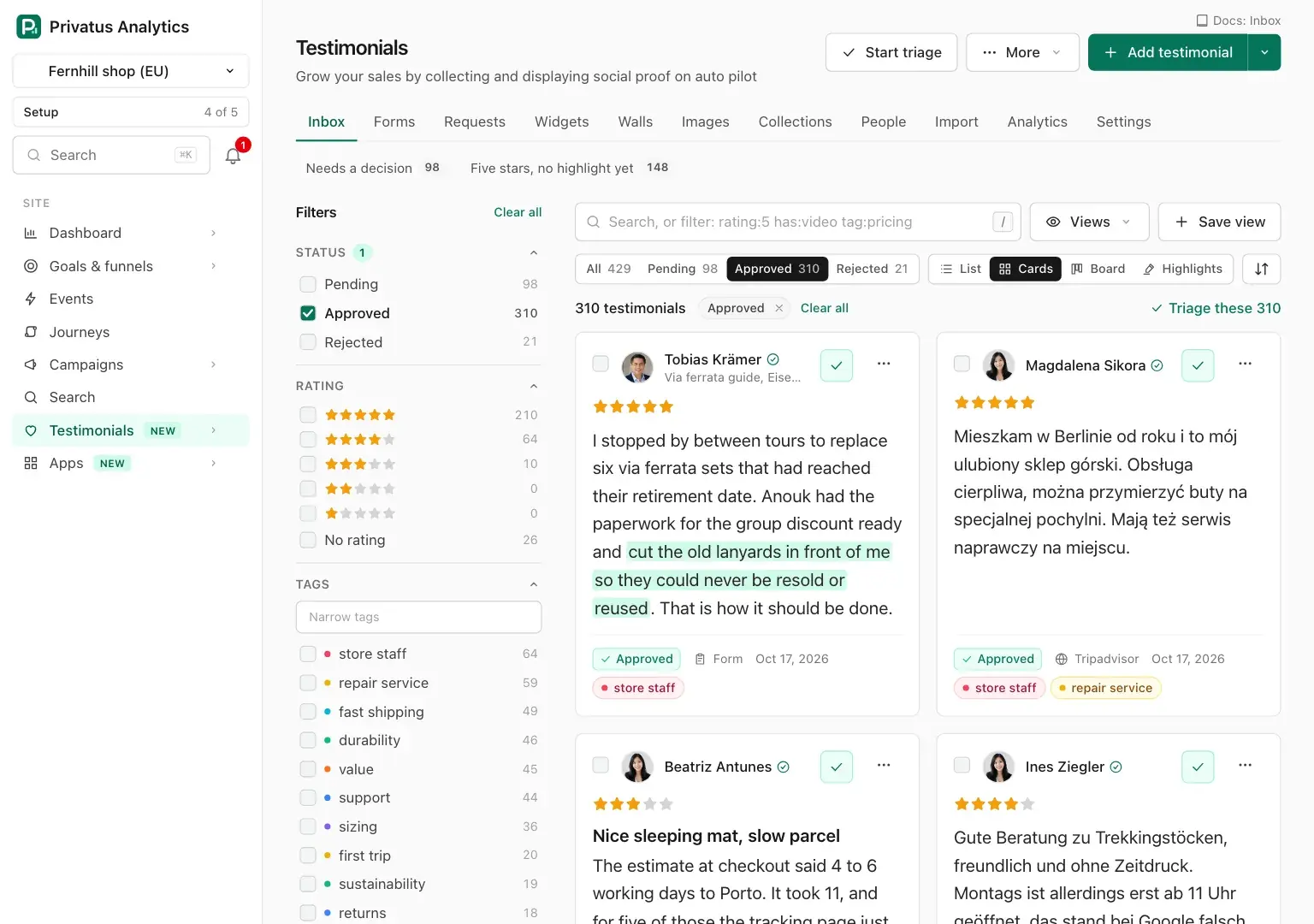
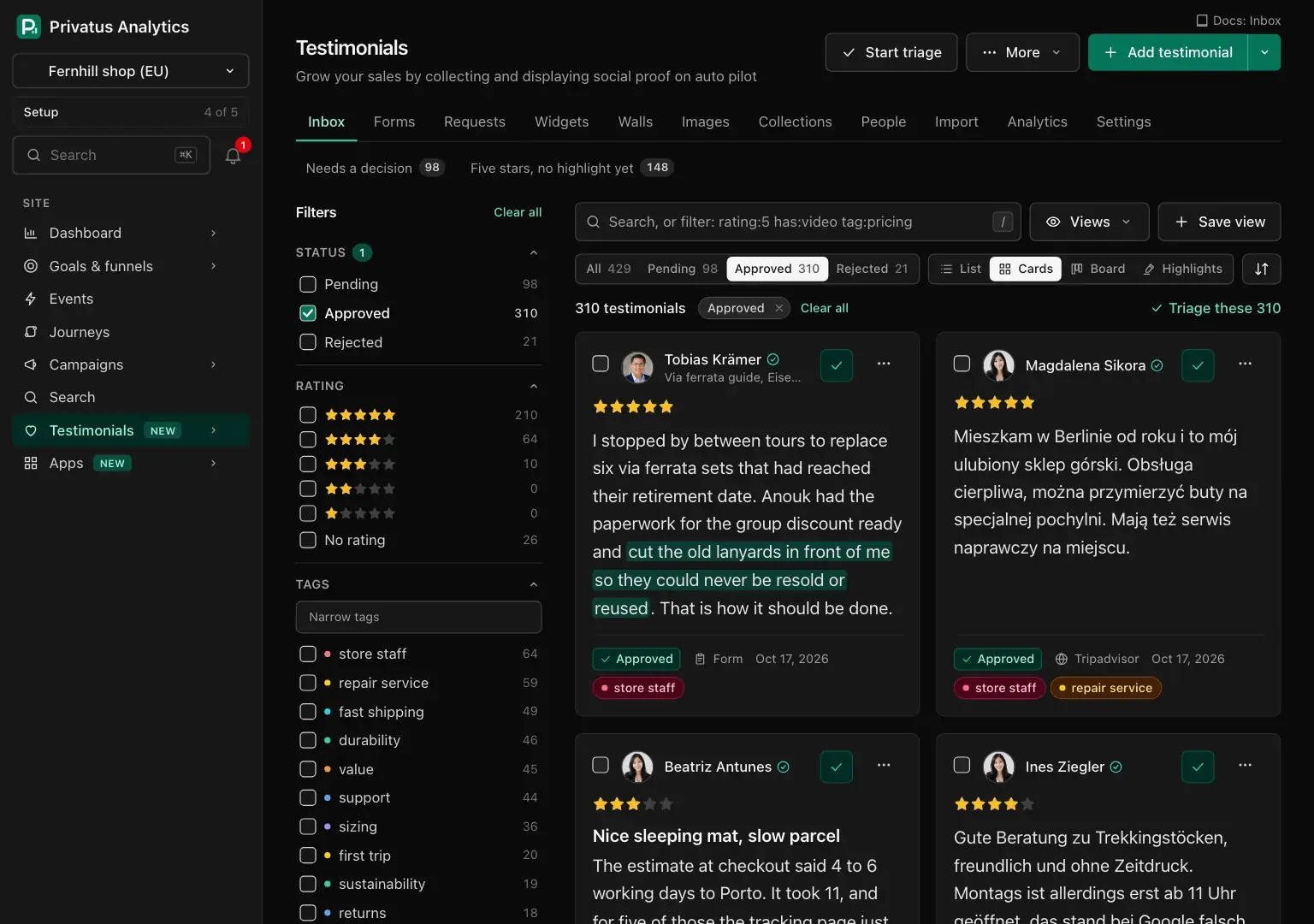
On the Board a testimonial that is waiting for allowance stays in Pending. Dropping it elsewhere says why.
The layout, the columns and the page size you choose with the buttons of
the page are remembered for you in this site. Nobody else's inbox
changes. An address that carries layout=cards or per_page=50 (a
bookmark, a link a colleague sent) shows the page that way and leaves
your own choice as it was.
Columns#
The List layout offers these columns, in this order: Person, Rating, Status, Source, Tags, Collections, Form, Language, Consent, Received, Added, Used and Pinned, then one for each custom property that is offered as a column. It starts with Person, Rating, Status and Received, which fit beside the words on a laptop screen. Tick any other in Columns and press Apply, and it is shown: when the columns you chose do not all fit, the table scrolls sideways inside its own frame.
The tags sit under the words until you make Tags a column. On a narrow screen the person, the status and the rating sit under the words too, so a phone loses nothing.
Under the list, Per page switches between 25, 50 and 100 once there are more than 25.
Acting on a row#
Members who hold content.write get three things on every row and card.
| Control | What it does |
|---|---|
| The checkbox | Selects it for a bulk action |
| The check mark | Approves it. On an approved one, pressing it again moves it back to pending. It is switched off, with the reason, on one that is waiting for allowance |
| The menu | Open, Approve, Reject, Back to pending, Tag, Add to a collection, Mark a highlight, Pin or Unpin, Edit, Make an image (approved ones), Ask this person again, Open the public page (when its public page is on), Download the file (a recording) and Move to trash |
Every change comes back to the list with a notice that offers Undo for 10 seconds. After that the change stays in the undo list for 7 days.
A pinned testimonial is shown first wherever it is displayed.
The panel beside the list#
On a screen at least 1024 pixels wide, clicking a testimonial opens it in
a panel beside the list instead of leaving the page. The panel has
previous and next buttons, Open the page and a close button. Esc
closes it, and the up and down arrow keys move through the list. On a
narrower screen the same click opens the testimonial's page.
A testimonial's page#
The page of one testimonial is at
/sites/<site id>/testimonials/<testimonial id>. At the top are the
person's name, the badges, Reject, Edit and the same menu a row
has. The sections follow in this order.
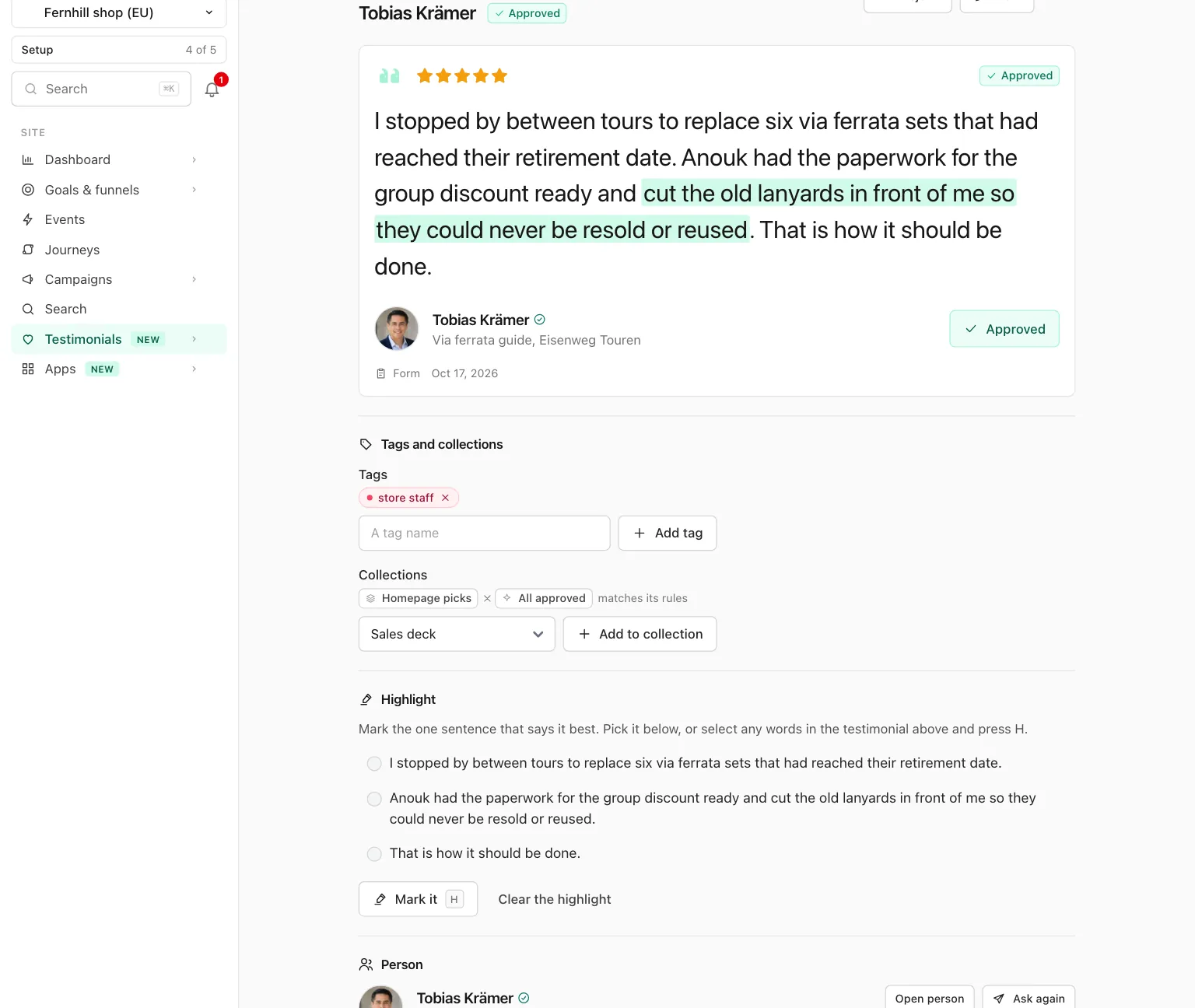
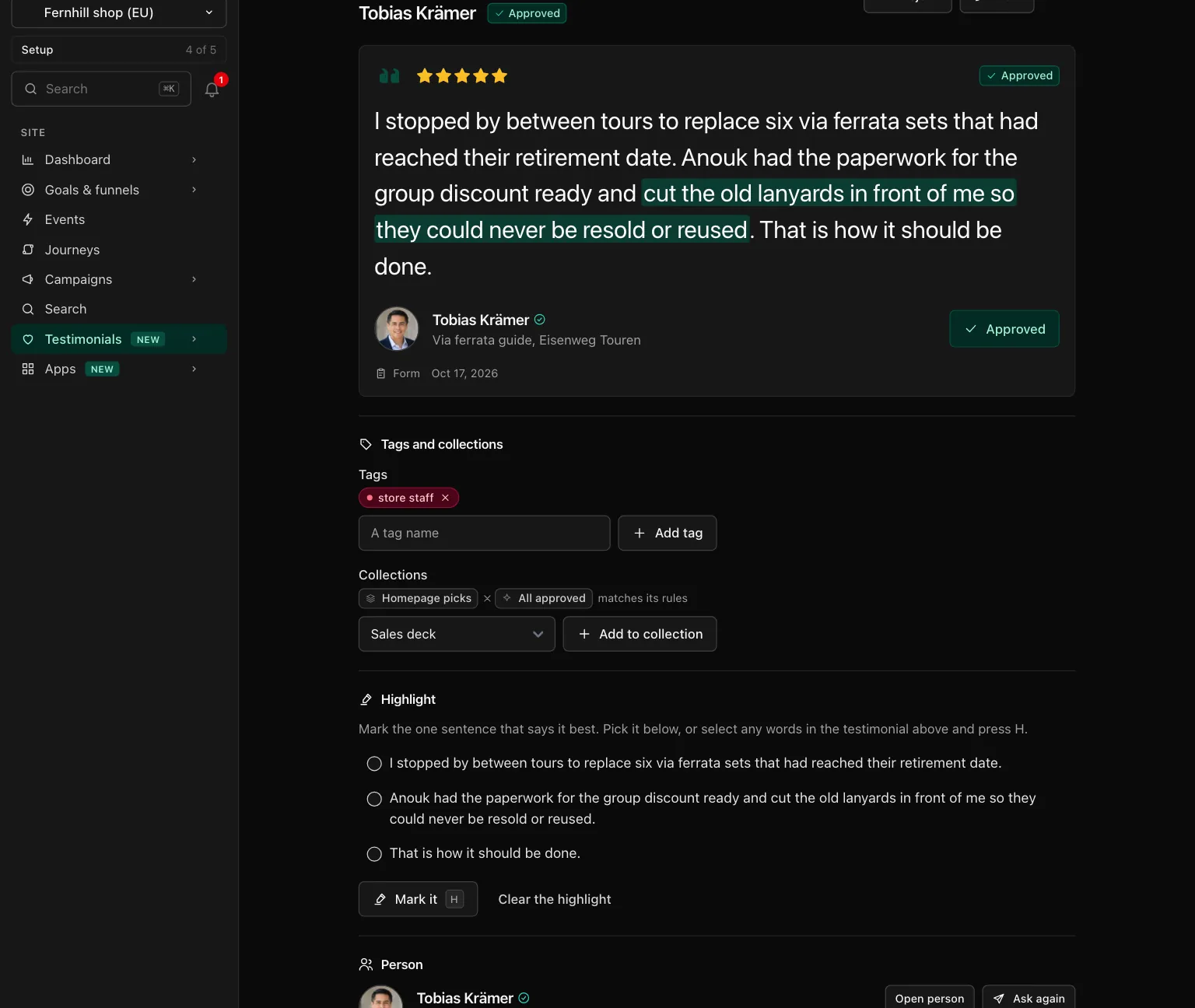
| Section | What it holds |
|---|---|
| The words | The title, the rating, the words, the person and the Approve button. A video or audio file plays here, with its state (Uploading, Processing, Ready, Failed), its size and Download original. Images kept with the testimonial are under it |
| Tags and collections | The tags as chips, each with a remove button, and a field to add one (a new name is created). The manual collections it is in, with Add to collection. A collection kept by rules is listed with "matches its rules" and cannot be changed here |
| Highlight | The sentences of the words. Pick one and press Mark it, or select any words above and press Mark it. Clear the highlight removes it |
| Person | Name, job title, company, the links and the email, with Open person and Ask again. A line links to the person's other testimonials. Likely duplicates are listed here with Review duplicates |
| Details | Kind, Status, Language, Received, Added, Source, Source link, Source id, Form, Pinned and Verified, with what the verified mark rests on |
| Custom properties | One field for each property of the site, and Save properties |
| Consent record | What the giver agreed to, word for word, with each permission granted or not. For a testimonial that did not come through a form: where it came from and who added it |
| Where it is used | Every widget, wall and image that shows it |
| Public page | Whether the testimonial has a page of its own at /t/..., with the switch that turns it on or off. See Permalinks |
| Translations | The languages it is stored in, with a link to its translations. See Translation |
| History | Every version, newest first. See below |
| Danger zone | Move to trash, and Delete permanently for members who hold sites.manage. See Trash |
A testimonial that is waiting for allowance says so at the top and its Approve button is switched off. One that is in the trash shows the date it will be deleted for good and Restore in place of the other buttons.
The person's email is shown only to members who hold content.write.
Everyone else sees "On record. Shown to members who can edit."
Edit a testimonial#
Edit opens one form with two cards.
| Field | What it does |
|---|---|
| Their words | The text, up to 10,000 characters |
| Title | Up to 200 characters |
| Rating | 1 to 5, or none |
| Highlight | Must be an exact part of the words. Empty clears it |
| Why it changed | A note of up to 280 characters, kept with the history entry |
| Received on | The day they gave it |
| Language | The language of the words |
| Where it came from | The name of the platform or place |
| Link to it | A public link to the original |
A change to the words, the title, the rating or the highlight adds a version to History, with who made it, when, and the note. The words are compared with the version before, so what was added and removed is marked. The first version is "As received" and is never removed. Restore this version on any earlier version puts its words, title, rating and highlight back. That adds a new version and removes none.
When the words change and the old highlight is no longer part of them, the highlight is cleared. The Edited badge appears once the words or the title differ from "As received". Editing never changes the verified mark, and a testimonial waiting for allowance can be edited like any other.
The status, the pin, the tags, the collections, the custom properties and the trash are changed on the testimonial's page, not in this form.
Keyboard shortcuts#
These keys work when keyboard shortcuts are on for your account. See Keyboard shortcuts.
| Key | In the Inbox | On a testimonial's page |
|---|---|---|
/ |
Puts the cursor in the search box | |
N |
Add testimonial | |
V |
The next layout | |
A |
Ticks every row on the page (List layout) | |
T, C |
Open Tag and Collection in the bulk bar | Put the cursor in the add tag field, and in the collection menu |
Z |
Undo, while the notice shows | The same |
L |
Approve | |
U |
Moves an approved one back to pending | |
X |
Reject | |
E |
Edit | |
H |
Mark it in the Highlight section | |
Delete |
Move to trash | |
Esc |
Closes the panel beside the list | Back to the Inbox |
API and MCP#
Everything on this page is also an API operation and an MCP tool. The inputs and the response fields are in the API reference and the MCP reference.
| Action | MCP tool | Permission |
|---|---|---|
| List, with every filter | testimonials_list |
analytics.read |
| Count the values of every filter | testimonials_facets |
analytics.read |
| Read one | testimonials_get |
analytics.read |
| Edit | testimonials_update |
content.write |
| Approve, reject, back to pending | testimonials_approve, testimonials_reject, testimonials_pend |
content.write |
| Pin or unpin | testimonials_pin |
content.write |
| Mark a highlight | testimonials_highlight |
content.write |
| Read the history | testimonials_history |
analytics.read |
| Restore a version | testimonials_restore_version |
content.write |
Adding one is on Add by hand, the trash tools are on Trash, and the bulk route (JSON API only) is on Bulk actions.
An AI assistant cannot delete anything or move anything to the trash:
those MCP tools respond with human_only and the address of the page
where a person does it.
A change of status, pin or trash responds with meta.undo_id, which
testimonials_bulk_undo takes for 7 days. For a caller without
content.write, person.email is null and person.has_email says
whether one is on record.
A refused operation responds with 422 and a code in error.code.
| Code | Meaning |
|---|---|
validation_failed |
An input does not fit. error.details names the field |
waiting_for_allowance |
The testimonial is waiting for the monthly limit and cannot be approved |
in_trash |
The testimonial is in the trash. Restore it first |
not_in_trash |
A restore was asked for one that is not in the trash |
allowance_reached, duplicate |
See Add by hand |
selection, too_many, unknown_ids, rehearsal_too_large, count_changed, not_allowed, not_undoable |
See Bulk actions |
in_use |
Another record still needs the one you are deleting |
A webhook can subscribe to testimonial.received,
testimonial.approved, testimonial.rejected, testimonial.trashed,
testimonial.restored and testimonial.deleted. The payload carries the
testimonial as testimonials_get returns it, without the person's email.
trashed and deleted carry the id only. An import or a migration sends
no testimonial.received for each testimonial it brings in.
Good to know#
- The counts in the rail are cached for up to 10 minutes and refreshed whenever a testimonial, tag, collection, person or placement of the site changes. Only the counts that depend on today's date, such as "Last 7 days", can lag.
- A testimonial that is waiting for allowance is safe and readable. It cannot be approved until the 1st of the month or until the plan grows. See the monthly limit.
- The Inbox never lists the trash. Trashed testimonials are on the Trash page, in the More menu.
- A filter the list cannot read, such as
rating:9in the search box, brings the page back with a sentence that names the value and nothing listed. - The Highlights layout lists only testimonials that have a highlight unless you switch it to No highlight yet.