Get started with Testimonials
Take a site from no testimonials to a widget on your own page in five steps: create a form, share it, approve what arrives, make a widget and install it.
This page walks a new site through Testimonials in the order that gets a first testimonial onto your own website: create a form, share it, approve what arrives, make a widget and install it. Each step links to the page that explains every option.
Open the site and choose Testimonials in the sidebar. You need a role
that may edit content (the content.write permission) for every step.
Tip: If customers have already reviewed you somewhere else, start on the Import tab instead of step 1. Imported testimonials never count toward your monthly number, and you can come back for a form later.
1. Create a form#
A form is the page where a customer writes or records a testimonial.
- Open the Forms tab and press New form. The builder opens.
- Give the form a Name. Only your team sees it.
- Look through the steps on the left: Welcome, Rating, Questions, About you, Consent and Thank you. The preview on the right follows what you change, and you can click through it. Nothing is stored from the preview.
- Press Save.
The Free plan collects written testimonials. Video and audio answers are part of Pro and up, and a form on a plan without them does not offer them. Every field of the builder is on Forms.
2. Share it#
Open the form's Share page. It has four ways to put the form in front of customers:
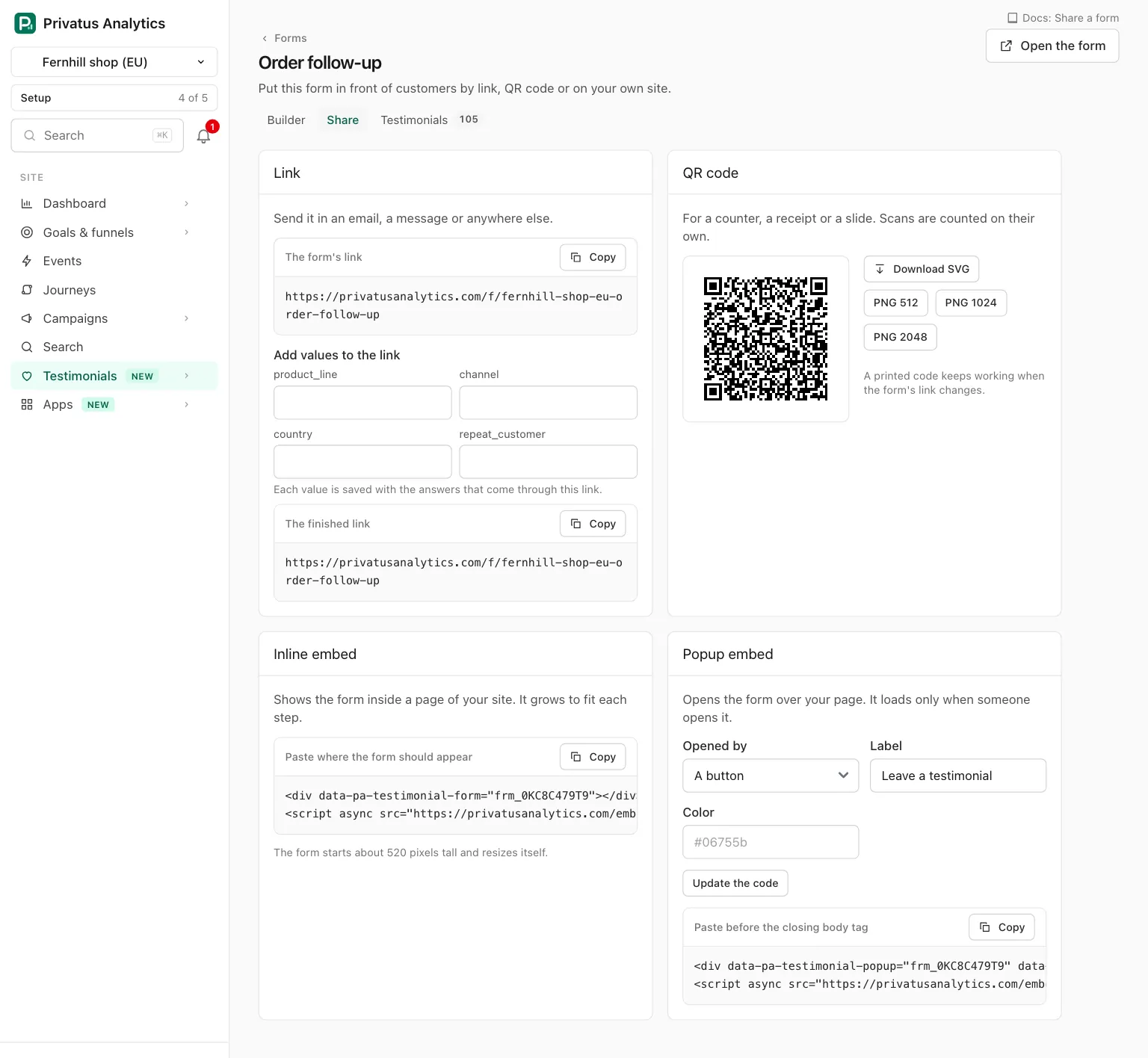
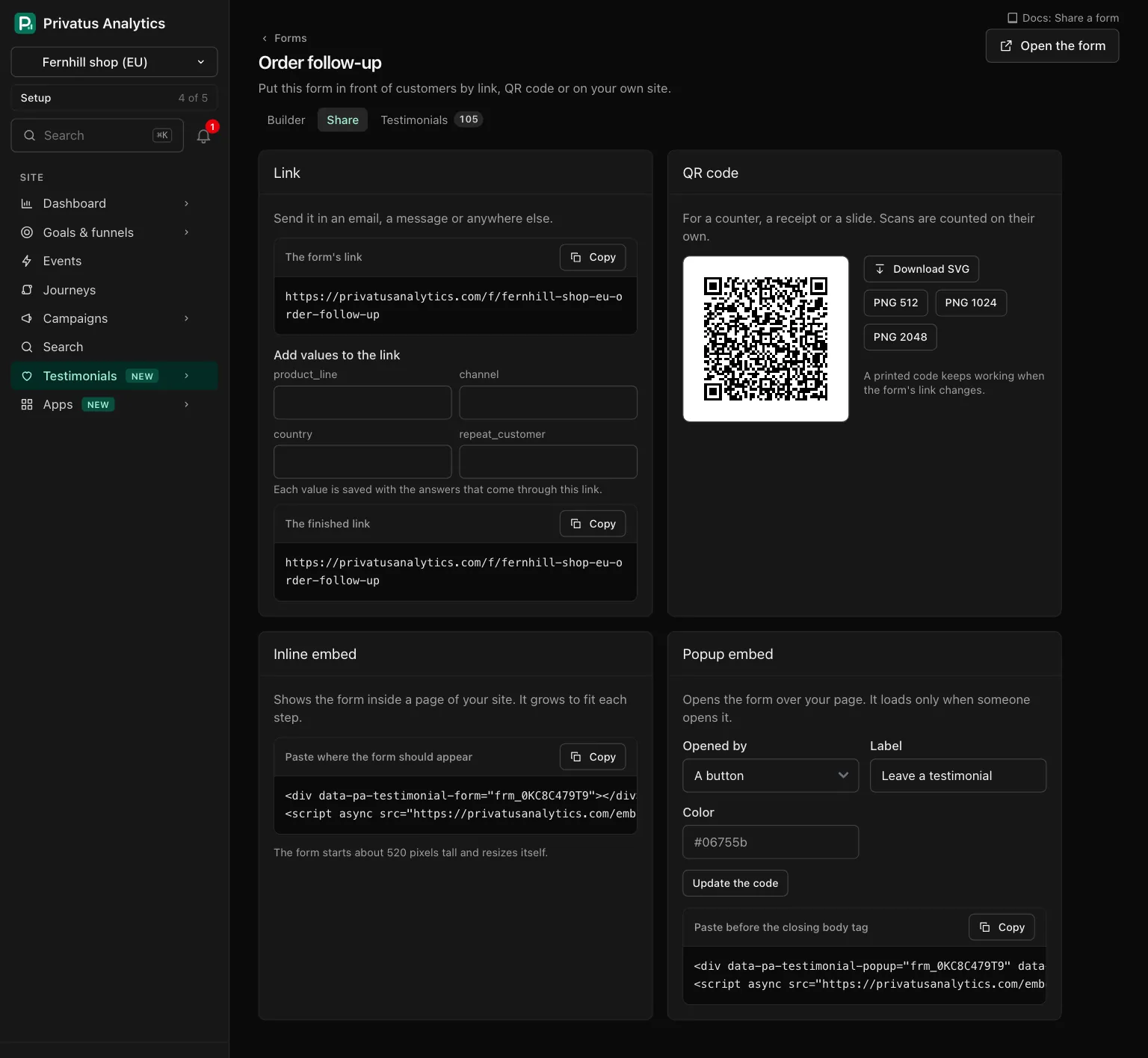
- Link: copy it into an email or a message.
- QR code: download it as SVG or PNG for a counter, a receipt or a slide.
- Inline embed: code that shows the form inside a page of your site.
- Popup embed: code that opens the form over your page from a button.
On the Business plan you can also send the request as an email through your own email provider, with a personal link and a follow-up, from the Requests tab. See Share a form and Requests.
3. Approve what arrives#
Every testimonial arrives in the Inbox as Pending. Nothing is shown outside the app until you approve it.
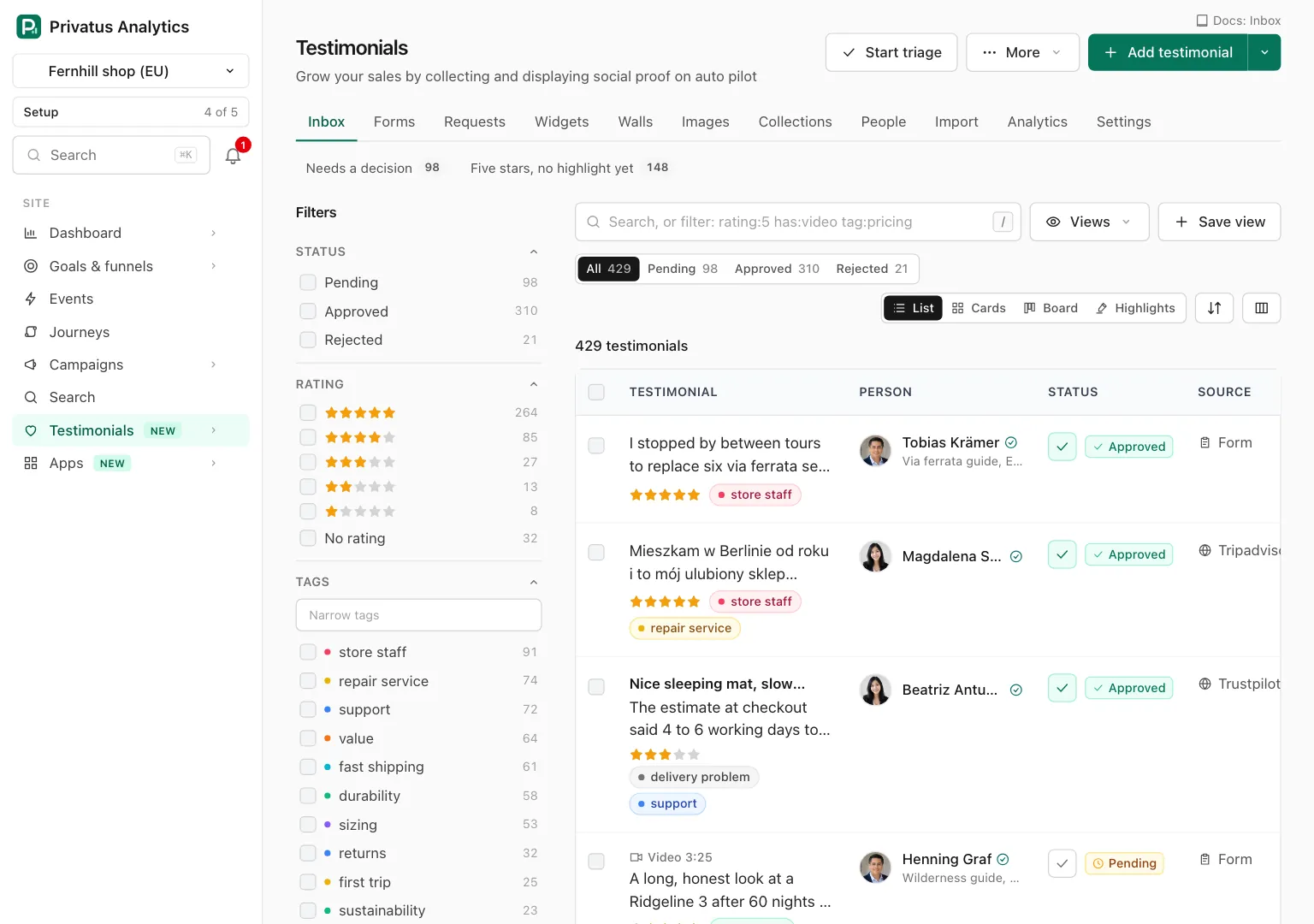
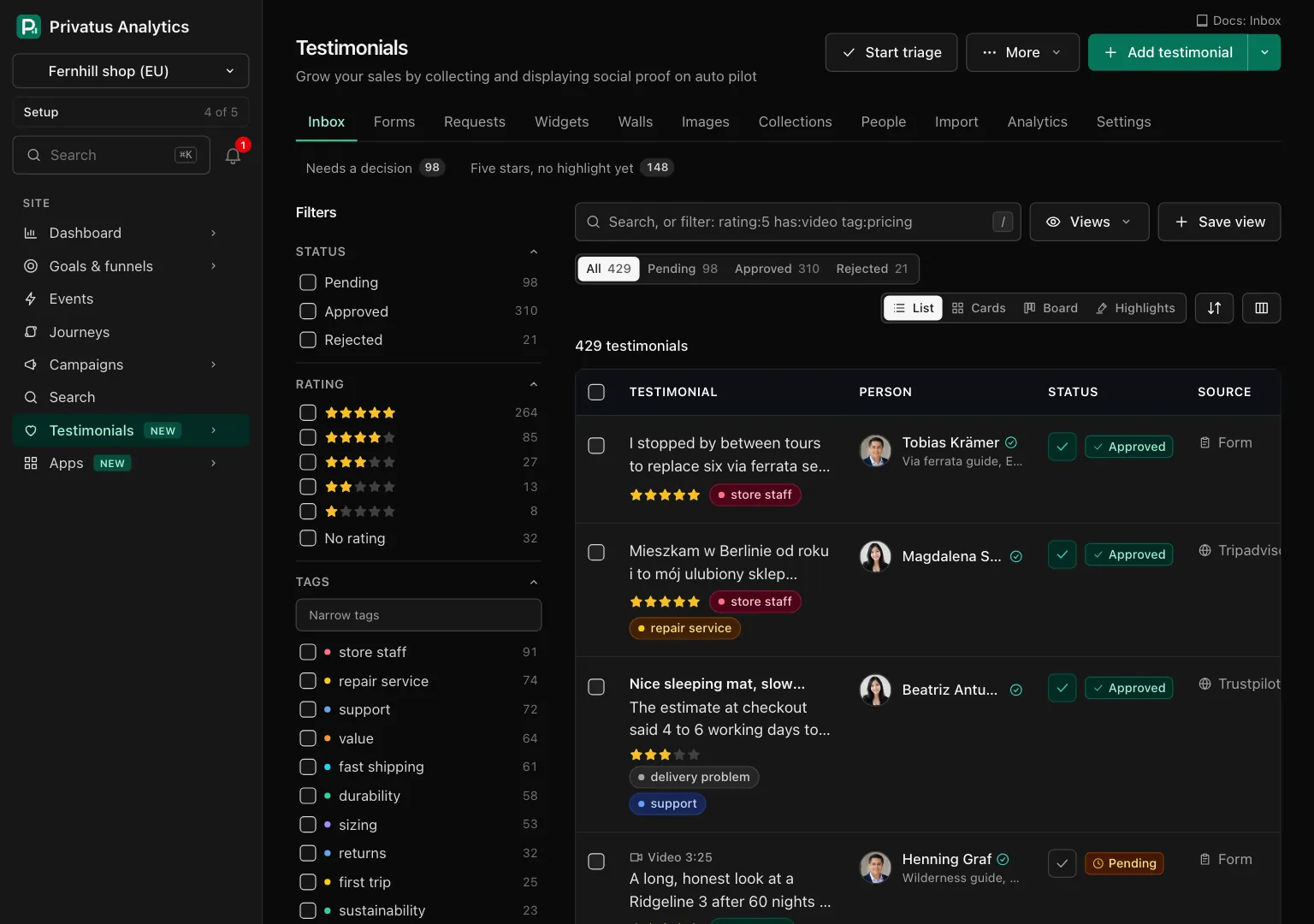
- In the list, press the check mark on a row to approve it.
- Or press Start triage to go through the pending ones one at a time, with a key for each decision.
Reject the ones you do not want to show. A rejected testimonial is kept and shown nowhere. See Inbox and Triage.
4. Make a widget#
A widget shows approved testimonials on your own site.
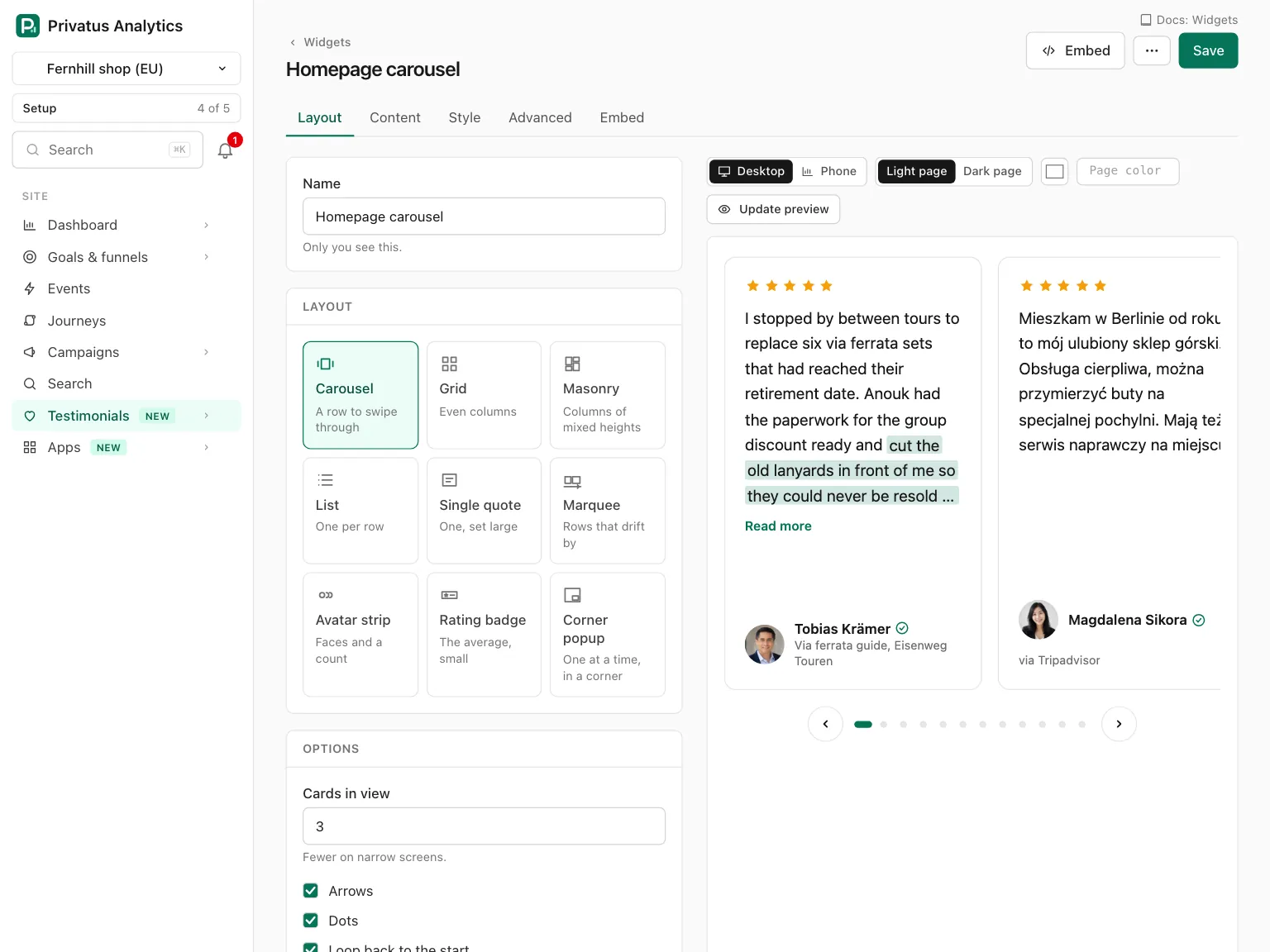
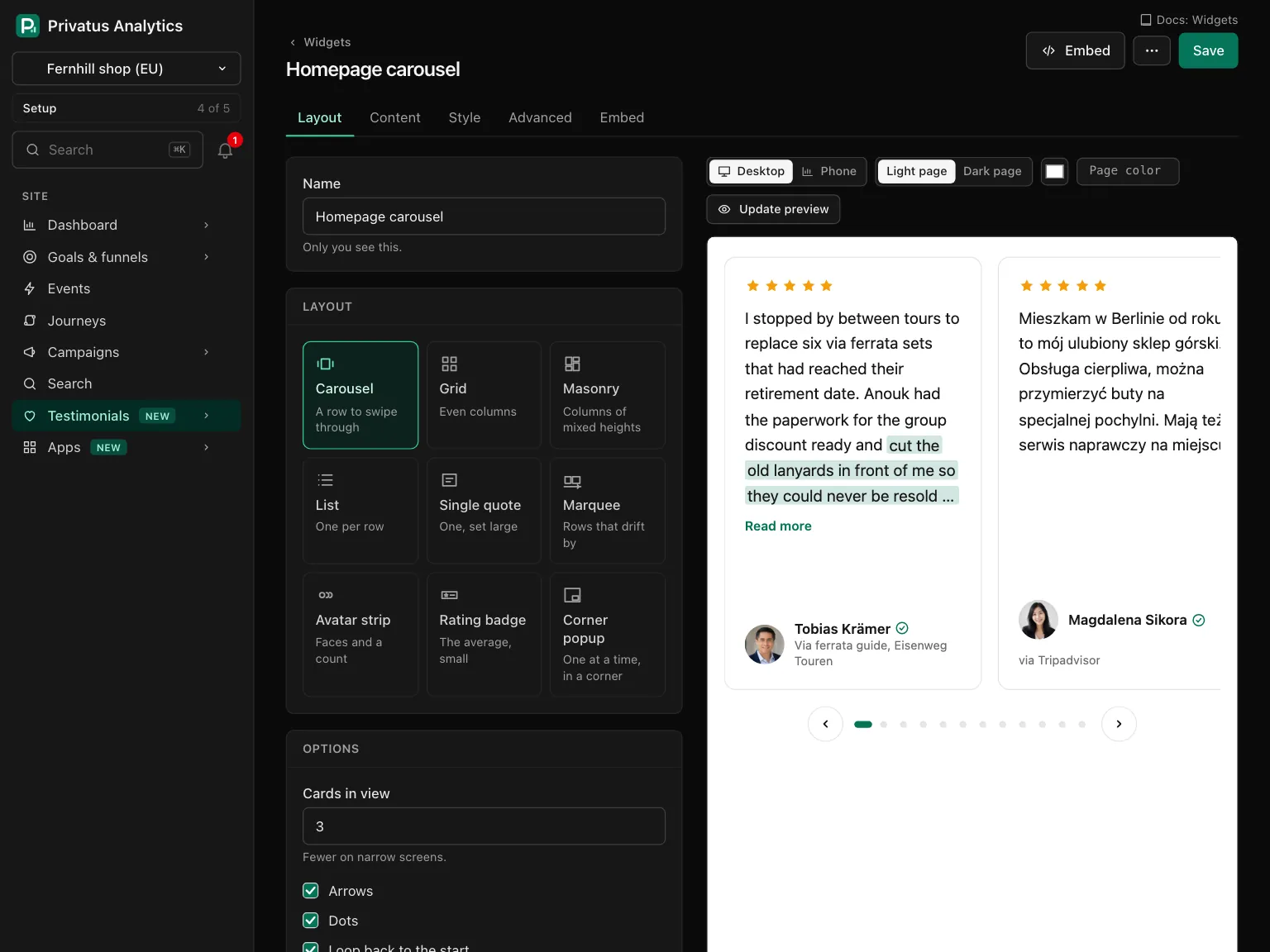
- Open the Widgets tab and press New widget.
- Choose a Layout, such as Carousel, Grid or Masonry. The preview shows your own testimonials.
- On the Content tab choose what feeds the widget, for example every approved testimonial, one collection or the ones with a tag.
- Press Save.
Only approved testimonials are ever shown, whatever feeds the widget. See Widgets. For a whole page of testimonials that we host for you, make a Wall of Love on the Walls tab.
5. Install it#
Open the widget's page. It offers four ways to embed it. Script is the recommended one:
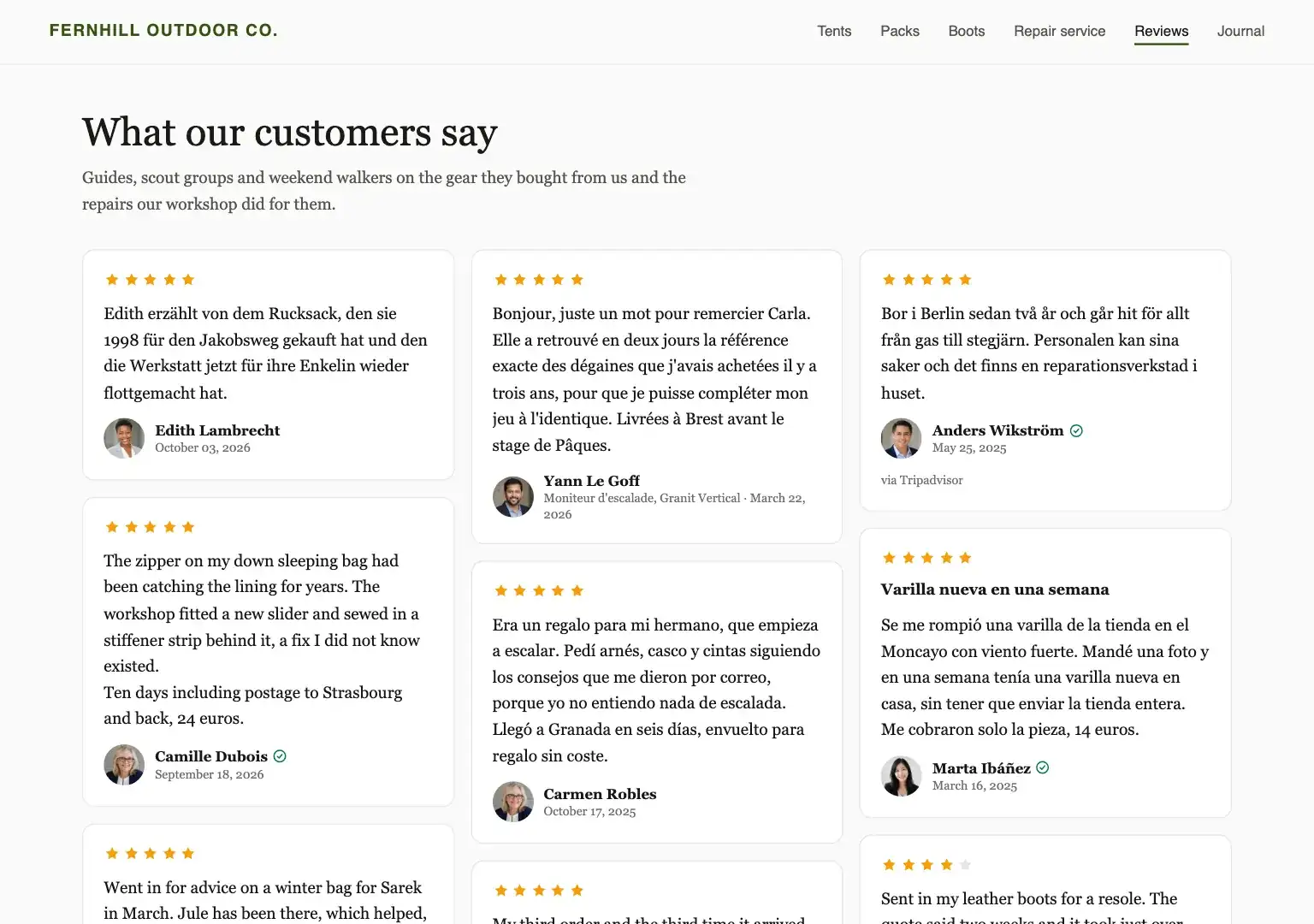
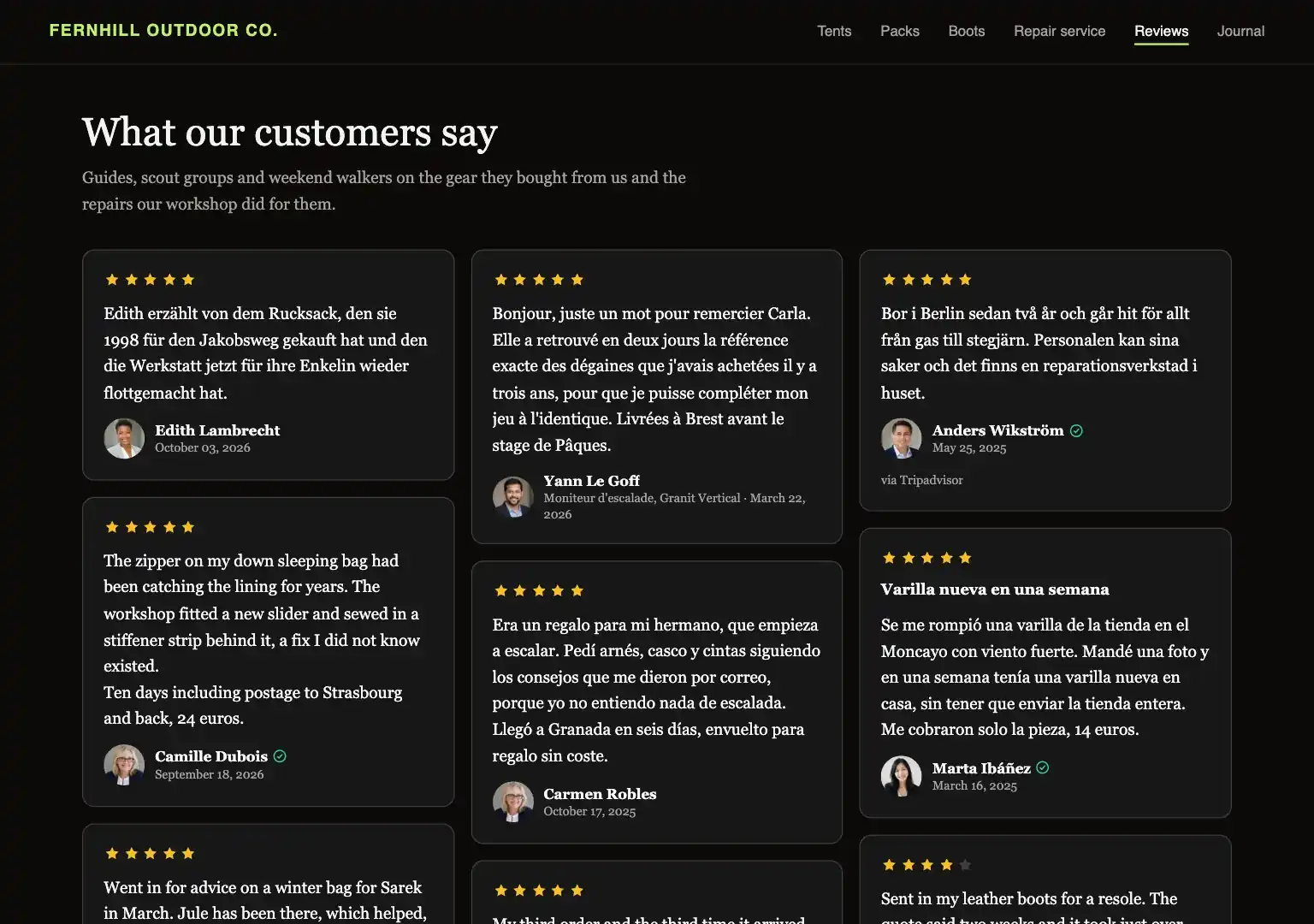
- Press Copy under Script.
- Paste the code into your page where the widget should appear.
- Publish the page and open it.
The widget's page lists the page under Where it is live once it has been seen there. Steps for WordPress, Shopify, Webflow and other site builders are on Install a widget.
What happens next#
- New testimonials keep arriving as Pending. A widget shows a new one once you approve it, with no change to your page.
- The Analytics tab shows how often your forms are opened and finished and how often your widgets are seen. See Analytics.
- Set your colors, fonts and logo once in the brand kit, under Settings. Every form, widget and wall follows it.
Good to know#
- The monthly number. The Free plan includes 5 new testimonials a month. A sixth that arrives through a form is not lost: it is stored and waits until the 1st or until you upgrade. See Limits and plans.
- The badge. Forms, widgets and walls carry a "Collected with Privatus Analytics" badge by default on every plan. Business and Enterprise can switch it off. Your own logo is on every plan.
- The checklist. While a site has few testimonials, the top of the Inbox shows a short checklist of these steps. See Overview.