Images
Make a picture from an approved testimonial for a post or a slide: every template, size and option, and what happens when the testimonial changes.
An image is one approved testimonial drawn as a picture (a PNG file) for a social post, a slide or an email. Open Testimonials in the site's sidebar, then the Images tab. Images are on every plan.
The Images tab#
The tab is a grid of the site's images, newest first. Each card shows the picture, the person's name, the template and the size. A card reads Rendering while its picture is being drawn, Failed when it could not be, and Testimonial changed when the words were edited after the picture was made. While any image is being drawn, the grid checks again every few seconds.
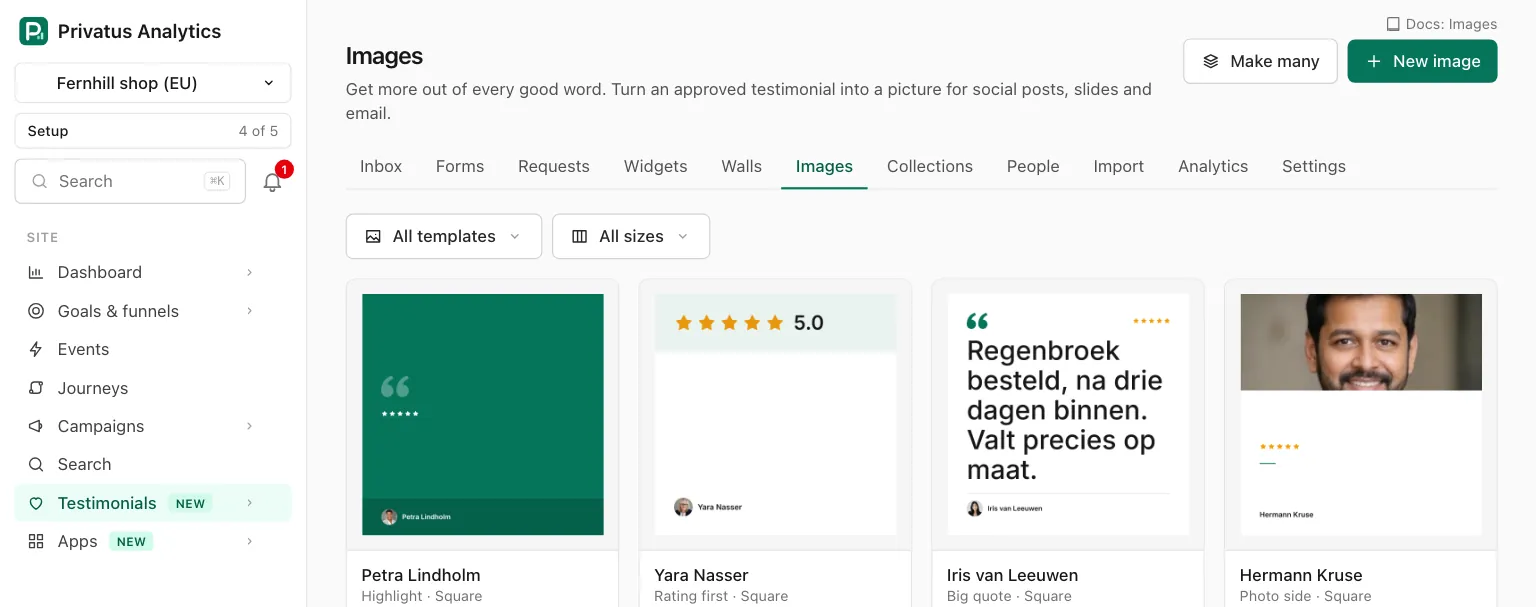
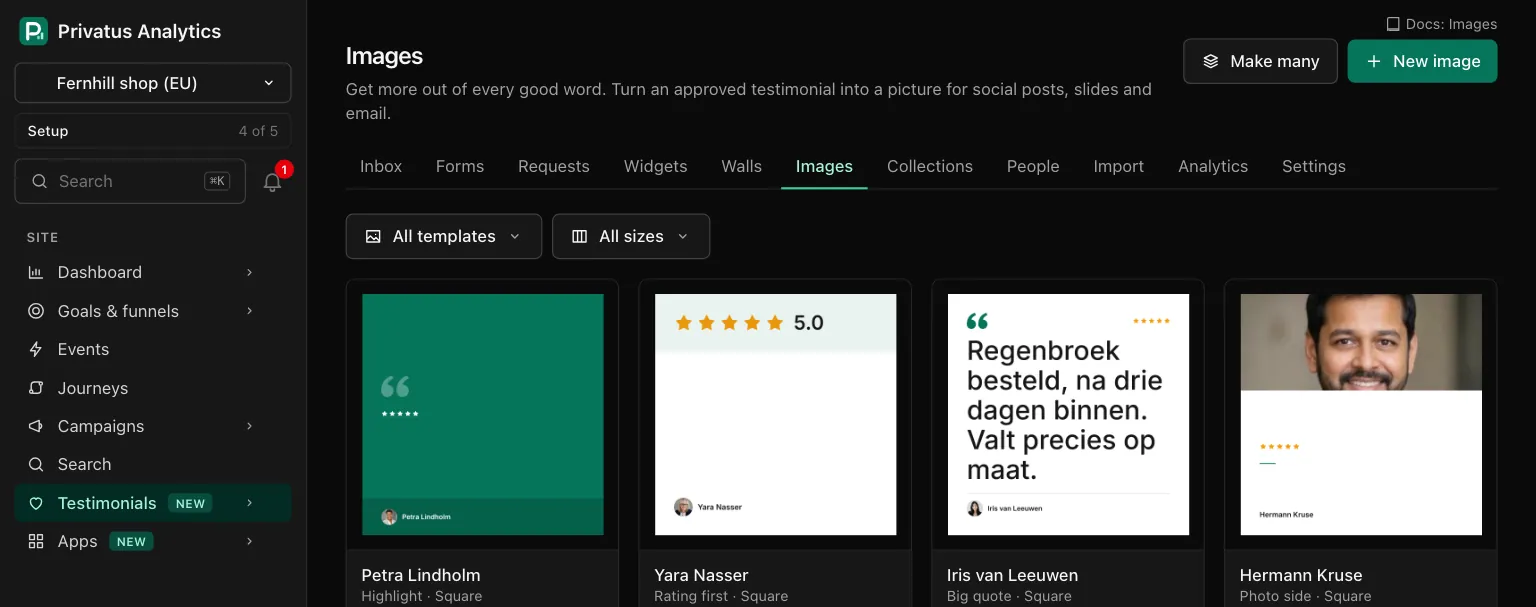
| Control | What it does |
|---|---|
New image (key N) |
Starts one image, or one per size, of a testimonial you pick |
| Make many | Draws a whole collection. See Make many |
| Template | Filters the grid to one template |
| Size | Filters the grid to one size |
Make an image#
- Choose New image and pick the testimonial from the list, which you can search. Only approved testimonials are listed. Or start from the testimonial itself: Make an image is under Where it is used on its page and in its menu in the Inbox.
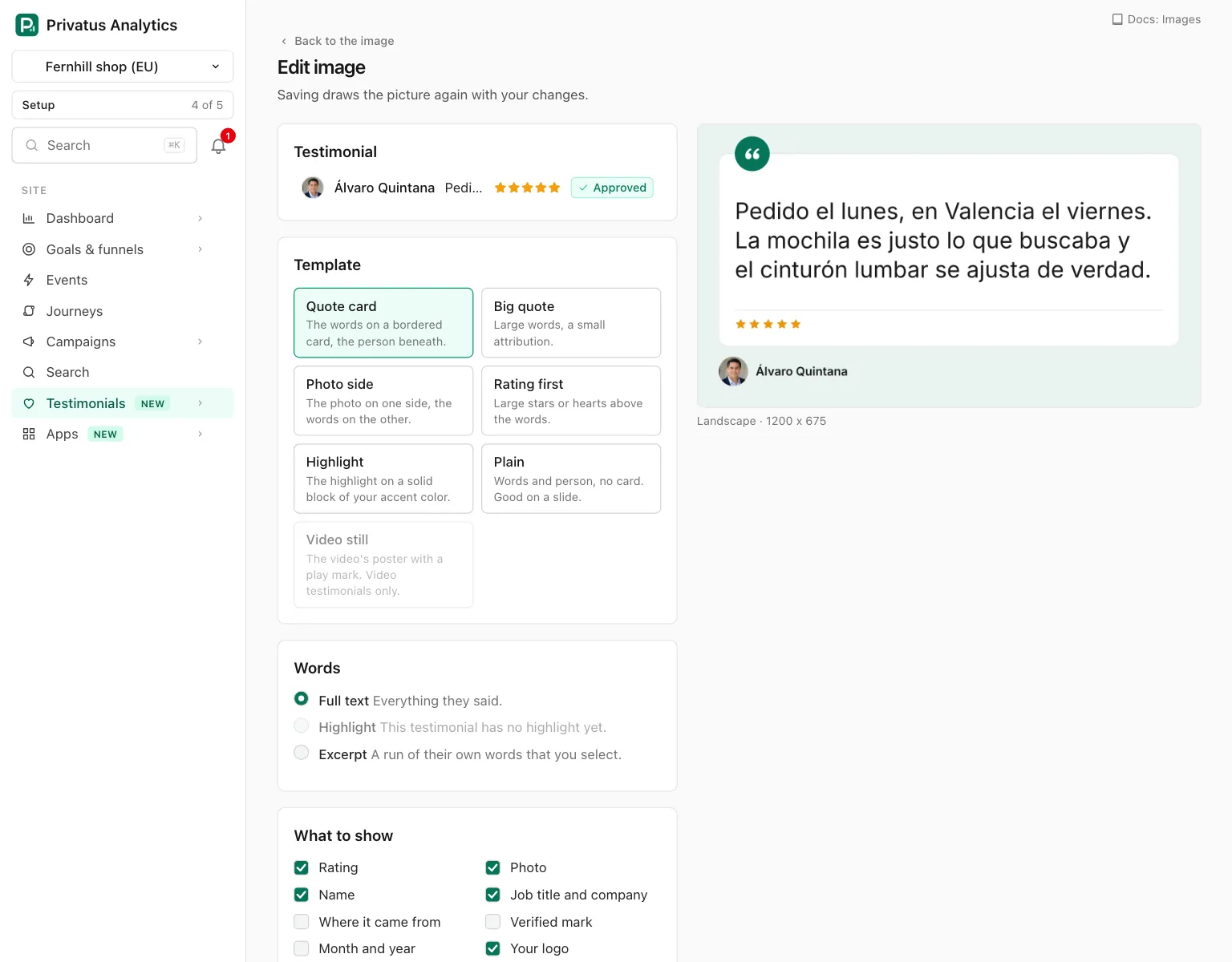
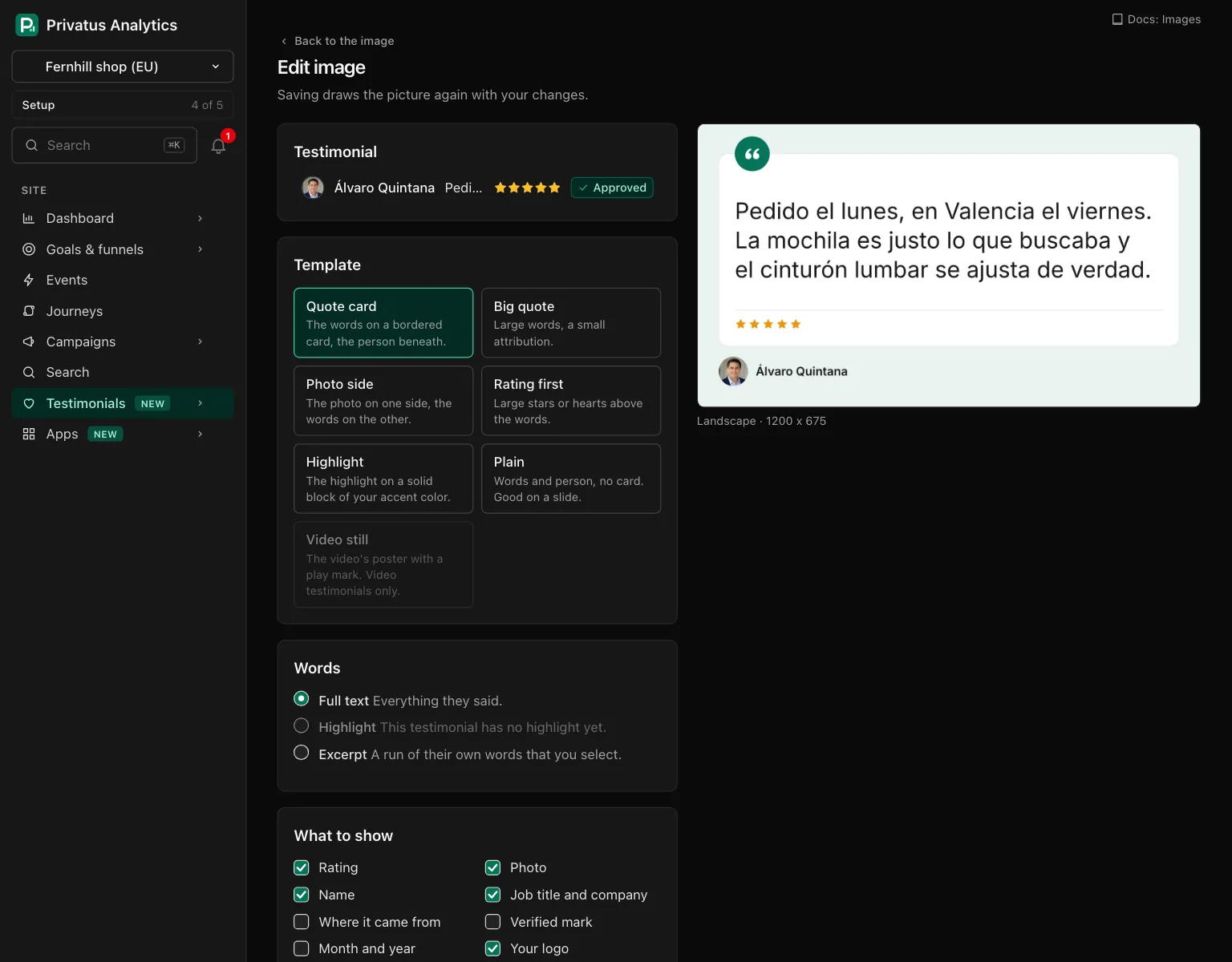
- Set the options described below. The picture beside them is drawn again on every change.
- Choose Make image. One image is made per size you ticked. It is drawn in the background and is ready in a few seconds.
Making and changing images needs the content.write permission. Seeing
them needs analytics.read.
Template#
| Template | What it draws |
|---|---|
| Quote card (the default) | The words on a bordered card with the opening mark on a disc of your accent color, the rating at the card's foot, the person beneath |
| Big quote | An oversized opening mark, the words large and tightly set, a small byline under a thin rule |
| Photo side | The photo fills one side, the words take the other. With no photo to show, the side is a block of your accent color with the opening mark and the person's name |
| Rating first | A band across the top with large stars or hearts and the score in numbers, then the words |
| Highlight | The highlight, large and heavy, on a solid block of your accent color, with the person on a darker band at the foot |
| Plain | The words, a short bar of your accent color and the person. No card. Good on a slide |
| Video still | The video's poster with a play mark in your accent color, and a band with the first words. It can be chosen for video testimonials only |
Words#
| Choice | What it draws |
|---|---|
| Full text (the default) | Everything they said |
| Highlight | Only the highlighted passage. It cannot be chosen for a testimonial with no highlight |
| Excerpt | A run of their own words that you select in the text, or set with Starts at character and Ends at character. It is widened to whole words, and an ellipsis marks each side where a sentence was cut. With nothing selected, the opening sentences that fit are used |
The words cannot be retyped here, and nothing on this page changes the testimonial.
The words are never fine print. The type is as large as fits and steps down for longer quotes, but never below 30 pixels on a link preview and 34 on a square post. Short quotes are balanced so that no word is left alone on the last line.
When the words are too long for that, the image is not made smaller. The preview is marked Does not fit and the editor offers two ways out, one click each. Use the highlight draws the highlighted passage. Pick an excerpt draws the opening sentences that fit (whole sentences, never cut mid-sentence), and you can select other words instead. A taller size also holds more.
What to show#
| Switch | Default |
|---|---|
| Rating, Photo, Name, Job title and company, Your logo | On |
| Where it came from, Verified mark, Month and year | Off |
| The "Collected with Privatus Analytics" badge | Always drawn on Free and Pro. On Business it follows your brand kit, and each image can switch it on or off |
The giver's consent wins over every switch. A name or a photo the person did not agree to share on your form is never drawn, and the editor says so above the preview. Without the name, the job title, company and verified mark are left out too. A video's poster is drawn only when the person agreed to show the video. A testimonial you imported or added by hand is yours to show, so the switches decide.
Look#
| Option | What it does |
|---|---|
| Background | Brand (your brand kit's light colors, the default), Light (white, with your accent), Dark (your brand kit's dark colors), Custom (a color you choose, with text that reads on it) or Transparent (no background, for placing on a slide) |
| Text color, Accent color | Hex colors. Leave empty to follow your brand kit |
| Rating | Brand kit, Stars or Hearts |
| Alignment | Left (the default) or Center |
| Pixels | 1x, or 2x to double every size for print and large screens |
The colors, the logo and the corners of the quote card come from the brand kit. Its fonts do not: see Letters the pictures can draw.
Sizes#
| Size | Pixels | Fits |
|---|---|---|
| Square (the default) | 1080 x 1080 | Square posts on most social networks |
| Portrait | 1080 x 1350 | Instagram feed |
| Story | 1080 x 1920 | Stories, Reels, TikTok, Shorts |
| Landscape | 1200 x 675 | X posts |
The size named after the professional network (linkedin in the API) |
1200 x 627 | Posts and link previews there |
| Link preview | 1200 x 630 | Link previews on most sites |
| 1000 x 1500 | Pinterest pins | |
| Wide | 1920 x 1080 | Slides and video thumbnails |
Tick as many as you need. One image is made per size, and the preview shows each.
The preview#
The picture beside the options is a PNG drawn by the same renderer and the same font that make the file, so what you see is what you get. It is 720 pixels on its longer side, whatever the size. It follows your changes, and Update preview draws it again by hand.
A finished image#
Opening an image shows the picture, its details (testimonial, template, size in pixels, words, file size and when it was made) and what you can do with it.
| Action | What it does |
|---|---|
| Download PNG | Saves the file |
| Copy image | Puts the picture on the clipboard, to paste into a post or a slide. Shown in browsers that allow it |
| Copy link | Copies the file's address |
Edit (key E) |
Opens the editor with one size. Save and render again draws it again with your changes |
| Render again | Draws the same picture from the testimonial as it is now. The new picture has a new link, and the old file is deleted |
| Try again | On a failed image, draws it again |
| Delete | Removes the image and its file, after a confirmation. An image has no trash, because you can make it again at any time |
When the testimonial's words were edited after the picture was made, the page says "The testimonial changed after this was made." with Render again beside it.
Only approved testimonials#
A finished image is a file with one public address on
media.privatusanalytics.com: anyone who has the link can open it, and
the address does not change. So an image is only ever made of a
testimonial that is approved.
When a testimonial stops being approved, its images are deleted. That happens when you reject it, move it back to pending or move it to the trash, and when it is deleted for good. The files are removed shortly after and their links stop working. Approving or restoring the testimonial does not bring them back: make them again.
A testimonial that is pending, rejected, in the trash or waiting for the monthly limit is refused with a plain message in the editor.
Letters the pictures can draw#
Images are drawn in one typeface, Inter, which is bundled with the renderer. The fonts your brand kit names are fonts of your visitor's own device, which a picture cannot use. Inter here covers the Latin alphabet with its accents (English, French, German, Spanish, Polish, Turkish, Vietnamese and the like).
- Emoji and symbols such as hearts and check marks are left out of the picture. The testimonial itself keeps them.
- Other alphabets (Cyrillic, Greek, Arabic, Chinese, Japanese and so on) cannot be drawn. Such a testimonial is refused with a plain message, because a picture with half its words missing would misquote the person.
Make many#
There are two ways to make images of several testimonials at once.
From a collection. Make many on the Images tab asks for a Collection, then the same template, words (Full text or Highlight), switches, look and sizes as one image. Make the images draws one image per size for every approved testimonial of the collection, in the collection's order. A run covers up to 200 testimonials, and a larger collection is refused. The images join the grid as they are drawn, and one zip of them appears on the Exports page, with an email when it is ready.
From the Inbox. Select testimonials, open More in the bar and choose Make images. Each approved one gets a quote card in the square size, which you can change afterward. Undo deletes the images that run made. See Bulk actions.
Either way, a testimonial whose whole text does not fit is drawn from its highlight when it has one that fits, and otherwise from its opening sentences. The result says how many were drawn from an excerpt and how many were left out. A testimonial is left out when it is not approved, its words are too long for the picture, its letters are ones the image font lacks, or the video still was chosen and it is not a video.
API and MCP#
| Action | MCP tool | Permission |
|---|---|---|
| List, read one | testimonial_images_list, testimonial_images_get |
analytics.read |
| Make one image per size of a testimonial | testimonial_images_create |
content.write |
| Change how one is drawn, or render it again | testimonial_images_update |
content.write |
| Make images of a collection | testimonial_images_bulk_create |
content.write |
| Delete | testimonial_images_delete |
content.write |
An image starts as rendering. Read it again until its status is
ready, then use its file address. The Inbox action is the JSON API
bulk route with the action make_images, and over MCP
testimonial_images_bulk_create. Inputs and response
fields are in the API reference and the
MCP reference.
An AI assistant cannot delete anything. The MCP tool
testimonial_images_delete runs nothing: it responds with human_only
and the address of the image's page, and the assistant hands you that
link. The API call runs as usual.
| Code | When |
|---|---|
not_approved |
The testimonial is not approved, is in the trash or is waiting for allowance |
text_too_long |
The words do not fit the picture at the smallest size they are ever set |
unsupported_text |
The words are in letters the image font lacks |
not_video |
The video still, for a testimonial that is not a video |
plan_limit |
show_badge: false below Business |
too_many |
A run from a collection with more than 200 approved testimonials |
nothing_to_make |
A run from a collection where no approved testimonial could be drawn |
Good to know#
- The link is public. It shows the picture to anyone who has it, for as long as the image exists.
- A deleted file is cleared from Cloudflare's servers when it is deleted. A browser that already loaded the picture can keep its own copy.
- An image counts as one place the testimonial is used, under Where it is used on its page.
- The badge checkbox is locked on Free and Pro, ticked and grayed out, with the line "Removing the badge from images is on Business and up."
- After a downgrade an image that was made without the badge keeps its file as it is. The badge is drawn the next time the image is rendered.
- A picture that stays on "Rendering" for more than 15 minutes is queued again by itself.
- A card that reads "Not stored" is a finished image whose file is not there to show. Open it and press Render again to draw a new one.
- The zip of a run holds the PNG of every image that was drawn. One that failed is left out. It stays on the Exports page for 7 days.