Analytics filters and segments
Filter every dashboard report by source, page, country, event or property, combine conditions with AND and OR groups, and save them as reusable segments.
Filters#
There are two ways to add a filter:
- Click a row in a panel or drill-down table. It adds an
isfilter for that value, and replaces a filter you already have on the same dimension. - Filter (
F) in the toolbar opens the builder.
| Builder field | What it does |
|---|---|
| Dimension | What to filter on (see Dimensions). Custom event property shows a second field for the property key |
| Operator | How the value is compared (see Operators) |
| Value | The value to match. Country, device, channel, goal, interaction, bot score and screen size have a fixed set of values, so you pick from a menu, or tick several in a checklist for is any of and is none of (long lists have a search box). Other dimensions (pages, hostnames, referrers, UTM tags, languages, browsers, operating systems, events and event properties) take text. Click the field to see the top values of the last 30 days with their counts, then type to search every value the site recorded in that time, not only the top ones. Pick one with the mouse or the arrow keys and Enter, or keep what you typed: any text is accepted, which is what contains, starts with and values with no traffic yet need. The property name of a custom event property is searched the same way. For a typed list (is any of, is none of, is between), separate values with commas |
| OR with the last filter | Puts the new condition in an OR group with the filter added last, instead of AND |
| Add filter | Applies it and reloads the page |
Active filters show as chips under the toolbar. Click a chip to change
that filter: the builder opens with it filled in, and Update filter
replaces it. An OR group can't be changed this way, so remove it and add
it again. × on a chip removes that filter, and Clear (Esc)
removes them all.
Only one toolbar menu is open at a time. Opening the period, segment, filter or save menu closes any other.
Filters apply to every metric, chart and panel on the page, and are kept
in the URL (filters=…), so a filtered view can be bookmarked or shared.
Dimensions#
| Dimension | API key | Matches |
|---|---|---|
| Page | page |
The path of a viewed page, such as /pricing. It includes a query parameter only if you keep it (for example /blog?page=3) |
| Entry page | entry_page |
The first page of the visit |
| Exit page | exit_page |
The last page of the visit |
| Hostname | hostname |
The hostname the visit was on |
| Channel | channel |
The channel: paid_search, paid_social, paid_other, email, ai_assistants, organic_search, organic_social, internal, referral or direct, or a custom channel |
| Referrer | referrer |
The referring site's hostname |
| Referrer URL | referrer_url |
The referring hostname and path |
| Ref | ref |
The ref, via or source query parameter of the landing URL |
| UTM source, medium, campaign, content, term | utm_source, utm_medium, utm_campaign, utm_content, utm_term |
The UTM tag of the landing URL |
| Country | country |
A two-letter country code, such as US |
| Language | language |
The browser language, as the browser reports it |
| Device | device |
desktop, mobile, tablet, tv or other |
| Browser | browser |
The browser family, such as Chrome |
| Browser version | browser_version |
Family and major version, such as Chrome 126 |
| Operating system | os |
The OS family |
| OS version | os_version |
Family and major version |
| Screen size | screen |
The screen width group: xs (under 414 px), sm (under 768), md (under 1024), lg (under 1440) or xl |
| Interaction | interaction |
Whether the tracker saw real input (pointer, key or touch) in the visit: seen, none or unknown (an older self-hosted tracker, or data from before 1 October 2026) |
| Bot score | bot_score |
How likely the visit came from a bot: likely_human, unsure, likely_bot or not_scored. See Advanced Bot Detection |
| Goal | goal |
A goal, by its id (goal_…) |
| Event | event |
A custom event, by the name it was sent with |
| Custom event property | prop:<key> |
The value of a property on a custom event |
Traffic quality. Filtering and breaking down by Interaction is part of the Pro, Business and Enterprise plans. On Free the filter box shows a red note in place of the Add button when you pick it, and a segment with it can't be saved. A filter on it that was saved before (in a segment, a shared link, an export or a bookmark) is switched off, with a note by the filters, so the page still opens and counts every visit. The signal is collected on every plan, so the history is there when you upgrade.
Operators#
| Operator | API value | Meaning |
|---|---|---|
| is / is not | is, is_not |
Equals, or doesn't equal, the value exactly |
| is any of / is none of | any_of, none_of |
Equals one of a list, or none of it |
| contains / does not contain | contains, not_contains |
Substring match, ignoring case |
| starts with | starts_with |
Prefix match, case-sensitive |
| matches wildcard / does not match wildcard | wildcard, not_wildcard |
The whole value matches, with * standing for any characters (/blog/*/comments). Case-sensitive |
| matches pattern / does not match pattern | regex, not_regex |
Regular expression, case-sensitive, up to 200 characters |
| is greater than / is less than | gt, lt |
Compares as numbers. Values that aren't numbers never match |
| is between | between |
Between two numbers, both included |
Wildcards. matches wildcard is the simple way to match a pattern:
* stands for any characters and everything else is taken literally, so
/blog/*/comments needs no escaping. The whole value must match, so use a
* at either end for a partial match (*pricing*). To find a query
parameter, keep it first (Site settings, Privacy, Allowed query
parameters, and data-params in the tracker),
then filter Page by *page=3. Parameters are stored sorted by name.
The builder offers the operators that fit the dimension: is, is not,
is any of and is none of for dimensions picked from a list, the text
operators for the rest, and the number operators for custom event
properties. The API accepts any operator on any dimension. A goal
filter takes goal ids: is not and is none of exclude visits that
completed the goal, and every other operator keeps them.
AND and OR#
Separate filters are combined with AND. Conditions in an OR group match when any of them does: "channel is Email or utm_medium is newsletter". Up to 20 conditions in total, counting those of an applied segment.
What a filter selects#
- Visit dimensions (source, channel, UTM, country, device, browser, entry page and the rest) select visits.
- Page selects visits that viewed the page, and pageview counts for that page.
- Event, goal and property filters select visits in which that event or goal happened.
The JSON syntax used in URLs and the API is in Filters (API).
Segments#
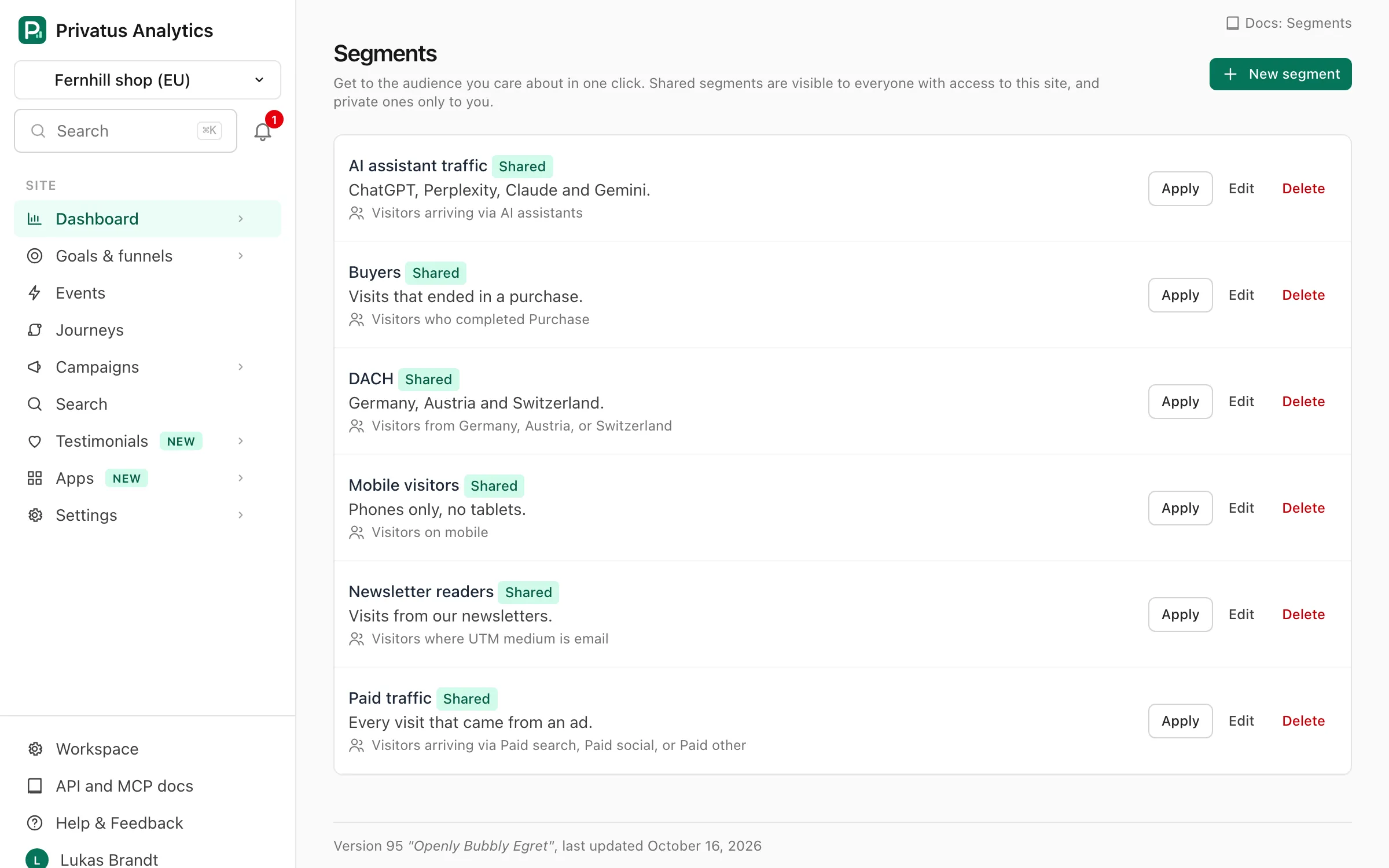
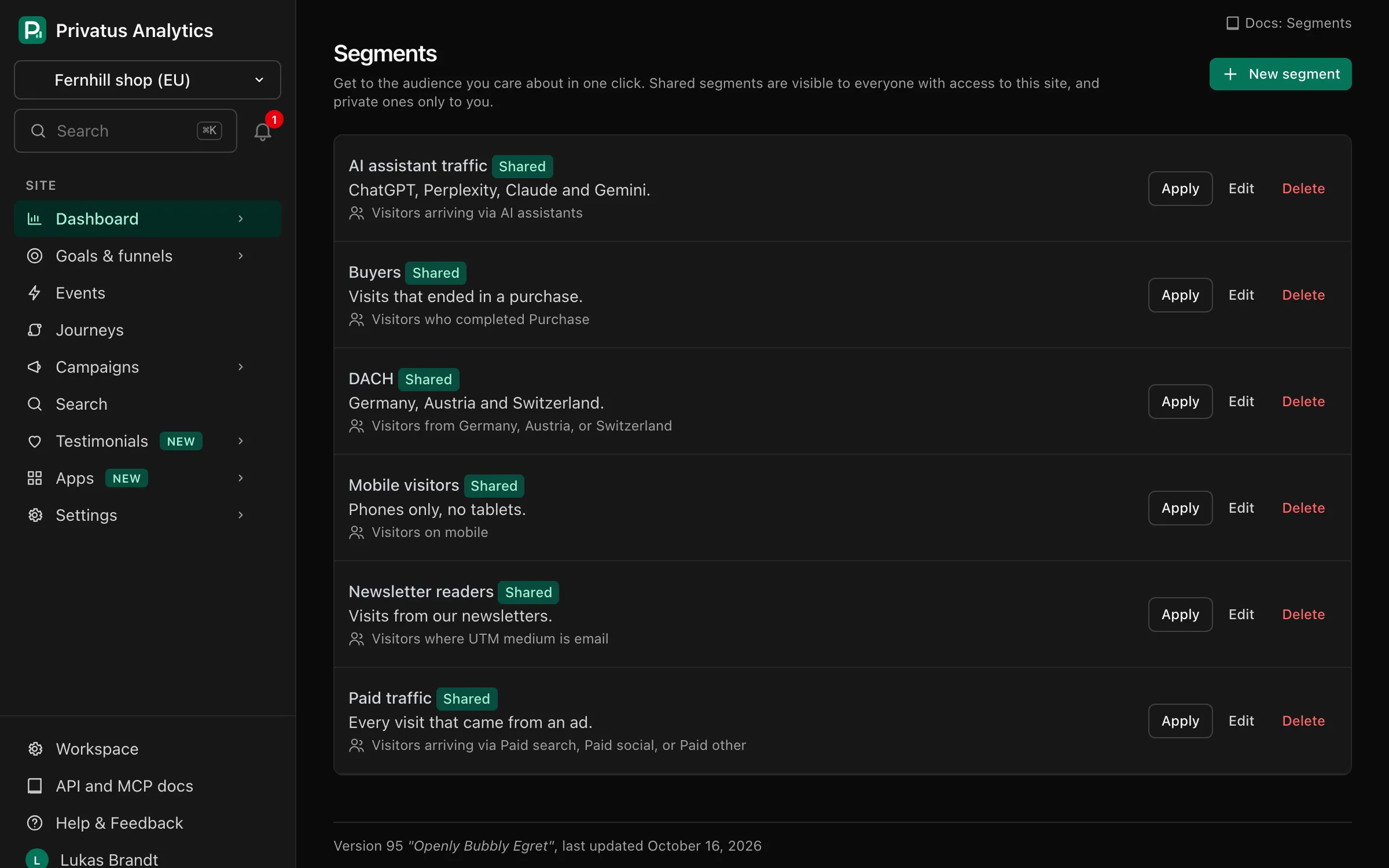
A segment is a saved set of filters with a name, like "Paid traffic from
the US" or "Visits that saw pricing". Choose one with the segment menu
in the toolbar (S), which reads All traffic when none is applied
and appears once the site has a segment. A segment combines with any
filters you add on top.
Create one in two ways (both need the content.write permission):
- Save as segment in the toolbar, shown while filters are active, saves the current filters under a name.
- Manage segments in the toolbar → New segment opens the full form.
| Field | What it does |
|---|---|
| Name | Shown in the segment menu (up to 100 characters) |
| Description | Optional note shown on the segments list (up to 300 characters) |
| Filters | One row per condition: and or or (an "or" row is grouped with the row above it), a dimension, an operator and a value. Countries, devices, channels (your custom channels included), goals, interaction, bot score and screen sizes are picked from a menu, or ticked in a checklist for is any of and is none of. Text dimensions suggest their top values |
| Share with everyone on this site | On: everyone with access to the site can use the segment (Shared). Off: only you see it (Private) |
While you edit, the form shows a plain-language summary of the filters and how many visitors matched in the last 30 days.
The segments list has Apply (opens the Overview with the segment), Edit and Delete.
Use a segment in the API with segment_id=seg_…. A private segment of
another member is ignored.