Languages and translation
Choose the languages a site collects and shows testimonials in, and on Business translate the testimonials themselves and edit each translation.
A site's testimonials have a default language and a list of languages they are offered in. That works on every plan. Translating the testimonials themselves into those languages is a separate feature, on Business and up.
Open Testimonials in the site's sidebar, then the Settings tab, then Languages. The page has two cards and one Save button.
Languages#
| Setting | What it does |
|---|---|
| Default language | Used wherever nothing else is chosen |
| Languages offered | A tick box for every language Privatus Analytics is available in. The ones you tick are the languages the site's forms, widgets and walls can be offered in, and the languages testimonials can be translated into. The default is always offered |
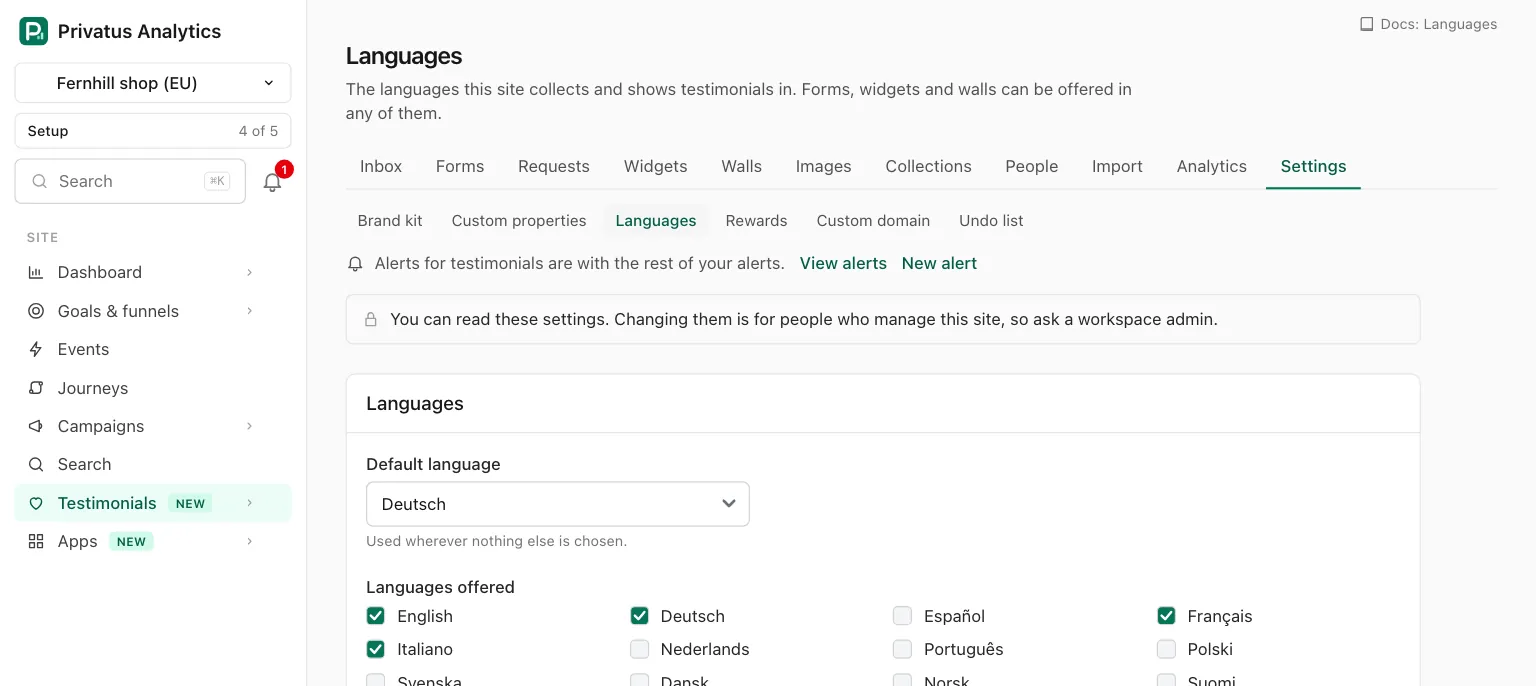
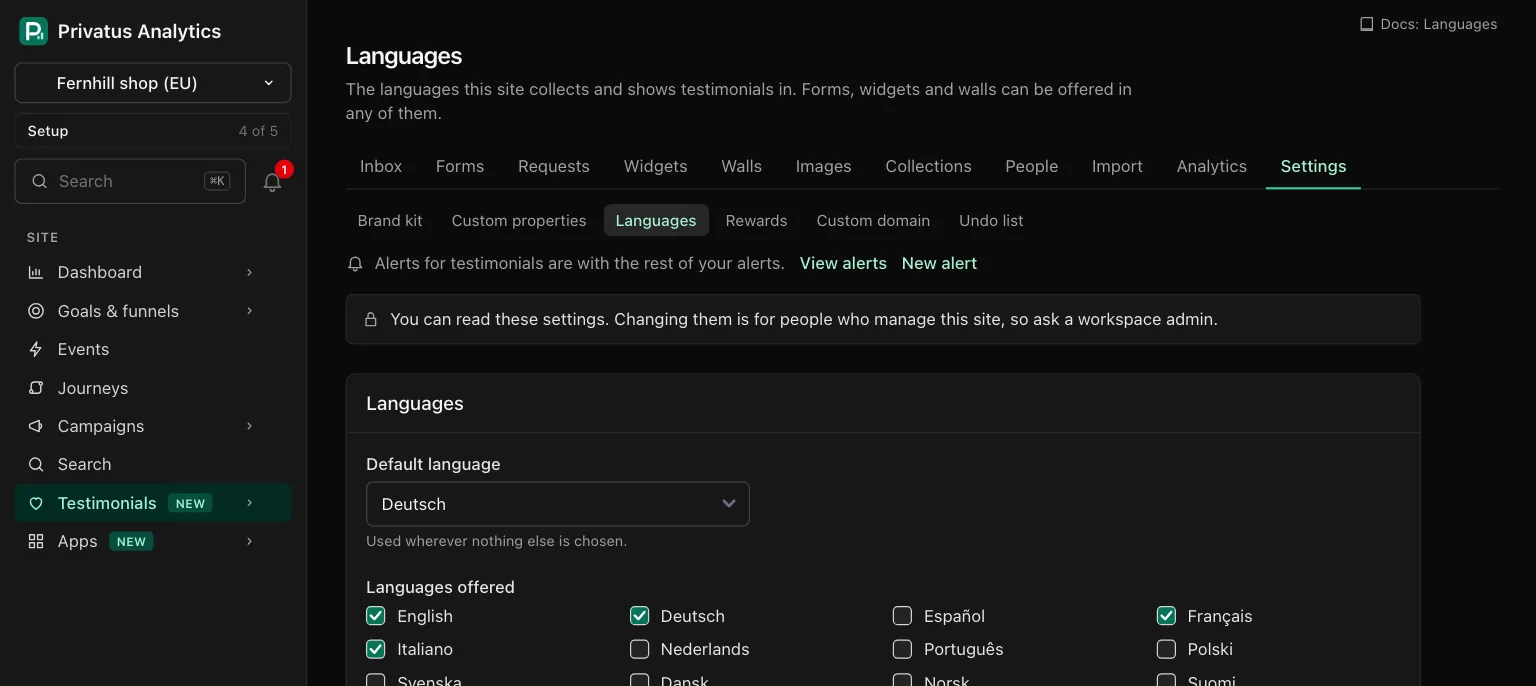
A language one of your forms is written in cannot be removed. The save is refused with the sentence "A form is written in a language you are removing", and you change the form first.
Reading the page needs the analytics.read permission. Saving needs
sites.manage.
Translation of testimonials#
The second card depends on your plan.
| What you see | When |
|---|---|
| Translate automatically, the month's characters and Open translations | Business and up, with translation set up |
| "Translation is not set up yet. Nothing is sent anywhere, and there is nothing you need to do here." | Business and up, where translation has not been set up for the app. Nothing can be translated |
| Translate automatically shown locked, a link to the plans and See stored translations | Free and Pro |
Translate automatically translates each newly approved testimonial into every language you offer except its own, inside your monthly characters. It needs at least two offered languages.
What is translated#
The words, the title and the highlight. Never a name, a company or the answers to your own questions. A video or audio testimonial has only its written text translated, if it has any. A testimonial is never translated into the language it was written in.
The original is never changed. A translation is stored beside it, one per testimonial and language.
Where the text goes#
Privacy: Translating sends the words, the title and the highlight of the testimonial to Google (the Google Cloud Translation API), with the language to translate into and the language it is written in. Nothing else is sent: no name, no email address, no company, no photo and no id. Nothing is sent unless you start a translation or switch Translate automatically on.
The Translations page#
Open translations on the Languages page leads here. Language settings at the top leads back.
Translate#
| Control | What it does |
|---|---|
| Which testimonials | Every approved testimonial, or One collection with a menu of the site's collections |
| Into | A tick box for each language the site offers. All are ticked to begin with |
| Estimate | Works out what the run would send. Nothing is sent yet |
| Translate N texts | Appears under the estimate. Starts the run. A text is one testimonial into one language |
The estimate is one sentence, for example:
"312 testimonials, 41,200 characters to translate, 9,800 already stored. 158,800 characters left this month."
It states characters, never a price: translation is included in the plan up to the monthly characters. When the run is larger than what is left, the page says "That is more than what is left this month. What does not fit waits and continues on the 1st." When everything is already translated it says so, and there is no button.
A site that offers one language has nothing to translate into, and the card links to the Languages page instead.
Starting a translation needs the content.write permission. The run works
in the background, and the translations appear in the list below within
moments.
This month#
The second card shows the characters used this month out of the limit, and the day the count starts again.
The list#
Every stored translation of the site, newest first, with the person, the language, its state, the translated words and the start of the original. Open shows that testimonial's translations side by side with its own words.
| Filter | Values |
|---|---|
| Language | All languages, or one |
| State | All states, Stored, Waiting for quota or Out of date |
One testimonial#
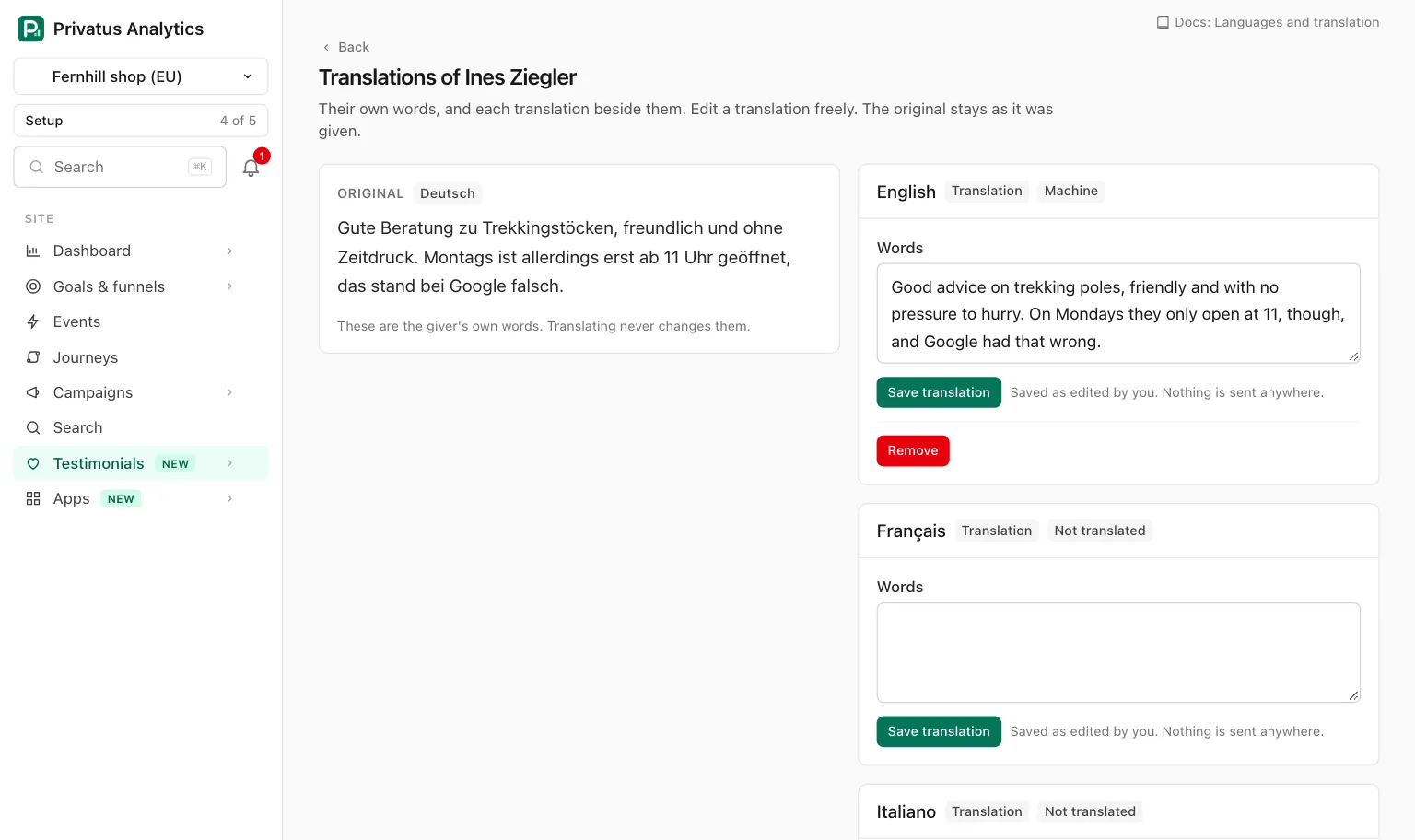
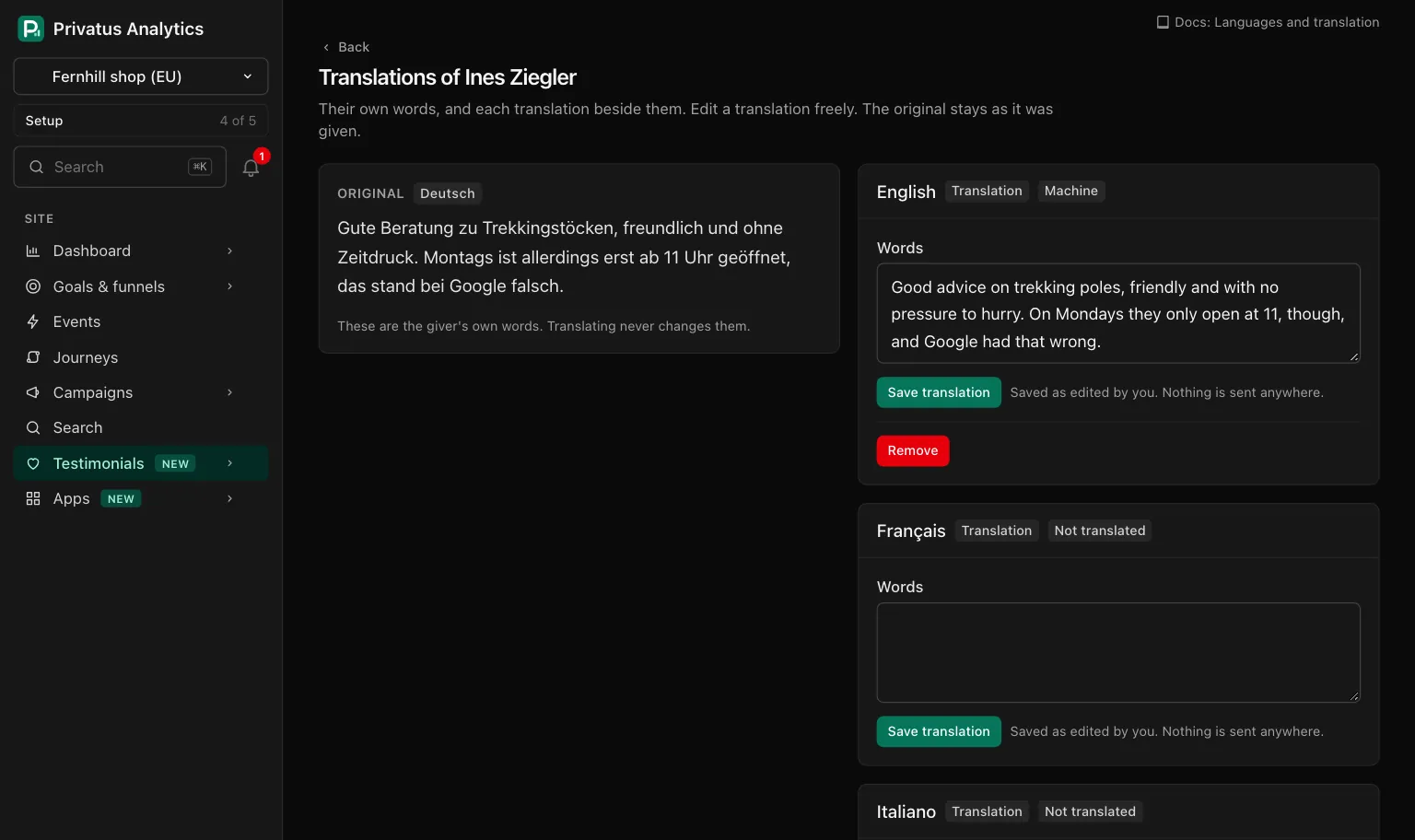
Open a testimonial in the Inbox. Its Translations section has a line for every offered language, and Translate into N more languages fills in the ones that are missing. Opening a line shows:
| Control | What it does |
|---|---|
| Translate | Fetches this one language. It reads Translate again when a translation is stored |
| Title, Words, Highlight | The translation, to read or to correct. Title and Highlight are shown when the testimonial has them |
| Save translation | Stores your text as edited by you. Nothing is sent anywhere and nothing counts |
| Remove | Deletes this translation. The testimonial is shown in its own words again in that language |
Each line carries a state.
| State | Meaning |
|---|---|
| Not translated | Nothing is stored for this language |
| Machine | Fetched from Google and not changed since |
| Edited by and a name | A member wrote or corrected it. A later run leaves it alone. Translate again on it asks first, because it replaces the edit |
| Out of date | The original changed after the translation was made. It keeps showing. Translate again fetches it anew, and that counts |
| Waiting for quota | The month's characters ran out before this one. It continues on the 1st |
To translate a selection or a whole result of the Inbox, select testimonials and choose More, then Translate. Undo removes the machine translations that run added. The characters are not returned. See Bulk actions.
The monthly characters#
A workspace on Business or above has 200,000 characters a month for translation, shared by all its sites.
- Only text that is sent to Google counts: the words, the title and the highlight of each testimonial, once per language.
- A translation that is stored is never fetched again. Asking again for something already stored sends nothing and counts nothing.
- Editing by hand counts nothing.
- At the limit translation stops cleanly. The rest are stored as Waiting for quota, with no text, and continue on the 1st. Nothing already stored is affected.
- A request to Google that fails gives its characters back and is tried again.
What visitors see#
A stored translation is shown in three places, on every plan. Making and refreshing translations is part of Business. Showing the ones you hold is not.
| Where | When |
|---|---|
| A widget | Show stored translations of testimonials is on in the widget's settings. Each testimonial that has a translation in the widget's language shows it. See Widgets |
| A Wall of Love | The wall is opened in another of the site's languages, at /w/<slug>/<language>. See Wall of Love |
| A testimonial's own page | Its address ends in ?lang= and a language. The page lists the languages it can be read in under "Read it in:", the original among them. See Public pages |
A translated card is marked Translated under the words. A testimonial's own page says "This is a translation. The original is in" and the language. A testimonial with no translation in the language asked for is shown in its own words.
API and MCP#
| Action | MCP tool | Permission |
|---|---|---|
| Read the language settings and the month's characters | testimonial_languages_get |
analytics.read |
| Change the language settings | testimonial_languages_update |
sites.manage |
| List stored translations | testimonial_translations_list |
analytics.read |
| Estimate a run | testimonial_translations_estimate |
analytics.read |
| Start a run | testimonial_translations_create |
content.write |
| Write or correct one translation | testimonial_translations_update |
content.write |
| Remove one translation | testimonial_translations_delete |
content.write |
The Inbox action is the JSON API bulk route with action: translate,
and over MCP testimonial_translations_create. The inputs and response
fields are in the API reference and the
MCP reference.
| Status | Code | Meaning |
|---|---|---|
| 402 | plan_limit |
Below Business: starting a run, writing a translation, or switching Translate automatically on |
| 422 | not_configured |
Translation is not set up for the app |
| 422 | selection |
Say which testimonials one way: ids, a collection or every approved one |
| 422 | too_many |
More than 100 testimonial ids in one call |
| 422 | unknown_ids |
A testimonial or a collection that is not in the site |
| 422 | not_offered |
A language the site does not offer |
| 422 | same_language |
A translation into the testimonial's own language |
| 422 | in_use |
Removing a language a form is written in |
When an AI assistant starts a translation or changes the language settings, the member it acts for is emailed, because text can leave the product.
An AI assistant cannot delete anything. The MCP tool
testimonial_translations_delete runs nothing: it responds with
human_only and the address of the testimonial's translations, and the
assistant hands you that link. The API call runs as usual.
Good to know#
- After a downgrade from Business, the translations you have are kept, still listed and still shown: widgets with Show stored translations of testimonials on, a wall's address for a language you hold translations in, and a testimonial's own page keep showing them. You can remove them. They cannot be edited, no new one is made, and none is refreshed when a testimonial's words change, until the workspace is on Business again.
- Removing a translation does not return its characters.
- Removing a language from Languages offered does not delete the translations stored in it.
- A translation that is Out of date is still shown to visitors. Look for it with the Out of date filter after you edit testimonials.