Import a spreadsheet
Upload a CSV, TSV or XLSX file of testimonials, match its columns to our fields, look at every row before it is kept, and keep the ones you tick.
Upload a spreadsheet brings in a file of testimonials: an export from another tool, a list you kept by hand, the answers of an old survey. Open Testimonials in the site's sidebar, then the Import tab, then Upload a spreadsheet under Other ways in.
A spreadsheet upload is never limited. It is not the Free plan's
fetched import,
and what you keep from it never counts toward your monthly testimonials. It
needs the content.write permission.
The page shows four steps: Upload, Match columns, Check and Keep.
1. Upload#
| Control | What it does |
|---|---|
| File | A CSV, TSV or XLSX file, up to 10 MB and 5,000 rows, with the column names in the first row |
| Download a sample file | A small CSV with the columns Name, Title, Company, Email, Rating, Date, Review and Tags |
| Upload | Reads the column names and takes you to the matching step. Nothing is imported yet |
How the file is read:
- Each column name must be different.
- Empty rows are left out.
- A CSV may use commas, semicolons or tabs. The separator is worked out from the first line.
- Of an XLSX workbook, the first sheet is read.
2. Match columns#
The page is named after the file and says how many rows it has. Each of your columns is listed with its first three values and a menu of where it goes. Columns are matched by their name to begin with. A column we do not recognize starts as Do not import and is left out.
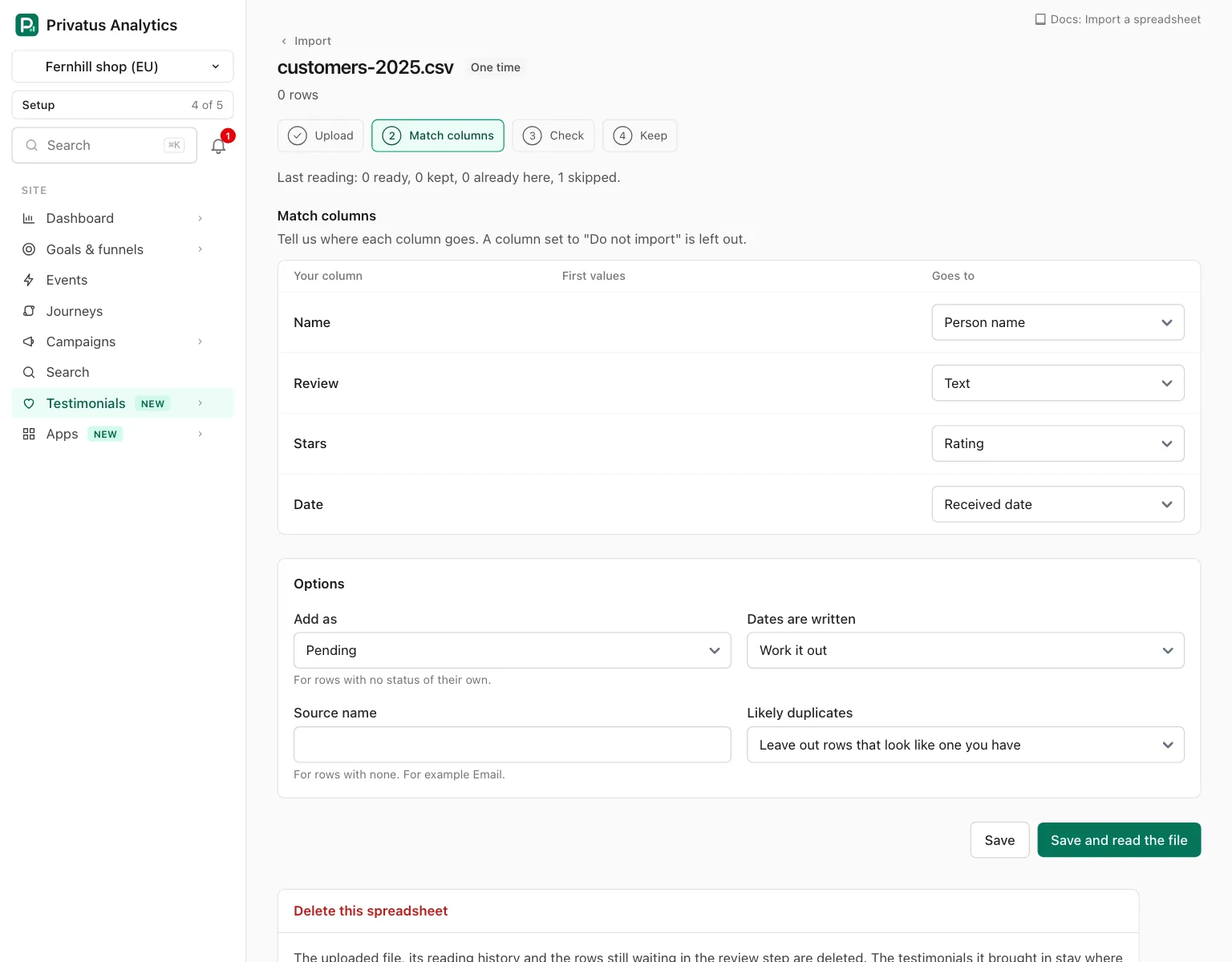
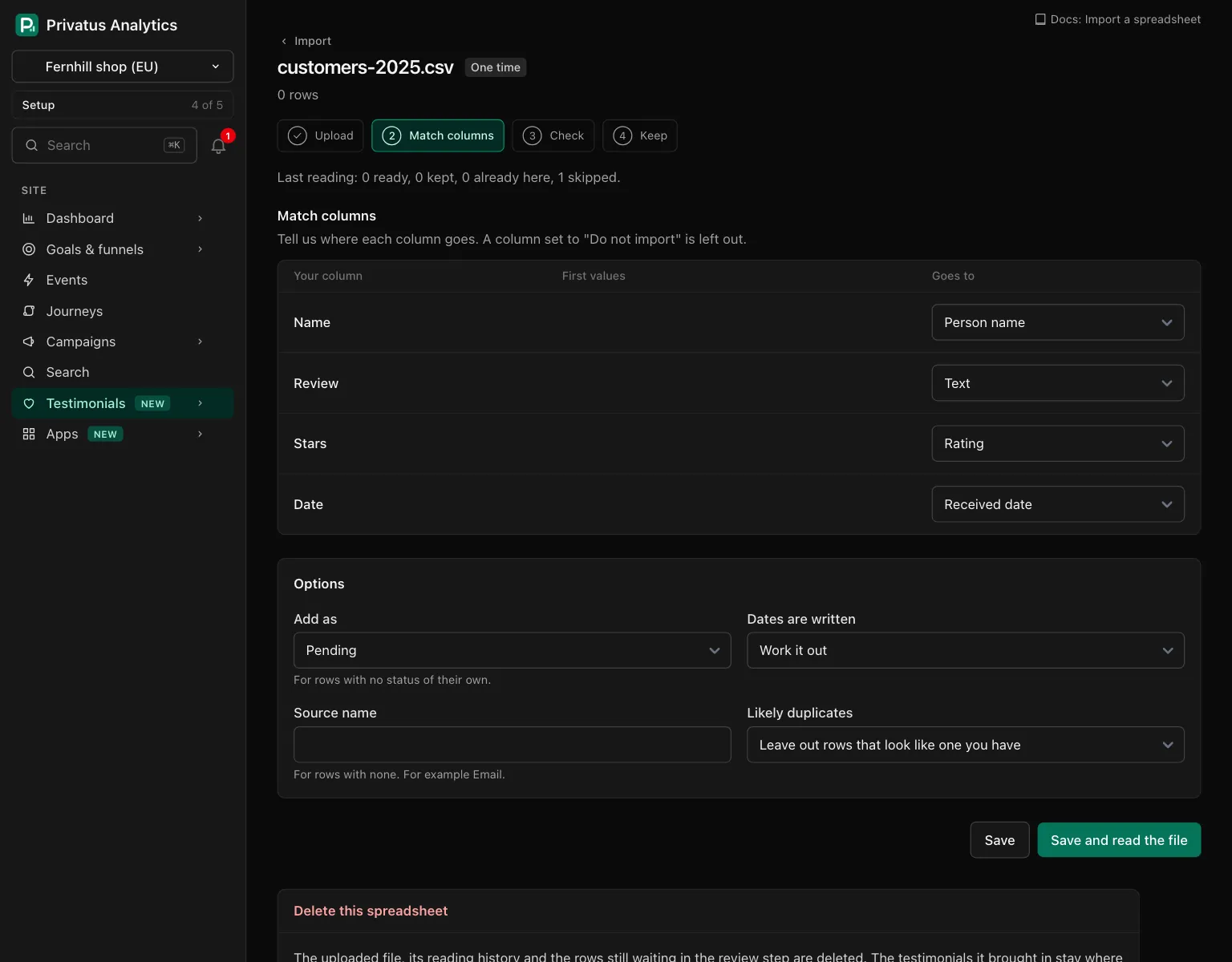
| Goes to | Rule |
|---|---|
| Person name | Needed. A row without one is skipped |
| Text | Needed. A row without it is skipped |
| Title, Person title, Company, External id | Optional text |
| Company URL, Social URL, Source URL | Optional. Kept when it starts with http:// or https://, otherwise left empty |
| Optional. An address that is not valid skips the row | |
| Rating | 1 to 5. A decimal is rounded. Anything else skips the row |
| Received date | Read with the date option below. A date cell of an Excel file is understood. Empty means today. A date that cannot be read skips the row |
| Photo URL | The person's photo, copied into your media when they have no photo yet |
| Source name | Where the testimonial came from, for example Email |
| Language | A two or three letter language code |
| Status | pending, approved or rejected. Anything else takes Add as below |
| Tags | Separated by commas |
| Highlight | Kept when it is part of the text, otherwise dropped |
| A custom property | One entry for each custom property of the site that is not archived |
Two columns cannot go to the same field. Person name and Text must each have a column before the file can be read.
3. Options#
| Option | What it does |
|---|---|
| Add as | Pending or Approved, for rows with no status of their own |
| Dates are written | Work it out, Year first (2026-09-14), Day first (14/09/2026) or Month first (09/14/2026) |
| Source name | For rows with none |
| Likely duplicates | Leave out rows that look like one you have, or Offer them too, and send each pair to Duplicates. See the note below |
Save stores the matching and the options. Save and read the file stores them and reads the file.
Note: A row that looks like a testimonial you have is listed in the review step with the badge Looks like one you have. With Leave out rows that look like one you have it has no tick, and keeping "all" over the API leaves it out. With Offer them too, and send each pair to Duplicates it is ticked like a new row and kept with the rest, and the pair then waits in Duplicates. You can change a tick by hand either way.
4. Check and keep#
A file of up to 300 rows is read at once. A longer one is read in the background, and the page refreshes itself until it is done.
You land in the review step, where every usable row is a card with its row number. Rows that cannot be used are counted above the list, for example "3 rows could not be used". Open that line to see up to 50 of them, each with its row number and the reason:
| Reason | Meaning |
|---|---|
| no name | The Person name cell is empty |
| no text | The Text cell is empty |
| the rating is not a number from 1 to 5 | The Rating cell holds something else |
| the date could not be read | Try another choice under Dates are written |
| the email address is not valid | The Email cell is not an address |
Tick what to keep and press Keep the ticked ones, or press Keep all N new. Each kept row arrives with the status of its Status cell, or with Add as from the options when it has none.
Afterward the file's page says what the last reading gave: how many are ready, kept, already here and skipped. You can change the matching and read the file again. A row that is still waiting is not listed twice, and it keeps what was read the first time.
API and MCP#
| Action | MCP tool | Permission |
|---|---|---|
| Upload a file | testimonial_spreadsheet_imports_create |
content.write |
| Read the file's columns, matching and counts | testimonial_spreadsheet_imports_get |
analytics.read |
| Set the matching and the options | testimonial_spreadsheet_imports_update |
content.write |
| Read the file into the review step | testimonial_spreadsheet_imports_run |
content.write |
A caller that cannot send a file sends content: CSV text up to 1 MB.
Review and keep with testimonial_import_sources_review and
testimonial_import_sources_keep, using the spreadsheet's id as the source
id. The inputs and response fields are in the API reference
and the MCP reference.
Good to know#
- Video, audio and image columns other than the person's photo are not read from a spreadsheet.
- The uploaded file is listed in the Sources table of the Import tab, with File where a link would be. Open in its row menu leads back to the matching page.
- Delete spreadsheet, at the foot of the matching page, deletes the uploaded file, its reading history and the rows still waiting in the review step. The testimonials it brought in stay.
- The review step shows Add as again, set to the option you saved. For a spreadsheet a row's status is fixed when the file is read (its Status cell, or the saved Add as), and the choice in the review step does not change it. To change it, press Discard everything waiting, change the option on the matching page and read the file again.
- The file can only be opened if its name ends in
.csv,.tsvor.xlsx. An older.xlsfile must be saved again as one of those. - If a CSV cannot be read, save it again as CSV with UTF-8 encoding and upload it once more.
- A spreadsheet testimonial does not carry the verified mark.