Scheduled email reports
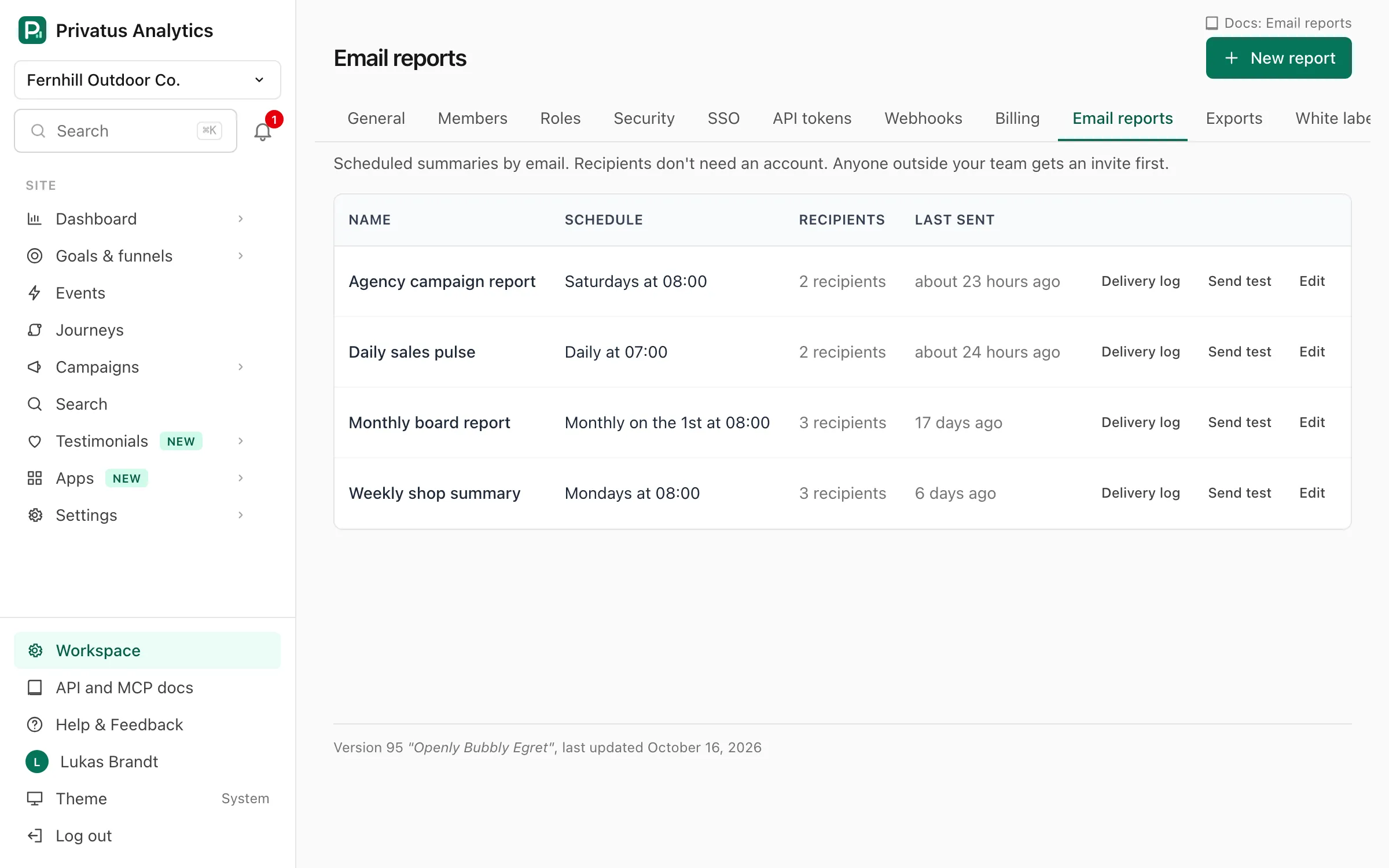
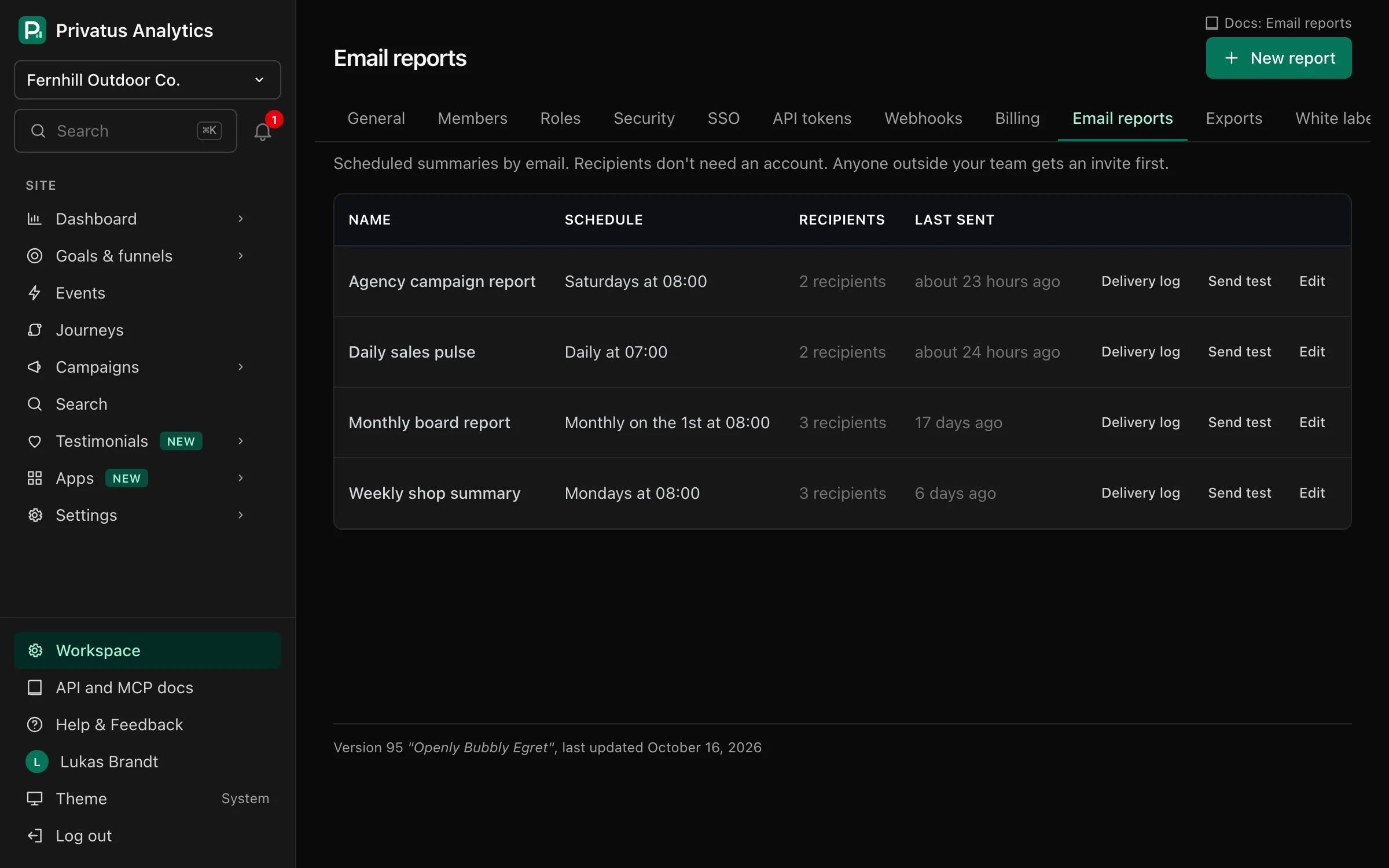
Send scheduled daily, weekly or monthly analytics email reports for one site or many to any recipient, with custom content blocks and an optional PDF attached.
Email reports → New report in the workspace menu. Creating and editing
reports needs the content.write permission.
You don't have to start from scratch. When your workspace's first site receives its first event, a report called "Weekly traffic" is created for you: weekly, Monday at 8:00, for that site, sent to the workspace owner. It is skipped if the workspace already has a report. Edit or delete it like any other report, or stop it with the unsubscribe link in the email.
| Setting | What it does |
|---|---|
| Name | The report's name, shown in the list and in the email. Up to 120 characters |
| Sites | One site or several. One email is sent, with a section per site |
| Frequency | Daily covers yesterday. Weekly is sent on the day you choose and covers the 7 days before it. Monthly is sent on the 1st and covers the previous month |
| Day | The weekday a weekly report is sent |
| Time | The hour the report is sent, in the workspace timezone |
| Recipients | Up to 50 email addresses. Recipients don't need an account. People outside your workspace get an invite first (see below) |
| Content | The blocks to include (see below). At least one |
| Intro text | Your own text at the top. Optional, up to 2,000 characters |
| Attach a PDF | Adds the report as a PDF attachment |
| Send on schedule | Untick to pause the report. A report that is sent on schedule needs at least one recipient |
Reports are sent within 15 minutes of the chosen hour.
Content blocks#
| Block | Shows, per site |
|---|---|
| Key metrics | The period's totals, with the change against the period before |
| Chart | Visitors per day |
| Top pages | The top 5 pages |
| Top sources | The top 5 referrers |
| Goals | The top 5 goals |
| Campaigns | The top 5 UTM campaigns |
| Web Vitals | The 75th percentile of each vital, rated good, needs improvement or poor |
| Uptime | Each uptime check's status and uptime percentage for the period. Includes the workspace checks that watch the site's domain or a subdomain (see uptime) |
| Testimonials | The site's testimonials for the period. See below |
| Subscriptions | MRR at the end of the period with its change since the start, and what moved it: new, expansion, contraction, churned and net new MRR, and how many subscriptions started and ended. Only for a site with a payment provider connected (see subscription metrics) |
New reports have every block ticked except Campaigns, Web Vitals and Uptime.
The Testimonials block#
When testimonials were added to the site in the report's period, the block shows:
- New testimonials, with the change against the period before. Every way in counts, imports included, as on the Analytics tab.
- Approved and Pending: how many of those new ones have each status now.
- Average rating of the new ones that have a rating.
- Form views, Form submissions, Form completion, Widget views and Wall of Love views for the period, each only when it was counted.
- Up to two of the new approved testimonials as short quotes, best rated first, with the person's name as your widgets show it. A person who did not allow their name reads "A customer". No email address is ever in a report.
When nothing new came in, the block is one line, "No new testimonials in this period.", with a link to your form's share page (or to the Inbox when the site has no form) and the counted views.
On a site where Testimonials was never set up (no form, no import and no testimonial), the block is a short invitation with a Set up Testimonials button that opens the Testimonials page of that site. It is shown in at most the first 3 scheduled sends of a report, and never after the setup card in Testimonials was dismissed for that site.
Who sees what:
| Recipient | With testimonials in the period | None in the period | Never set up |
|---|---|---|---|
| A member of the workspace | The numbers and quotes | The one line | The invitation, up to 3 times |
| Anyone else | The numbers and quotes | Nothing | Nothing |
| Any recipient, with white label on | The numbers and quotes | Nothing | Nothing |
The PDF has the numbers only, and only when testimonials came in. Untick Testimonials under Content to leave the block out of a report.
Tests and the delivery log#
Send test sends the report to you right away without changing its schedule (up to 10 tests an hour per member, together with notification channel tests). The delivery log lists every send with its status:
| Status | Meaning |
|---|---|
| Sent | A scheduled send went out. If the mail service refused some recipients, the entry says how many |
| Test | A test send |
| Failed | Nothing could be sent. The entry shows the error |
| Skipped | The report had no active recipients or no sites |
Recipients outside your workspace#
Members of your workspace are added at once. Anyone else gets one invite email with Accept and Decline links, and receives nothing more unless they accept. The report form shows each recipient's status: Active, Invite sent (with the date), Declined or Unsubscribed.
- Invites expire after 14 days. Resend invite is allowed once every 7 days per address and report.
- An address can be sent at most 3 report invites a week, counted across all workspaces.
- Send test to an address that hasn't accepted goes to you instead.
- Removing an address from the list deletes it from the report.
Every report email has a one-click unsubscribe link. Declining or unsubscribing puts the address on an opt-out list: no workspace can add it to a report again, and the form shows "This address has opted out of reports". Only the person can undo it, with the Receive reports again button on the unsubscribe or decline page, which emails them a confirmation link. A report whose last recipient unsubscribes is paused.
API#
The API and MCP take the same recipients list of addresses. Reports
return each address with its status in recipient_details, and
email_report_recipients_list, email_report_recipients_resend and
email_report_recipients_delete manage them one by one.
Plans#
The Free plan includes 3 email reports. Paid plans are unlimited.