Two-factor authentication (2FA)
Turn on two-factor authentication with an authenticator app or passkeys, save recovery codes, and enforce 2FA for every member of your analytics workspace.
Your second factor can be an authenticator app (TOTP codes), a passkey, or both. Both are set up under Account → Security, on every plan.
Turn it on#
Account → Security → Authenticator app (2FA) → Set up authenticator app.
- Scan the QR code with an authenticator app (1Password, Google Authenticator, Authy, Microsoft Authenticator…), or type in the key shown under it.
- Enter the six-digit code to confirm.
- Save your 10 recovery codes. They are shown once, and each works once in place of a code if you lose your device. New recovery codes replaces them all, which invalidates the old ones.
From then on, after your password, email link, Google, GitHub or Apple login, you're asked for a code, a passkey or a recovery code. Each code works once. After 5 wrong codes the account's second step is locked for 15 minutes.
To turn the authenticator app off, enter your password next to Turn off on the same page.
Passkeys#
Add passkeys (Touch ID, Face ID, Windows Hello, a security key or a password manager) under Account → Security → Passkeys: give it a name and choose Add passkey. Remove deletes one. A passkey can sign you in on its own from Log in with a passkey, with no second step, and it can answer the second step after another login.
Enforce it for everyone#
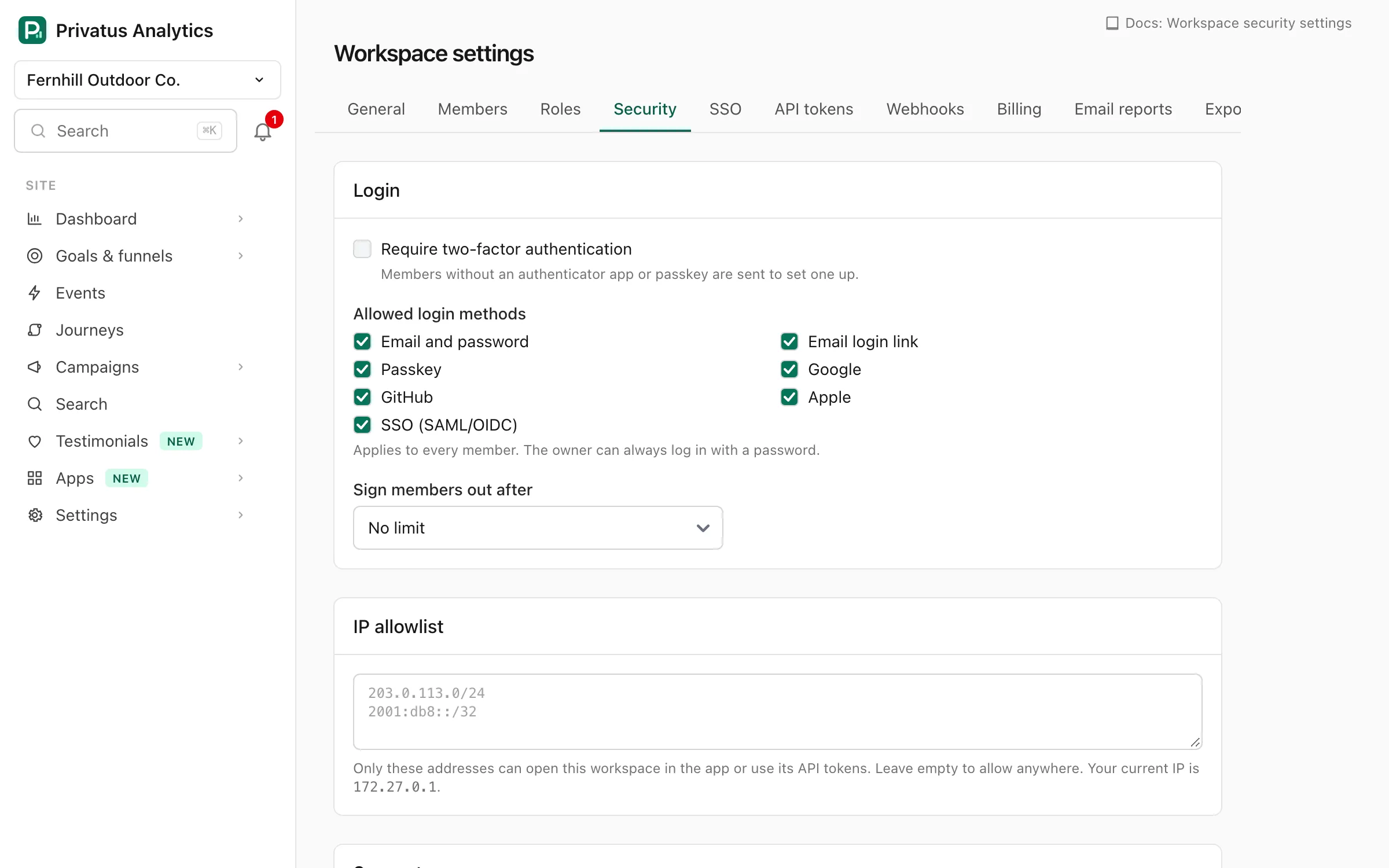
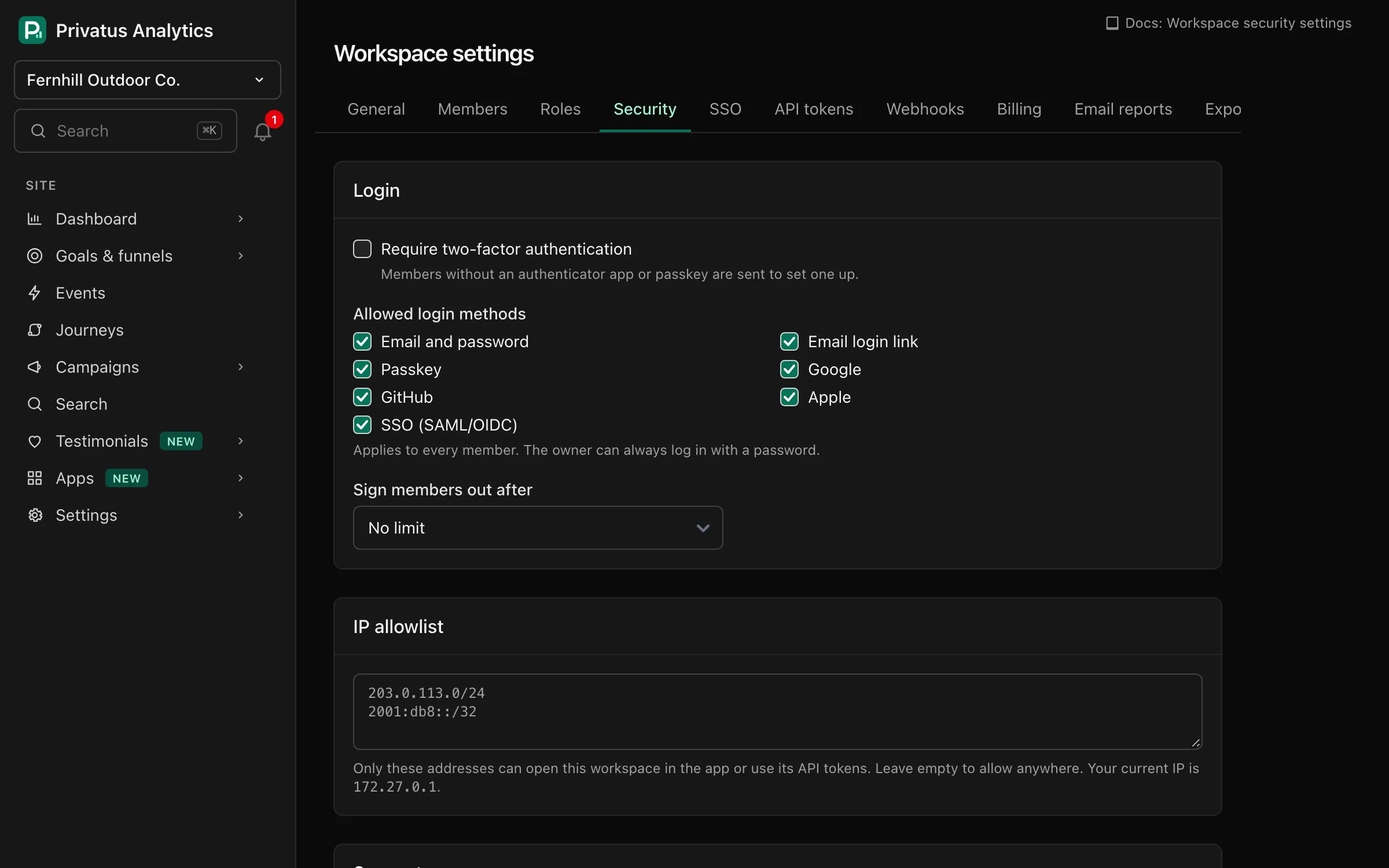
On the Business plan, owners and admins can require 2FA for all members
in Workspace settings → Security. Members without it are sent to
Account → Security to set it up when they open the workspace, and API
calls from their browser session get a two_factor_required error. If the workspace moves to a lower plan, the
setting is kept but stops applying until it's back on Business. The Members
list shows each member's 2FA status on every plan.
The rule: a workspace that requires 2FA opens only for a member who has a second factor of their own (an authenticator app or a passkey), however they logged in. There is one exception, for members who have no login of their own to set one up with. While this workspace's single sign-on is switched on and its login rules leave a member SSO only (SSO is enforced, or the allowed login methods are SSO alone, or SSO and passkeys for a member without a passkey), a session that this workspace's own identity provider opened is let in without it. The same goes for a member whom another workspace's enforced SSO leaves no login of their own. A workspace that only lists SSO as its login method and has no identity provider does not count. Where the exception applies, require multi-factor authentication in the identity provider. It never gives new API access: creating an API token or connecting an MCP client always needs the member's own second factor. Ask, the assistant in the dashboard, works without one.
Everyone else is asked in an SSO session too. Two-factor authentication can't be set up from an SSO session, so the message names the logins your workspaces allow (an email link, your password, Google, GitHub or Apple). Log in with one of them, set it up, then log in again.
Lost access?#
Use a recovery code or a passkey. If you have neither, write to [email protected].