Invite your team and set member roles
Invite team members to your analytics workspace, give each a role from owner to viewer, limit which sites they see, or share a dashboard without an account.
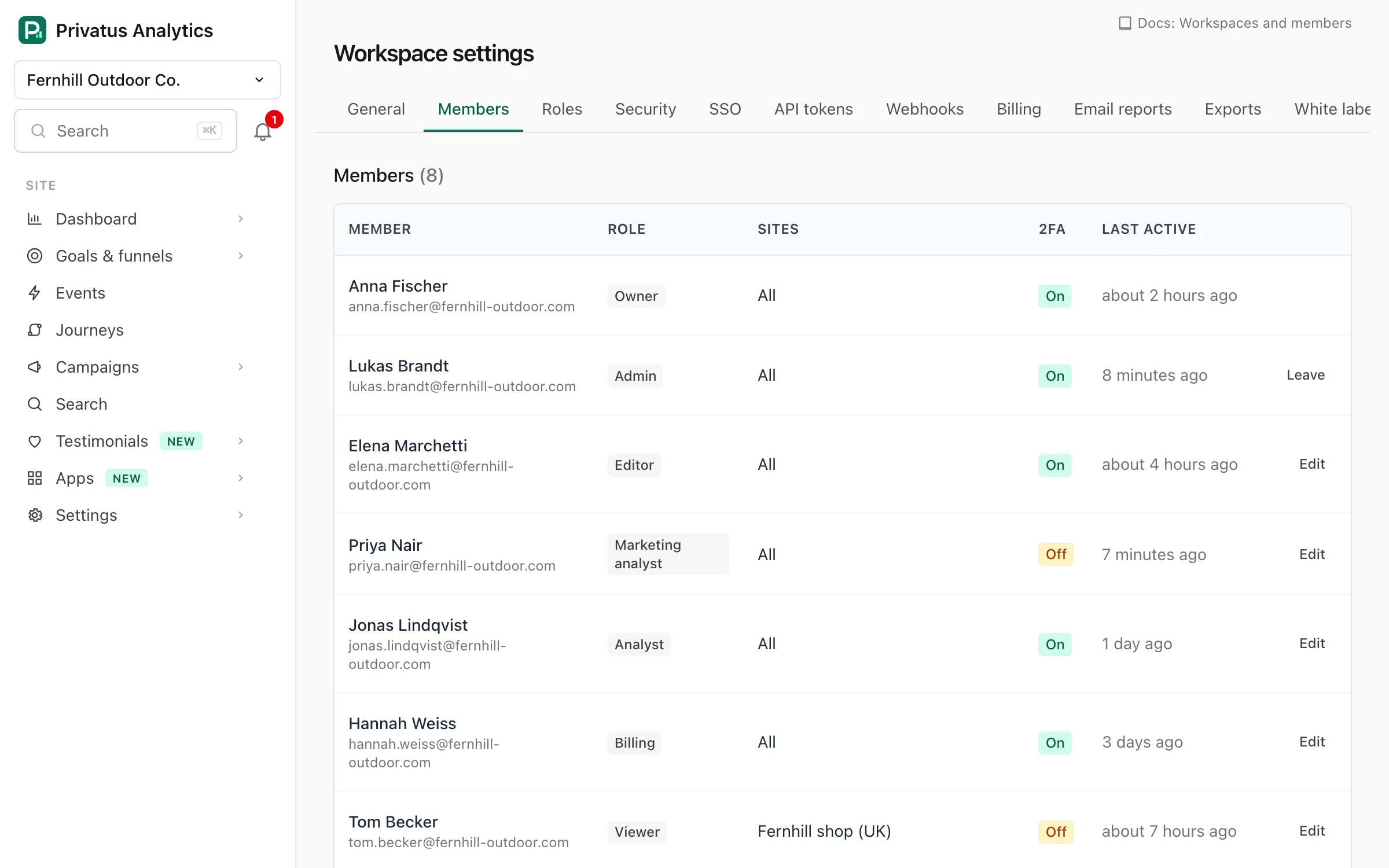
Go to Members in the workspace menu and use the Invite people form. Inviting needs the Owner or Admin role.
| Field | What it does |
|---|---|
| Email addresses | One or more, separated by commas or new lines, up to 50 at a time. Addresses that are already members are skipped. |
| Role | What the person can do. See the table below. Defaults to Viewer. |
| Site access | All sites, including future ones, or Only selected sites, where you tick the sites. |
Invitees get an email with a link that is valid for 14 days. They sign up or log in with the invited email address and accept, and land in your workspace. An account with another address can't accept it. Until then the invitation is listed under Pending invitations, where you can Revoke it. Inviting the same address again replaces its pending invitation.
Roles at a glance#
| Role | Typical use |
|---|---|
| Owner | Everything. Only the owner can delete the workspace or transfer ownership. One per workspace: you can't invite an owner |
| Admin | Everything else, including members, billing, API tokens and workspace settings |
| Editor | Dashboards, exports, goals, funnels, notes, site settings, uptime checks, but no billing, members or workspace settings |
| Analyst | Dashboards, exports, goals, funnels, segments, notes, alerts and email reports, but no site settings |
| Viewer | Read-only dashboards and reports |
| Billing | Plan, invoices and payment details only. No dashboards |
The Business plan adds custom roles. The complete permission matrix is in Roles & permissions.
The Free plan is for one person, the owner, so inviting anyone needs a paid plan or the Pro trial. Paid plans have no member limit.
Share without an account#
To show a dashboard to someone who doesn't need to sign in (a client, your investors, the whole internet), use a shared link instead.